
QuickBooks error 15241 prevents payroll updates from downloading or completing. This issue usually happens when QuickBooks File Copy Services is disabled. It can also occur due to issues such as unverified digital signatures, incorrect system configurations, or conflicts with firewall settings.
You may encounter sluggish system performance, unresponsiveness from input devices, or a crash when you’re trying to update QB payroll. To fix this error, it is crucial to ensure that the system is up to date, that the correct preferences are set in QB, and that internet security settings allow QuickBooks to access the internet.
A Quick View Table – QuickBooks Error 15241
Let’s discuss the crucial points mentioned in this blog:
| Error Description | QuickBooks error 15241 is a problem that prevents payroll updates from downloading or completing successfully. |
| Causes of this Error | QuickBooks error 15241 is caused by a missing file or component required for payroll updates, an incorrectly mapped shared download drive, a firewall setting, incorrect IE settings, an unverified digital signature, or disabled QB File Copy Services (FCS). |
| Resolutions for this Error | You can resolve this error by downloading the QB updates as an administrator, launching Quick Fix My Program, repairing QuickBooks, reinstalling QB, updating QBDT to the latest release, downloading and installing the QB Tool Hub, installing a digital signature certificate, and getting the latest tax table update in QBDT payroll. |
How to Troubleshoot the QuickBooks Error 15241?
As discussed above, QuickBooks error code 15241 stops payroll updates from downloading or finishing successfully. Now, we will mention the resolutions for this issue.
Method 1: Download the QB Updates as an Administrator
You can resolve the QB error 15241 by downloading the QB updates as an administrator. Perform the steps mentioned below:
- Begin by closing the company files and QuickBooks Desktop.
- Next, right-click the QuickBooks Desktop icon and select Run as Administrator.
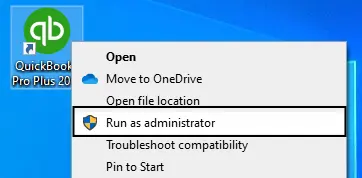
- After that, select Yes on the message that says, “Do you want to allow this program to make changes to your computer?”
- Then, download the current QuickBooks Desktop product updates.
- Finally, download the latest payroll tax table update again.
If you are still encountering the error code 15241 in QuickBooks Desktop, proceed to the next method.
Method 2: Launch Quick Fix My Program
It is recommended to launch Quick Fix My Program to troubleshoot this issue. Follow the steps mentioned below:
Step 1: Download and install the QuickBooks Tools Hub
The QB Tool Hub helps resolve common errors. You will be required to close QB to use the tool hub. It is recommended to use Tool Hub on Windows, 64-bit, for the best experience.
- First, close QuickBooks.
- Next, download the latest version (1.6.0.8) of the QB Tool Hub.
- Then, you need to save the file somewhere you can easily find it (like your Windows desktop or your Downloads folder).
Note: If you’ve installed Tool Hub before, you can find out which version you have. Select the Home tab. The version will be at the bottom.
- After that, open the downloaded file (QuickBooksToolHub.exe).
- Now, follow the on-screen steps to install and agree to the terms and conditions.
- When the installation finishes, double-click the icon on the Windows desktop to open the tool hub.
Note: If you cannot find the icon, search Windows for “QuickBooks Tool Hub” and choose the program.
Step 2: Run the Quick Fix my Program from the Tool Hub
The Quick Fix will shut down any lingering background procedures QuickBooks may be using. It will launch a quick repair on the program.
- First, select Program Problems in the QuickBooks Tools Hub.
- Choose Quick Fix my Program.
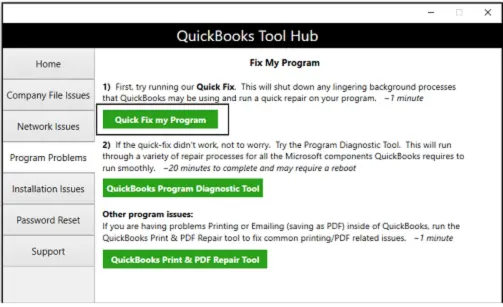
If you’re still encountering QuickBooks error 15241, try the next solution.
Method 3: Repair QuickBooks
You can resolve QuickBooks error 15241 by repairing QB using the QuickBooks Install Diagnostic Tool. You need to follow the instructions mentioned below:
- First, open the QuickBooks Tool Hub, then choose Installation Issues.
- Next, you need to choose the QuickBooks Install Diagnostic Tool. Let the tool run. It can take approximately 20 minutes.
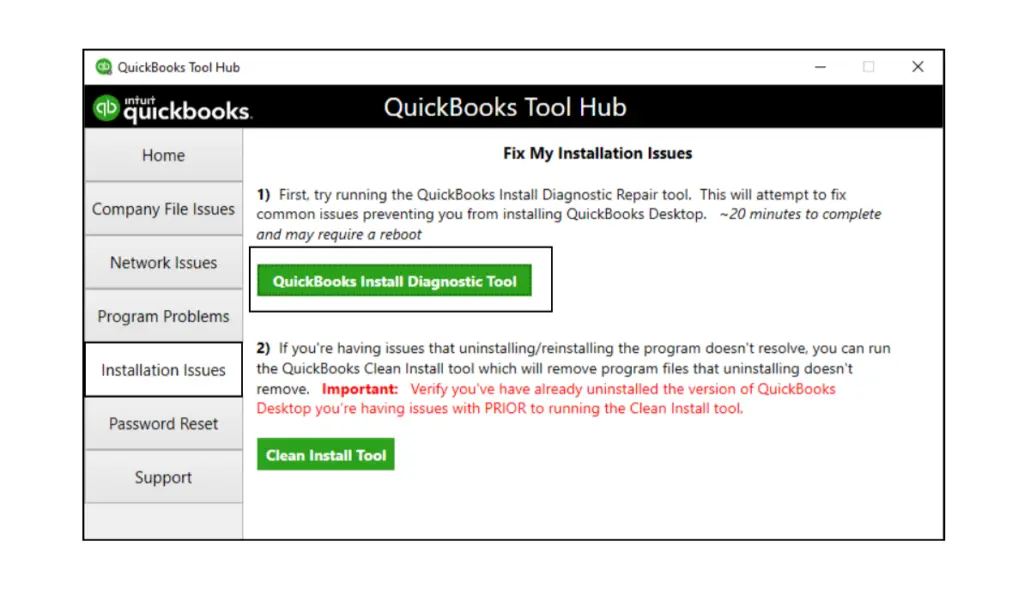
- When the tool finishes the procedure, restart the computer, start QuickBooks Desktop, and open the data file.
- Lastly, update your QuickBooks to the latest release.
This ensures you have the latest fixes and security updates. If you’re still encountering the error 15241 QuickBooks Desktop, move to the next solution.
Method 4: Reinstall QuickBooks
You can reinstall QuickBooks Desktop to fix the QuickBooks Payroll update error 15241. If you are still facing this issue, proceed to the next method.
Method 5: Update QBDT to the Latest Release
Another effective resolution for the QuickBooks error 15241 is to update QuickBooks to the latest release. Perform the next method if you are still experiencing this issue.
Method 6: Download and Install the QuickBooks Tool Hub
The QuickBooks error code 15241 can be resolved by downloading and installing the QuickBooks Tool Hub. You need to follow the step-by-step solution discussed below:
Step 1: Download and install the QuickBooks Tool Hub
You should use Windows 11 (64-bit) for the best experience.
- Firstly, close QuickBooks Desktop.
- Then, download the most recent version of the QuickBooks Tool Hub.
- Next, save the file somewhere easy to find, such as the Downloads folder or the Windows desktop. If you can’t find the file after downloading, search the computer for “QuickBooksToolHub”.
- After that, open the downloaded file (named QuickBooksToolHub.exe).
- Now, follow the on-screen steps to install and agree to the terms and conditions.
- When the installation procedure completes, double-click the QuickBooks Tool Hub icon on the Windows desktop to open it.
You need to choose the Home tab in the tool hub to check the version.
Step 2: Use the tools in the QuickBooks Tool Hub
The Tool Hub offers tabs with specific tools to fix different types of issues.
Note: If you install a tool from within the Tool Hub, it downloads in the background and may take 2–3 minutes. Keep the installer open until the download finishes to ensure the tool runs correctly.
Resolve the error if QuickBooksToolHub.exe has been blocked
If your device blocks the installation, you may see the message: “QuickBooksToolHub.exe has been blocked because it can harm your device.”
- Start by using a different web browser to download the Tool Hub.
- If you get a message from Microsoft Defender, choose the More info option.
- Finally, choose the Run anyway option to start the installation process.
If this method doesn’t work and you’re still facing the QB error 15241, proceed to the next solution.
Method 7: Install a Digital Signature Certificate
You should install a digital signature certificate to resolve the QuickBooks error 15241. Follow the steps mentioned below:
- First, navigate to C:\Program Files\Intuit\QuickBooks.
- Then, right-click on QBW32.exe and choose the Properties option.
- Next, select Digital Signature and check whether Intuit is selected in the signature list.
- Choose the Details option.
- Choose the View Certificate in the Digital Signature Details window.
- In the Certificate window, choose the Install Certificate option.
- Now choose Next until Finish is displayed. Then, choose Finish.
- You need to restart your computer.
- Finally, open QuickBooks, then redownload the update.
Installing a digital signature certificate is an effective way to resolve error 15241. If this issue persists, perform the next solution.
Method 8: Get the Latest Tax Table Update in QuickBooks Desktop Payroll
The payroll tax tables offer the latest, precise rates and calculations for federal and supported state taxes, payroll tax forms, and e-file and e-pay options. Perform the steps mentioned below to fix the QuickBooks error 15241:
- First, navigate to Employees, then choose the Get Payroll Updates.
- You need to find your tax table version:
- Verify the number next to You are using tax table version:.
- See the latest payroll news and updates to see if it is the right version.
- Select Payroll Update Info to find more details on your tax table version.
- You need to get the latest tax table:
- Choose the Download Entire Update option.
- Choose Update. An informational window shows when the download is finished.
If you are facing the QuickBooks error 15241 after getting the latest tax table update, move on to the next solution.
Method 9: Fix Intuit QuickBooks File Copy Service (For Users on Windows Vista, 7, 8, or 10)
Editing the “Startup Type” to “Manual” and starting the service ensures that QuickBooks FCS is properly initialized, resolving error 15241. Here are the steps discussed below:
- First, close QuickBooks Desktop.
- Then, press the Windows key to open the Start menu.
- Next, right-click on “Computer” and choose the “Manage” option.
- For Windows 10, use the search bar on the taskbar, write “Computer,” and hit the Enter key. Right-click on “This PC” and choose the “Manage” option.
- In the left pane, choose the “Services and Applications” option, then double-click “Services” in the right pane.
- Find the “Intuit QuickBooks FCS” and double-click it.
- Set the “Startup Type” to “Manual” under the “General” tab
- Now, hit Apply, then select Start.
- Finally, click “OK” and exit the window.
Practice the methods given above to resolve the QuickBooks Pro Update error 15241.
What Expert Tips Should You Follow to Avoid Error 15241 in QuickBooks?
It is beneficial to perform the healthy practices to avoid error 15241
- It is recommended to set Internet Explorer as the default browser. You should ensure its settings are configured correctly to prevent the QuickBooks error 15241.
- You should update QuickBooks to ensure you are using the most current version.
- It is important to ensure your system date and time are accurate, as incorrect settings can cause errors.
- You should configure the firewall and internet security settings to allow QuickBooks to access the internet.
- Ensure to keep QuickBooks up-to-date.
Go through these tips and practice them to prevent the occurrence of this error in the future.
What Leads to the QuickBooks Error 15241?
As discussed above, QB error 15241 is caused by the QuickBooks File Copy Service being disabled. You should know the other causes of this issue to resolve it easily.
- Error 15241 occurs when a required file or component for payroll updates is missing.
- If the shared Download drive was not mapped correctly, it also causes error 15241 Quickbooks Desktop.
- A firewall setting can also block payroll updates in QBDT.
- Incorrect IE settings can also lead to QB update error 15241.
- If you are unable to verify digital signatures, it can also cause error 15241.
- The disabled QuickBooks File Copy Service (FCS) can also lead to this issue.
You must understand the causes of QuickBooks error 15241 to resolve it quickly.
Conclusion
In this blog, we discussed the QuickBooks error 15241 in detail. We also covered the causes of this issue. We also recommended the healthy practices to prevent this issue.
Frequently Asked Questions
What are the Primary Drivers of the QuickBooks Payroll update error 15241?
QuickBooks Payroll update error 15241 usually occurs if the QBDT File Copy Service (FCS) is disabled. This service is crucial for the capacity of QuickBooks Software and payroll updates.
If I see QuickBooks error code 15241 in QuickBooks Payroll, can I process payroll?
Once you encounter QuickBooks error code 15241, you may be unable to process payroll.
What are the other 15 series errors that show while updating payroll?
Why am I unable to work with QuickBooks Payroll?
If you are unable to work with QB Payroll, try clearing your web browser’s junk files. These files can cause bugs in QuickBooks, including error code 15241. So, it is necessary to clear them and resolve the issue affecting QuickBooks Payroll.
You May Read Also-
How to Change QuickBooks License Number?
How to Fix QuickBooks Error 80070057 (Easy & Proven Methods)
What is QuickBooks Error 40003? Causes and Proven Solutions
QuickBooks Error 12057: Troubleshooting Guide to Resolve It Fast
Facing QuickBooks Display Issues? Here’s How to Fix It Fast

James Richard is a skilled technical writer with 16 years of experience at QuickBooks Data Migration. His expertise covers data migration, conversion, and desktop errors for QuickBooks. He excels at explaining complex technical topics clearly and simply for readers. Through engaging, informative blog posts, James makes even the most challenging QuickBooks issues feel manageable. With his passion for writing and deep knowledge, he is a trusted resource for anyone seeking clarity on accounting software problems.