It’s only natural to change your workstations as they get outdated from time to time, as the minimum requirements for simple apps rise. This can be a factor affecting your choice to move QuickBooks to new computer. If you wish to do the same, you’ve arrived at the right place. We’ll cover all that you need to know to move QuickBooks Desktop to another computer using the migrator tool in this blog. First, let us start with what gets copied and what doesn’t using the migrator tool.
Move QuickBooks to New Computer – A Quick View Table
Given in the table below is a concise summary of this blog on the topic of moving the QB Desktop app to a new computer:
| Description | You can move QuickBooks to new computer to avoid things like working on an outdated system or storage issues. This can boost your productivity and business processes. |
| Move QB with the migrator tool | 1. Open the QB Desktop app on your old PC 2. Navigate to the File menu 3. Click on Utilities 4. Then, click on the Move QuickBooks to another computer option 5. Select I’m Ready 6. Create a one-time password and note it down 7. You will only need this password once for the migrator tool 8. Follow the instructions on your screen to choose the USB flash drive you’ll use 9. Wait for the files to be copied 10. Insert the USB flash drive in the new PC 11. The migrator tool won’t auto-open due to the Windows security restrictions 12. Open the flash drive and view its files 13. Double-click on the Move_QuickBooks.bat file to start the migrator tool 14. Enter the one-time password you just created 15. Click on Let’s go 16. Wait for the migrator tool to finish working |
| Move QB without the migrator tool | 1. Ensure you have your product and license information in hand 2. Create a backup of your company file on your old PC 3. Uninstall the QB Desktop app on your old PC 4. Now, download the installation files or insert the installation CD into your new computer 5. Install the QuickBooks Desktop app on your new PC 6. Move the backup file you created in the previous step to your new PC . You can do so via a USB flash drive or an external storage device 7. Then, restore the backup copy of your company file on your new PC 8. If you use payroll, download the latest tax table after moving your company file |
What Gets Copied & What Doesn’t Using the Migrator Tool
Given below are two separate lists showing what gets copied and what doesn’t using the migrator tool to move your QuickBooks data to a new computer:
Data that Gets Copied
- QuickBooks Desktop details, like:
- Version
- Other details you need to install QB Desktop on your new PC
- Up to the last three opened QB company files on your old system
- Including sample files
- Related files, custom templates & forms
- Memorized and scheduled reports
- Local attachments
- Printer Setting (PrintEng.ini, wpr.ini, and QBPrint.qbp)
- Spell Checker (spell.ini and UserDictionary.tlx)
- Financial Statement Designer (FSD data)
- Financial Statement Designer (FSD clients)
- Cash Flow Projector (.cfp)
- Loan Manager (.lmr)
- Business Planner (.bpw)
- Advanced reports
- For QuickBooks Enterprise only
- Statement writer
- For QuickBooks Accountant only
Data that Doesn’t Get Copied
- Configurations of your multi-user setup
- Any payment or payroll setup
- You will have to sign in again on the new PC for data security reasons
- Any of the QB company files that haven’t recently been opened
- You can move these files manually or restore them from Intuit Data Protect
- Any of the manual QB backup files
- Intuit Data Protect
- You would have to uninstall this from the old PC and set it up on your new PC manually
These are the things that would and won’t move when you move QuickBooks to new computer.
Meet the System Requirements to Use QuickBooks On Your New PC
Ensure that the PC you’re moving your QuickBooks Desktop app into matches or exceeds the system requirements given in the table below:
| Operating System | Windows 11, 64-bit, natively installed(Microsoft has discontinued support for Windows 10, so it won’t be getting security updates from Intuit) |
| Database Servers | Windows Server 2022, Standard and EssentialsWindows Server 2019, Standard and EssentialsWindows Server 2016, Standard and Essentials |
| Browser Requirements | QB Desktop requires internet access and the Google Chrome web browser |
| Processor | 2.4GHz minimum |
| Ram for the Workstation | Minimum 8 GB of RAM, 16 GB is recommended |
| Ram for the Server | 1–5 Users: 8GB10 Users: 12GB15 Users: 16GB20+ users: 20+GB |
| Disk Space | 2.5GB of disk space, and additional space is required for the company data files |
| Windows | You should be using the North American version of Windows. Regional settings are only supported when set to English. The server PC requires admin rights when hosting the company file. Ensure that it is natively installed and not running in a virtual environment. |
| Optical Drive (for CD Installation) | A 4X DVD-ROM |
| Screen Resolution | QB Desktop is optimized for 1280 x 1024 resolution or higher with up to 2 extended monitors |
| Software Compatibility | QBDT is compatible with the following: 1. Microsoft Office 2. TurboTax 3. Lacerte 4. Pro-Series tax year 5. Quicken 6. QuickBooks Desktop for Mac 7. Adobe Acrobat Reader 8. Payroll and other online features (with at least 1 MBPS recommended internet speed) |
These were the system requirements your new system needs to match. Now, let’s see how to move QuickBooks to new computer.
Migrate QuickBooks to New Computer with Guided Steps
Before we move on to the steps to migrate QuickBooks Desktop to a new computer, first, let’s see the things you would need to do the same.
Things You Would Need
- Company admin access for QB Desktop
- The new system should be connected to the internet
- The US version of QuickBooks Desktop 2018 or newer
- Windows 11 or later
- An external storage device with enough free memory to contain your QB company files
- The migrator tool would tell you the amount of free space you need
- For most people, it’s between 150 and 200 MB
- The QB Desktop product and license numbers
- You can find these numbers in your Intuit account or the purchase confirmation email
Now, let us see the steps to move QB Desktop to a new computer using the migrator tool.
Move QuickBooks to a New Computer Using the Migrator Tool
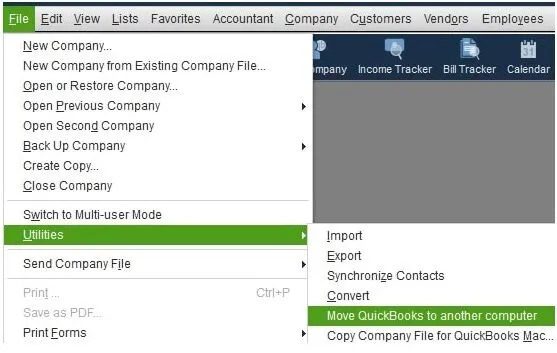
- Open the QB Desktop app on your old PC
- Navigate to the File menu
- Click on Utilities
- Then, click on the Move QuickBooks to another computer option
- Select I’m Ready
- Create a one-time password and note it down
- You will only need this password once for the migrator tool
- Follow the instructions on your screen to choose the USB flash drive you’ll use
- Wait for the files to be copied
- Insert the USB flash drive in the new PC
- The migrator tool won’t auto-open due to the Windows security restrictions
- Open the flash drive and view its files
- Double-click on the Move_QuickBooks.bat file to start the migrator tool
- Enter the one-time password you just created
- Click on Let’s go
- Wait for the migrator tool to finish working
The migrator tool would automatically remove the QuickBooks files from the USB flash drive after you’re done. The QB files would still be present in your old PC. Now, let us see how you can move to another PC without using the migrator tool.
Move QuickBooks Desktop to Another Computer Without the Migrator Tool
To move QuickBooks Desktop to another computer without using the migrator tool, follow the steps given below:
- Ensure you have your product and license information in hand
- Create a backup of your company file on your old PC:
- Open the QB Desktop app
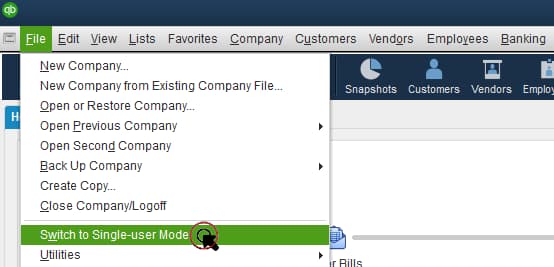
- Navigate to the File menu
- Click on Switch to Single-user Mode
- Go to the File menu again
- Hover over Back up Company
- Click on Create Local Backup
- Select Local Backup
- Press Next
- Go to the Local Backup Only section
- Click on Browse
- Choose where the backup file would be saved
- Set the number of backups you want to keep (optional)
- Press OK
- Select Save it now
- Press Next
- Uninstall the QB Desktop app on your old PC
- Now, download the installation files or insert the installation CD into your new computer
- Install the QuickBooks Desktop app on your new PC
Then, you would have to move the QB company file to your new computer.
Move QuickBooks Company File to Another Computer
- Move the backup file you created in the previous step to your new PC
- You can do so via a USB flash drive or an external storage device
- Then, restore the backup copy of your company file on your new PC:
- Open the QB Desktop app
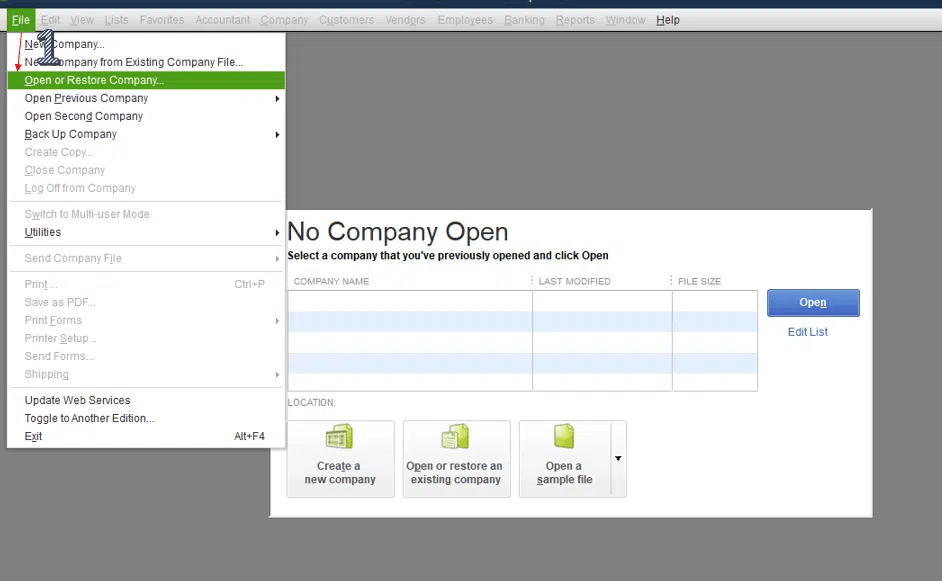
- Navigate to the File menu
- Click on Open or Restore Company
- Select Restore a backup copy
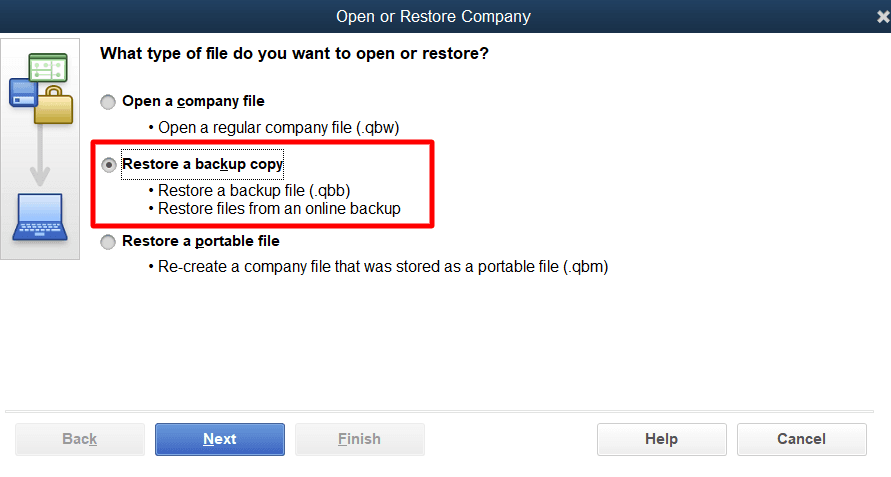
- Hit Next
- Press Local Backup
- Click on Next
- Locate the backup file you moved to your new PC
- Usually, the backup file looks like this: [Your company name].qbb
- Choose the folder where the restored file would be saved
- Click on Open
- Press Save when you’re ready
- If you use payroll, download the latest tax table after moving your company file
This would move the QuickBooks license to another computer.
Conclusion
You can move QuickBooks to new computer in order to avoid using the software on an outdated PC or having storage issues. This can boost your productivity and have a positive impact on your business progress. We have provided you with the steps you can use to move QB to a new PC using a migrator tool, along with the steps to migrate QB without the migrator tool.
Frequently Asked Questions
How to migrate QuickBooks to new computer?
You can migrate QuickBooks to a new computer using these steps:
1. Open the QB Desktop app on your old PC
2. Navigate to the File menu
3. Click on Utilities
4. Then, click on the Move QuickBooks to another computer option
5. Select I’m Ready
6. Create a one-time password and note it down
7. You will only need this password once for the migrator tool
8. Follow the instructions on your screen to choose the USB flash drive you’ll use
9. Wait for the files to be copied
10. Insert the USB flash drive in the new PC
11. The migrator tool won’t auto-open due to the Windows security restrictions
12. Open the flash drive and view its files
13. Double-click on the Move_QuickBooks.bat file to start the migrator tool
14. Enter the one-time password you just created
15. Click on Let’s go
16. Wait for the migrator tool to finish working
These were the steps you can use to move the QB Desktop app to a new computer by using the mirator tool.
How do you transfer QuickBooks to a new computer without the migrator tool?
You can transfer QuickBooks to a new computer without using the migrator tool with the steps given below:
1. Ensure you have your product and license information in hand
2. Create a backup of your company file on your old PC:
1. Open the QB Desktop app
2. Navigate to the File menu
3. Click on Switch to Single-user Mode
4. Go to the File menu again
5. Hover over Back up Company
6. Click on Create Local Backup
7. Select Local Backup
8. Press Next
9. Go to the Local Backup Only section
10. Click on Browse
11. Choose where the backup file would be saved
12. Set the number of backups you want to keep (optional)
13. Press OK
14. Select Save it now
15. Press Next
3. Uninstall the QB Desktop app on your old PC
4. Now, download the installation files or insert the installation CD into your new computer
5. Install the QuickBooks Desktop app on your new PC
6. Move the backup file you created in the previous step to your new PC
7. Then, restore the backup copy of your company file on your new PC
8. If you use payroll, download the latest tax table after moving your company file
These were the steps you can use to transfer QuickBooks to a new computer without moving the migrator tool. First, you have to install QB on your PC and then restore a backup you made.
When should I migrate QB to a new computer?
You should migrate QuickBooks to a new computer when any of the following occurs:
1. You feel like your PC is too outdated
2. QuickBooks doesn’t open properly on your current PC
3. QuickBooks doesn’t work or lags on your system
4. Your PC is out of storage to save QB data files
5. Your current PC doesn’t match the system requirements needed to run QuickBooks
These are some of the reasons you might consider moving the QB Desktop application to a new system.
You May Read Also-
Quick Guide to Migrate from QuickBooks Online to QuickBooks Desktop Safely
QuickBooks MAPI Keeps Asking for a Password? Solve It!
Fix Payroll Liabilities Not Showing in QuickBooks Desktop
The File You Specified Cannot Be Opened – Easy Fix
Making QuickBooks Antivirus Exclusions – Quick Guide

James Richard is a skilled technical writer with 16 years of experience at QuickBooks Data Migration. His expertise covers data migration, conversion, and desktop errors for QuickBooks. He excels at explaining complex technical topics clearly and simply for readers. Through engaging, informative blog posts, James makes even the most challenging QuickBooks issues feel manageable. With his passion for writing and deep knowledge, he is a trusted resource for anyone seeking clarity on accounting software problems.