
QuickBooks uses Web Connector to connect to some web-based programs. However, sometimes, you might see the QuickBooks Web Connector error QBWC1085 when opening QuickBooks Enterprise Solutions or when starting your computer.
It often occurs when the QWCLOG.TXT file used by the Web Connector program is damaged or inaccessible. This problem may arise when QBWC tries to get information from the third-party application. A lack of Windows OS admin user rights or damaged components of the Web Connector can be one of the reasons causing it. Consequently, QB can not connect with the third-party online applications you need to calculate taxes, track employees, or manage inventory.
Alright, let’s jump to the upcoming segments and explore more information about the QBWC1085 error connecting to QuickBooks.
A Quick Table- QuickBooks Web Connector Error QBWC1085
Here is a concise summary of the blog in a table to provide you with a lucid explanation of the QuickBooks error QBWC1085.
| What is QuickBooks Web Connector error QBWC1085? | Error QBWC1085 in QuickBooks typically occurs when opening QuickBooks Enterprise Solutions or when starting your computer. It prevents QB from connecting to the third-party applications. |
| Causes | 1. Insufficient Windows OS admin user rights 2. Damaged or missing components of the Web Connector 3. A damaged or corrupted QBWCLOG.txt file 4. Outdated QB application |
| Fixes for QBWC1085 error | 1. Rename the QWCLOG.TXT file 2. Remove Web Connector from the Start menu 3. Add Web Connector to the Start menu 4. Run Quick Fix my Program 5. Install QB updates 6. Repair the QuickBooks application for Windows 7. Try using another user with admin rights or creating a new user |
Simple Tactics to Rectify QuickBooks Web Connector Error QBWC1085
After knowing QBWC1085 QuickBooks error and the factors responsible for it, let’s dig into the segment and explore the troubleshooting methods.
Solution 1: Rename the QWCLOG.TXT file
If your company file is connected to a third-party application using Web Connector, you rename the QWCLOG.TXT file to QWCLOGOLD.TXT. It will force the QBWC to generate a new, fresh log file.
- Exit the QB application and Web Connector.
- Then, open Windows File Explorer.
- Go to the following folder:
C:\ProgramData\Intuit\QBWebConnector\log. - Rename the QWCLOG.TXT to QWCLOGOLD.TXT.
- Now, open the Web Connector again.
- Restart your computer and open QB.
- Sign in to your third-party application.
Renaming the QWCLOG.TXT file to QWCLOGOLD.TXT can resolve this issue. If you are still facing the same error, jump to the next method.
Solution 2: Remove Web Connector from the Start menu
If your company file is not connected to a third-party application. Doing this will prevent a corrupted, inaccessible, or misconfigured log file (QWCLOG.TXT) from loading when the computer starts.
- Run Windows as an admin and follow the path: C:\ProgramData\ Microsoft\Windows\Start Menu\Programs\Startup.
- Delete the QB Web Connector.
- Last, restart your system and open the QB program.
A different way to disconnect QB Web Connector from the Startup menu.
- First, you need to log in to the Windows OS as an admin user.
- Type msconfig in the Start tab and hit Enter to open it.
- Click on the Startup tab when you see a new window.
- Now, look for the QuickBooks Web Connector from the Startup tab.
- After you found the Web Connector application, uncheck the box next to it.
- Later, choose Apply, followed by OK.
Go to the upcoming solution if removing Web Connector doesn’t help you resolve the problem.
Solution 3: Add Web Connector to the Start menu
You can add the Web Connector to the Start menu to rectify the error code. See the steps and implement accordingly:
- Press Win+R on the keyboard to open the search menu.
- In the search dialog box, type msconfig and hit OK.
- Click on the Startup menu.
- Put a mark on the QuickBooks Web Connector program in the list.
- Choose Apply, followed by OK.
- Last, restart Windows and proceed.
If adding Web Connector to the Start menu is not proven helpful, try the next method to tackle this.
Solution 4: Run Quick Fix my Program
Download QuickBooks Tool Hub to run Quick Fix my Program. Follow the steps below to get out of the error code QBWC1085.
- To initiate this method, go to the official website of Intuit.
- Click on the link to download the QB Tool Hub.
- When the QuickBooksToolHub.exe file is downloaded, save it in an accessible folder where you can access it when needed.
- Now, you need to double-click on the file and launch it.
- Follow the instructions to install the file in the system.
- Also, agree to the terms and conditions.
- Choose OK, and you will see the QuickBooks Tool Hub icon on the desktop.
- Open the Tool Hub and click on the Program Problems.
- Click on Quick Fix my Program.
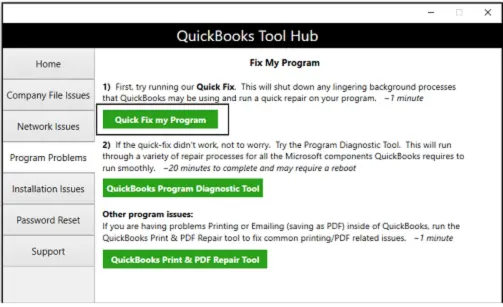
- Let the tool run and diagnose the issue to fix it.
Tool Hub contains different tools to resolve common QB issues. If running Quick Fix my Program doesn’t fix it, go through the next method and follow the steps.
Solution 5: Install QB updates
The issue may be caused by the outdated QB program. Let’s download its latest updates and try to get over the QuickBooks error message QBWC1085.
- First, you will need to open the QBDT application.
- Tap on the Help menu.
- Hover over the Help menu and choose Update QuickBooks Desktop.
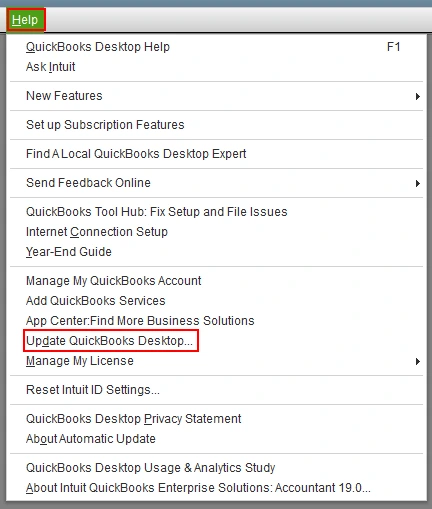
- Tap on Get Updates, followed by Update Now.
- At last, open the application and see if the error is fixed.
If the problem is not fixed by downloading the updates, you need to repair the QBDT software to rectify the problem.
Solution 6: Repair the QuickBooks application for Windows
Follow the steps below to repair QB for Windows.
- To begin, restart your system.
- Open the Start menu and search for Control Panel.
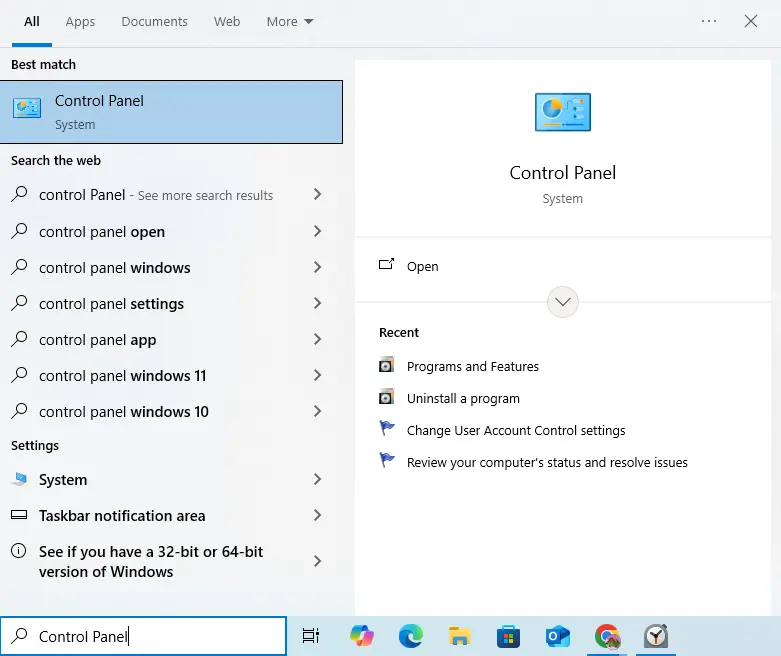
- Hit OK to open Control Panel.
- After it is launched, choose Programs and Features.
- Tap on Uninstall a Program if you can’t find the Programs and Features option.
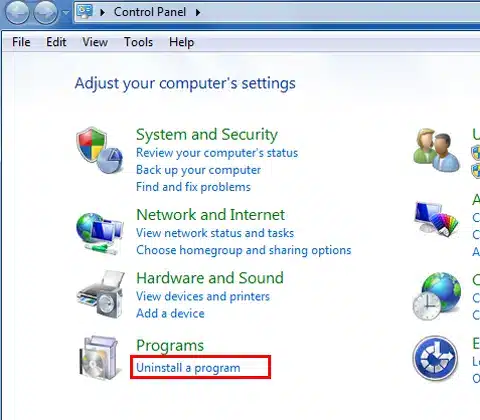
- Hover over the programs list.
- Choose QuickBooks and then tap on Uninstall/Change.
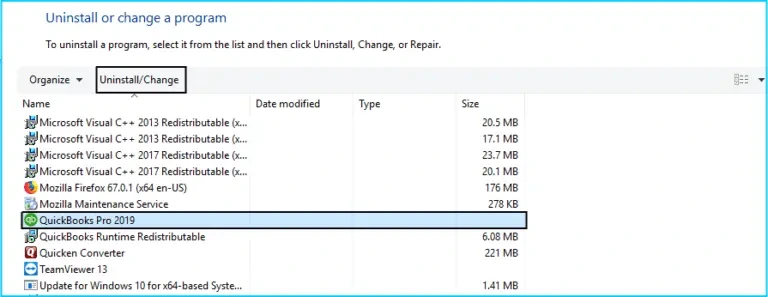
- Click on Continue or Next.
- Hit Repair, followed by Finish.
- When it is done, check if the problem is eliminated.
If you are still troubled by it, let’s try another way to fix the QuickBooks Web Connector error QBWC1085.
Solution 7: Try using another user with admin rights or creating a new user
You can attempt to use another user with admin rights or create a new user to rectify the error code QBWC1085.
- Go to the Start menu and search for Control Panel.
- Open it and choose Accounts.
- Head over to the Family and Other Users Settings.
- Click on Add Other User.
- Next, you need to choose Add Account.
- Now, in the Account Type field, choose Administrator.
- Tap OK.
- You will have to choose a user account and modify the account type to an administrator if you want to assign admin rights to an existing user.
- On the other hand, you can also create a new account with admin rights.
- Then, save the settings and log out.
- After that, log in again with the account you updated or created.
These steps will help you troubleshoot this problem. Check if you are able to fix it.
Know About QuickBooks QBWC1085 Error in Detail
QBWC1085 error QuickBooks occurs when there’s a damaged or missing QWCLOG.TXT file. It is shown with one of the following messages on the screen.
| QBWC1085: QuickBooks was unable to write to the log file. QuickBooks will open without writing to log file. |
| QBWC1085: There was a problem with the log file. QuickBooks Web Connector will continue without the log file. |
| Exception Type Error: Unknown name |
It arises due to the damaged QB Desktop program or when QB is unable to access the QWCLOG.TXT file. It further leads to interrupted data synchronization between QuickBooks Desktop and third-party web-based applications. Moreover, it fails to sync data, cannot import orders or inventory, and has persistent errors.
Possible Factors Behind QB Error Code QBWC1085
The following are the reasons that might be contributing to the QuickBooks error QBWC1085.
- It is mainly caused by the damaged or missing components of the Web Connector
- When the QB application can’t connect with the QBWCLOG.txt file
- In case the Web Connector cannot access the log file
- A damaged or corrupted QBWCLOG.txt file can be one reason behind it
- This might take place when QBWC tries to obtain information from the third-party application
- When you don’t have sufficient Windows OS admin user rights, you might run into such errors
What You Should Remember
In the blog, we provided you with a lucid explanation of the QuickBooks Web Connector error QBWC1085. The post also uncovers a segment about the factors causing it. Moreover, it explores different technical methods to troubleshoot the problem.
Frequently Asked Questions
How to delete a Web Connection in QuickBooks Desktop?
1. Go to Settings.
2. Choose Integrations and then click on Desktop.
3. Pick the company file where the connection exists.
4. Look for the Web Connection you want to remove.
5. Tap Remove.
Why is the use of QuickBooks Web Connector?
Using Web Connector, QuickBooks integrates data with third-party systems, databases, and applications.
How to update QuickBooks Web Connector?
For this, you need to visit Intuit’s official download page to download the latest version of QB Web Connector. When the download is completed, open the downloaded file and follow the installation wizard’s instructions.
What causes QuickBooks error QBWC1085?
A variety of reasons can be responsible for the error code QBWC1084 in QuickBooks.
1. A damaged or corrupted QBWCLOG.txt file
2. Web Connector cannot access the log file.
3. The QB application can’t connect with the QBWCLOG.txt file
4. Damaged or missing components of the Web Connector
You May Also Read-
How to Fix Issues With Missing Invoices in QuickBooks Desktop
Is QuickBooks Not Updating? Here’s What You Can Do To Fix It
Resolving QuickBooks Not Connecting to Server Issue in 7 Proven Methods
icwrapper.dll Failed to Register QuickBooks: Troubleshooting Tips
QuickBooks Error 12000 Series: Know the Root Causes and Easy Fixes

James Richard is a skilled technical writer with 16 years of experience at QuickBooks Data Migration. His expertise covers data migration, conversion, and desktop errors for QuickBooks. He excels at explaining complex technical topics clearly and simply for readers. Through engaging, informative blog posts, James makes even the most challenging QuickBooks issues feel manageable. With his passion for writing and deep knowledge, he is a trusted resource for anyone seeking clarity on accounting software problems.