
Having difficulties creating a QuickBooks Scheduled Backup Not Working? Then relax, as you are not alone. As many have experienced that same issue in the past. Such problems are indeed difficult to experience, especially if you can no longer perform scheduled backups on QuickBooks. If you wish to know more about the problems you might encounter involving the said topic, read on and learn how to fix them.
Quick View Table for Scheduled Backups In QuickBooks
| Error Description | Scheduled Automatic Backup Settings in QuickBooks is an issue where the backup process fails to run at the scheduled time or cannot generate backup files. Even if the schedule appears to be activated, the backup process will fail to launch because of improper configuration for backup, missing or outdated Windows login information, inactive services of Task Scheduler, restricted permissions, and antivirus/antimalware applications on the computer. |
| Causes | Some of the factors responsible for this problem, QuickBooks Scheduled Backup Not Working, could be a wrong or incomplete backup schedule set up by the user, old timing and frequency settings, or a mismatch in Windows login details that have not been changed accordingly in QuickBooks. Other causes could include improper operation of Windows Task Scheduler, disruptions to QuickBooks background services, and denied admin privileges for QuickBooks. |
| Solutions To This Error | Solutions to this error include verifying backup schedule settings, inspecting the task scheduler for QuickBooks tasks, and running QuickBooks as an administrator. Modify Windows login credentials. |
Simple Methods to Rectify QuickBooks’ scheduled backup not working
There are several ways to fix the issue when your scheduled backups stop running in QuickBooks Desktop. Let’s perform them-
Solution 1 – Verify Backup Schedule Settings
At times, the schedule itself may not be properly configured, which results in verification issues.
- Open QuickBooks Desktop
- Navigate File > Back Up Company > Create Local Backup
- Choose Local Backup and click on the Options button
- Check if the backup destination folder is valid
- Move to the Schedule tab and check if the backup is scheduled
- Edit the schedule settings if necessary and save
After confirming the process and verifying the application, try another fix.
Solution 2 – Modify Windows Login Credentials
Your login credentials are required to run scheduled backups in QuickBooks.
- Launch QuickBooks Desktop
- Navigate File > Back Up Company > Create Local Backup
- Press the Schedule option
- Modify your scheduled backup process
- Input the required Windows username and password.
If the error persists, follow the next solution.
Solution 3 – Inspect Task Scheduler for QuickBooks Tasks
For scheduled backups to occur, it must go through the Task Scheduler.
- Press Windows Key + S, type Task Scheduler, and press Enter.
- Search for scheduled backup tasks for QuickBooks Desktop
- Make sure that the task is enabled
- Verify the selected user account and modify the password.
Consider this an important solution to resolve this error.
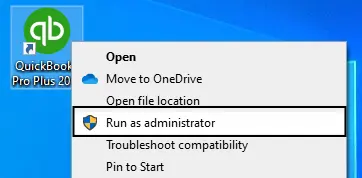
Solution 4 – Running QuickBooks as an Administrator
The issue could be due to insufficient permissions to run the tasks in QuickBooks.
- Close QuickBooks.
- Click the QuickBooks icon located on your desktop.
- Choose “Run as administrator.”
Try another solution if the problem remains.
Solution 5: Update QuickBooks Desktop
This could be the reason why your computer cannot back up.
- Launch QuickBooks
- Select Help
- Click Update QuickBooks Desktop
- Install any updates available
- Restart QuickBooks
Use all these solutions to prevent this problem.
Steps for Windows and Mac Users to Fix This Problem
Here are some of the best methods to help you resolve your problems related to the QuickBooks scheduled backup feature.
Users using the Windows Operating System
- Launch the QuickBooks application and click File.
- Click and select Create Local Backup.
- Click Local Backup and then press the Options button to check your settings.
- Check the backup destination path.
- Change tab to Schedule and see if everything is fine.
- Change the schedule if necessary and input your Windows account password.
- Click OK and Save.
Users using the Mac OS X Operating System
- Open QuickBooks and select File.
- Go to Back Up and click Schedule Backups.
- Verify your backup schedule.
- Check your backup destination and make sure it’s accessible.
- If needed, delete the schedule and create a new one.
Avoiding Future Issues with QuickBooks Scheduled Backup Not Working
It is important to prevent this problem to avoid data conflicts and ensure the exact and smooth functioning of financial data.
- Develop a routine of checking backup status frequently
- Consider a second backup destination as a fail-safe measure
- Do not make frequent updates to your backup schedule
- Reboot your system from time to time
- Check your hard drive health to prevent abrupt failures
Follow the healthy practices mentioned above to prevent this error.
The Root Causes Behind Scheduled Backups In QuickBooks
Check the following reasons in order to determine why your QuickBooks scheduled backup is not working:
- Most of the time, the causes related to scheduled backups in QuickBooks Desktop arise out of configuration, system access, and/or service-related problems.
- Sometimes you will encounter this issue because changes to your Windows account login details are not reflected in QuickBooks.
- Another cause could be an issue with one of the background processes, such as Windows Task Scheduler or QuickBooks services, being unavailable or interrupted.
- Sometimes, this can also be due to unavailability at the backup location, such as the folder being deleted, the drive being disconnected, or insufficient space.
- Antivirus and firewall configurations could prevent QuickBooks from scheduling backup tasks automatically, which could also cause this problem.
- One must know the causes of the problem facing QuickBooks. Solutions for QuickBooks Scheduled Backup not Working on Windows
Go through the causes to fix QuickBooks Scheduled Backup not working on Windows.
Conclusion
In this blog, we have covered the most common reasons why QuickBooks schedule backup not working, along with step-by-step solutions. Some easy solutions could help you restore the scheduled backups and make sure that there is no data loss and everything runs smoothly for you in the future. Backups play a vital role in protecting your financial data, so it is important to ensure they work flawlessly.
Frequently Asked Questions
Why is my backup schedule missing?
The following reasons for the backup schedule are missing:-
1. Possibly deleted by mistake.
2. Corporate files were either renamed or moved.
3. The Windows profile may be altered.
Can antivirus software block QuickBooks backups?
Yes, since the security feature of the antivirus software will consider any backup process as a suspicious activity. It could lock company files while scanning, block any QuickBooks process, deny access to the backup folder, prevent scheduled tasks, or prevent any connection through network or cloud services by using its firewall.
How often should I schedule backups?
When using QuickBooks, the best time to take backups is daily, especially if there is high turnover in business data, to reduce the risk of losing transactions. In extreme cases with much higher activity, it might be necessary to take several backups per day.
You May Read Also-
How to Fix QuickBooks Error 136 Quickly and Easily
QuickBooks MSXML6.dll Error? Here’s How to Fix It Fast
Why QuickBooks Web Connector Error QBWC1085 Happens & How to Fix It
QuickBooks Error 15241: Complete Troubleshooting Guide
Step-by-Step Guide to Change QuickBooks License Number

James Richard is a skilled technical writer with 16 years of experience at QuickBooks Data Migration. His expertise covers data migration, conversion, and desktop errors for QuickBooks. He excels at explaining complex technical topics clearly and simply for readers. Through engaging, informative blog posts, James makes even the most challenging QuickBooks issues feel manageable. With his passion for writing and deep knowledge, he is a trusted resource for anyone seeking clarity on accounting software problems.