You can convert Quicken to QuickBooks in order to avail advanced business features, scalability for growth, better integrations, multi-user access, enhanced reporting, and industry-specific tools. This can boost your workflow and have a positive impact on your important business processes. You can use a Quicken converter to move to QB Desktop. However, you can only use the Quicken Converter to move from the Quicken version that is not parallel to your QB Desktop version. We’ll cover all the steps you need to know to convert from Quicken to QuickBooks.
Convert Quicken to QuickBooks – A Quick View Table
In the table below is given a concise summary of this blog on the topic of converting from Quicken to QuickBooks Desktop:
| Description | You can convert from Quicken to QuickBooks to avail advanced business features, scalability for growth, better integrations, multi-user access, enhanced reporting, and industry-specific tools. This can boost your workflow and have a positive impact on your important business processes. |
| Why to move | Advanced accounting, scalability, business-specific features, superior integrations, cloud access, and streamlined workflows are the factors to consider while making your decision to move to QB. |
| Way to move | 1. Open the Quicken Converter 2. Hit Next 3. Click on I accept the terms in the license agreement 4. Press Next 5. Select Next again 6. Hit Install 7. Choose the Launch Quicken Converter option 8. Press Finish 9. Then, proceed to select I am transferring data from Quicken for Windows 10. Press Get Started 11. Select Open a data file located on this computer 12. Press Select File 13. Browse and choose your Quicken file (.QDF) 14. Press OK 15. Click on Convert it! 16. Hit OK 17. Click on Save 18. Select Exit 19. Open the QB Desktop app 20. Navigate to the File menu 21. Click on Utilities 22. Select Convert 23. Then, select the From Quicken option 24. Choose the Quicken File you wish to move 25. Follow the guide you see in the conversion utility to complete the conversion |
Converting Quicken to QuickBooks Desktop With Guided Steps
You can use the Quicken Converter tool to move to QuickBooks Desktop using the steps given below:
- Download the version of the Quicken Converter tool that matches your QB Desktop version
- Install the converter and move the data:
- Open the Quicken Converter
- Hit Next
- Click on I accept the terms in the license agreement
- Press Next
- Select Next again
- Hit Install
- Choose the Launch Quicken Converter option
- Press Finish
- Then, proceed to select I am transferring data from Quicken for Windows
- Press Get Started
- Select Open a data file located on this computer
- Press Select File
- Browse and choose your Quicken file (.QDF)
- Press OK
- Click on Convert it!
- Hit OK
- Finally, hit Save, followed by Exit
You can now start using the conversion utility in QuickBooks to bring the data over with the steps given below:
- Open the QuickBooks Desktop app
- Navigate to the File menu
- Click on Utilities
- Select Convert
- Then, select the From Quicken option
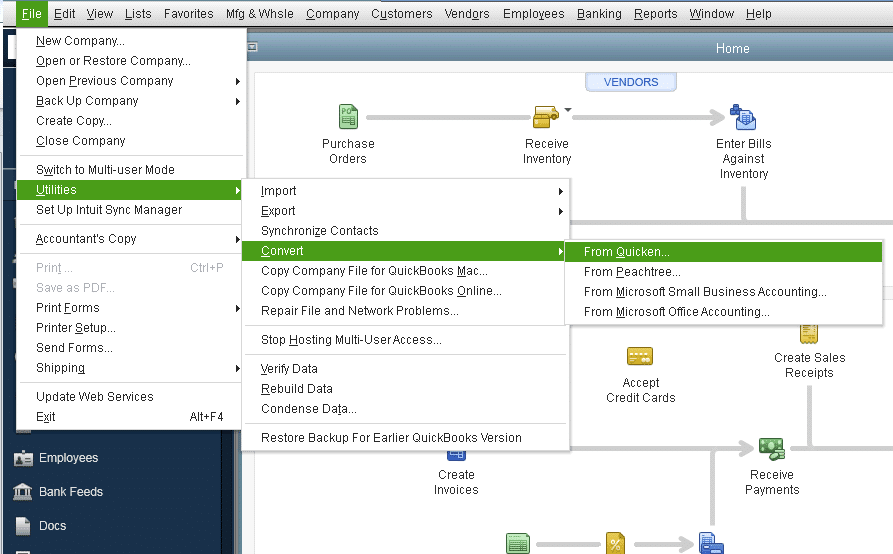
- Choose the Quicken File you wish to move
- Follow the guide in the conversion utility to complete the conversion
Why Should You Move from Quicken to QuickBooks Desktop?
There are several benefits to convert Quicken to QuickBooks Desktop. QuickBooks uses true double-entry accounting, a customizable chart of accounts, and detailed reporting, all of which are helpful in your business finances. Additionally, QuickBooks is designed for growth and can handle increased transactions and complexity as your business grows. It also offers industry-specific versions tailored for retail, construction, non-profits, etc. You also have the option to connect with payroll, CRM, POS, and inventory systems in QuickBooks Desktop. QB groups tasks by workflow, which makes it easier to find what you need.
A Concise Comparison Between Quicken and QuickBooks Desktop
Given in the table below is a concise comparison between the accounting software Quicken and QuickBooks:
| Quicken | QuickBooks | |
| Best For | Individuals, families, retirement planning, personal budgeting, tracking investments, and managing personal debt. | Small to medium businesses, freelancers, businesses with employees, inventory, and project tracking. |
| Key Features | Budgeting, spending analysis, investment tracking, bill payment, net worth, and basic tax planning. | Invoicing, payroll, inventory management, advanced accounting (P&L, Balance Sheet), project profitability, extensive integrations, and multi-user access. |
| Business Use | Quicken Business & Personal handles sole proprietorships, rental income, and basic business expenses, but lacks advanced accounting capabilities. | Full-fledged accounting software for running and scaling a business. |
| Pros | User-friendly, easy to set up, affordable, and great for a personal financial overview. | Scalable, powerful reporting, integrates with hundreds of apps, and robust payroll. |
| How to Choose | Choose Quicken if you need to manage personal finances, track investments, and maybe handle a simple side hustle or rental property. | You run a formal business, need to invoice clients, manage employees (payroll), track inventory, or work with an accountant who uses it. |
Conclusion
You can convert Quicken to QuickBooks Desktop to avail advanced business features, scalability for growth, better integrations, multi-user access, enhanced reporting, and industry-specific tools. This can boost your workflow and have a positive impact on the progress of your business and its processes. We have covered the steps you need to convert your Quicken data file to QuickBooks in this blog.
Frequently Asked Questions
How to convert Quicken to QuickBooks?
You can convert Quicken to QuickBooks by following the steps given below:
1. Download the Quicken Converter
2. Open the Quicken Converter
3. Hit Next
4. Click on I accept the terms in the license agreement
5. Press Next
6. Select Next again
7. Hit Install
8. Choose the Launch Quicken Converter option
9. Press Finish
10. Then, proceed to select I am transferring data from Quicken for Windows
11. Press Get Started
12. Select Open a data file located on this computer
13. Press Select File
14. Browse and choose your Quicken file (.QDF)
15. Press OK
16. Click on Convert it!
17. Hit OK
18. Press Save
19. Click on Exit
20. Open the QB Desktop app
21. Navigate to the File menu
22. Click on Utilities
23. Select Convert
24. Then, select the From Quicken option
25. Choose the Quicken File you wish to move
26. Follow the guide you see in the conversion utility to complete the conversion
Can I convert Quicken to QuickBooks?
Yes, you can convert from Quicken to QuickBooks to take advantage of features such as advanced accounting, scalability, business-specific capabilities, robust integrations, cloud access, and streamlined workflows.
What are the differences between Quicken and QuickBooks?
The differences between Quicken and QuickBooks are:
1. Quicken is best for Individuals, families, retirement planning, personal budgeting, tracking investments, and managing personal debt, with features like budgeting, spending analysis, investment tracking, bill payment, net worth, and basic tax planning.
2. QuickBooks is best for Small to medium-sized businesses, freelancers, and businesses with employees, inventory, and project tracking. It offers features such as invoicing, payroll, inventory management, advanced accounting (P&L, Balance Sheet), project profitability, extensive integrations, and multi-user access.
You May Read Also-
Step-by-Step Guide to Convert Sage 50 to QuickBooks Desktop
QuickBooks Conversion Tool: Complete Guide to Convert Data Safely
QuickBooks Check Alignment Problems: How to Fix Them Easily
How to Clear QuickBooks Cache and Intuit-Specific Cookies in Minutes
QuickBooks Unable to Export to Excel? Here’s How to Fix It Fast

James Richard is a skilled technical writer with 16 years of experience at QuickBooks Data Migration. His expertise covers data migration, conversion, and desktop errors for QuickBooks. He excels at explaining complex technical topics clearly and simply for readers. Through engaging, informative blog posts, James makes even the most challenging QuickBooks issues feel manageable. With his passion for writing and deep knowledge, he is a trusted resource for anyone seeking clarity on accounting software problems.