QuickBooks often notifies users to update their payroll. However, when they do so, they can encounter QuickBooks error 1612. This can be because of many reasons, such as an issue with installation, Windows registry, payroll subscription, etc. If this is what happened to you, you are at the right place. The first thing you need to ensure is that you are in single-user mode.
In this blog, we will learn how to troubleshoot the payroll update error and break it down into simple steps. Alright then, let’s dive in!
Payroll Update Error 1612 – A Quick Overview
In this section, we will provide a quick overview of the payroll update error 1612 in QuickBooks Desktop.
| Error Description | QuickBooks error 1612 shows up when the system is unable to install the payroll update |
| What causes it | An issue with Windows installer, outdated software or operating system, corrupt or damaged installer file, virus or malware infections, corrupt or missing system files or Windows registry keys, third-party interference, etc. |
| How to fix it | Restart the computer and update the QuickBooks application, run QuickBooks Install Diagnostic Tool and Quick Fix my Program from the Tool Hub, repair QuickBooks Desktop from the Control Panel, Update Windows OS, repair the company file, and send payroll usage data. |
Now, we will proceed to the troubleshooting part.
Simple Steps to Get Rid of QuickBooks Error 1612 in Desktop Payroll
In this section, one by one, we will take you through various steps to troubleshoot everything that can go wrong and give way to QuickBooks error 1612. Go through them, and carry out the steps as instructed.
Restart the Computer and Retry the Update from the Help Menu
If you ran into the error code 1612 when you clicked a pop-up for a software update, restart your computer.
First, update your QuickBooks Desktop application to the latest release.
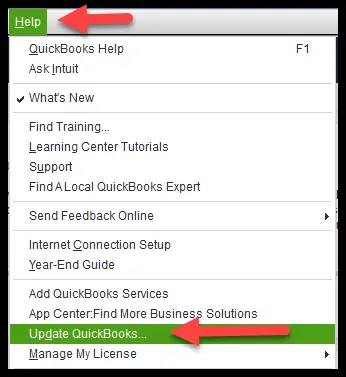
- In QB, open the Help menu and choose Update QuickBooks Desktop
- Now, click on the Update now section and mark the option to Reset Update (you will see a checkbox before it)
- Finally, choose the Get Updates option
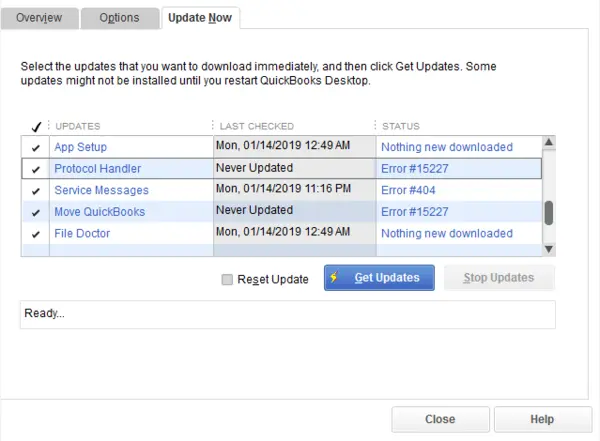
- If asked to install the update, choose Install Now
Now, restart QuickBooks and then try updating your tax table using the steps below:
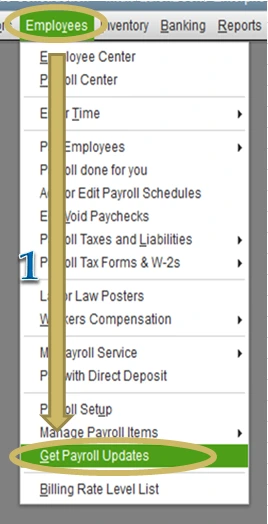
- Open the Employees menu and choose Get Payroll Updates
- Click on the Download Entire Update option to make sure you download the complete tax table update
- Finally, choose Update
A confirmation message will show up on your screen when the update is finished. If this doesn’t help, troubleshoot your company file.
Review and Resolve Issues With Data Integrity
There could be corruption or damage in your company file. Let us check your company data for integrity.
- In QuickBooks Desktop, open the Window menu
- Choose Close All
- Now, click on the File menu
- Navigate to Utilities> Verify Data option
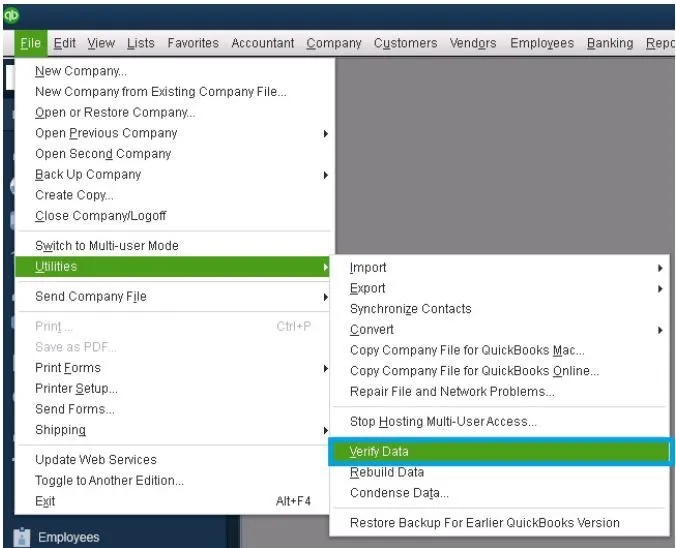
- What you’ve got to do depends on the message you see on the screen
- If the application says, “QuickBooks detected no problems with your data,” there is no issue with the company file
- If you see a specific error message and code, search for it on our knowledge base or the internet on how to resolve it
- If the application says, “Your data has lost integrity“, you will need to rebuild the company file
Here is how you can rebuild the company data:
- Pull up the File menu and navigate to Utilities > Rebuild Data option
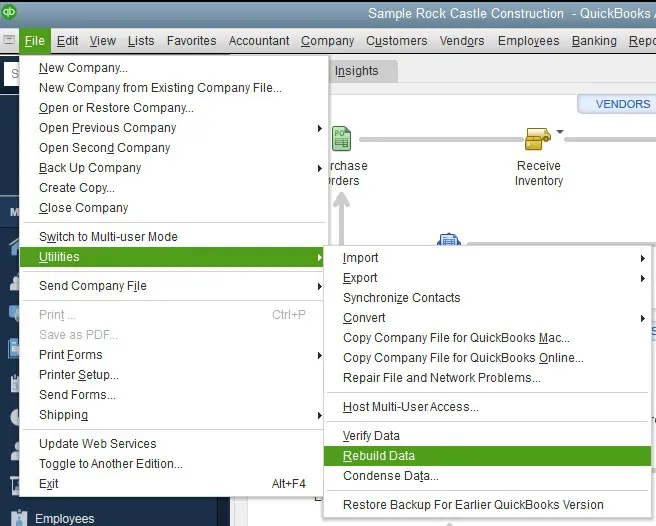
- When you see a QB information window, choose OK
- The application will now guide you through saving a backup—follow the on-screen steps
- It will take a while for the tool to repair the company file. Wait for it to finish
- When it is done, verify the company file again by going to the File menu, followed by Utilities> Verify Data
If you once again find an issue with your company file, rebuild it another time.
Send Payroll Usage Data
Follow the steps below to send the payroll data if Intuit hasn’t received your payroll data from the previous cycle.
- In QBDT, open the Employees menu
- Go to My Payroll Service and choose Send Usage Data
Note: In case you don’t find this option, you can try this: Open the Employees menu and go to Send Payroll Data - Now, when the Send/Receive Payroll Data appears, click on the Send All option
- Type in the Payroll PIN when the application asks for it
After successfully sending the payroll data, try updating your tax table again. If you see QuickBooks error 1612, move to the next step.
Run Quick Fix my Program
Now is the time to troubleshoot program problems. A utility of great help will allow you to do so instantly.
- Launch QuickBooks Tool Hub and go to the Program Problems section.
- Click on the Quick Fix my Program option.
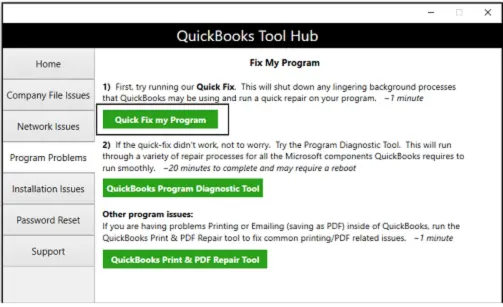
Finally, restart the application and see if the error is resolved.
Install Program or Update in Selective Startup Mode
Third-party programs, background tasks, and antivirus or security software can interfere with installation.
When you boot your computer in Selective Startup mode, you disable what is needed and keep most of the programs and processes from interfering with QB installation.
How to Switch to Selective Startup Mode in Windows
The steps below will help you boot your computer in Selective Startup mode.
- Press Windows + R keys to fetch the Run window
- Type msconfig in the text box and hit Enter
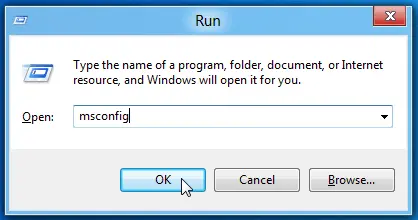
- Navigate to the General tab and choose Selective Startup and Load system services
- Now, head to the Services tab and choose Hide all Microsoft Services
- Tap on the Disable all option
- Unmark the checkbox before Hide all Microsoft services
- Mark the checkbox for Windows Installer and choose OK
Now, click on Restart when on the System Configuration window. Try reinstalling the software or updating it. Once done, you will need to switch to Normal Mode.
How to Switch to Normal Mode in Windows
The steps below will help you switch back to Normal Mode in the Windows operating system.
- Press Windows + R keys to fetch the Run window
- Type msconfig in the text box and hit Enter
- Navigate to the General tab and choose Normal Startup
- Choose OK
- Now, click on Restart when on the System Configuration window.
If this doesn’t help you resolve the payroll update error 1612, we need to check the system files.
Run the System File Checker Utility
The system will malfunction if the crucial files or components are missing or damaged. The System File Checker (SFC) scans and restores such files.
Run Deployment Image Servicing and Management (DISM)
Before running the System File Checker, you must run Deployment Image Servicing and Management (DISM) to get the necessary files.
- Run Command Prompt as an administrator by searching cmd in the Search bar, right-clicking Command Prompt, and choosing Run as administrator
- If asked for the admin password, enter the password. If asked for permission, choose Allow or OK
- Now, type the following command in the Command Prompt and hit Enter: DISM.exe /Online /Cleanup-image /Restorehealth
Run System File Checker (SFC)
Next, you will need to run the System File Checker (SFC).
- In the Command Prompt window, this is the command you now need to type and hit Enter: sfc /scannow
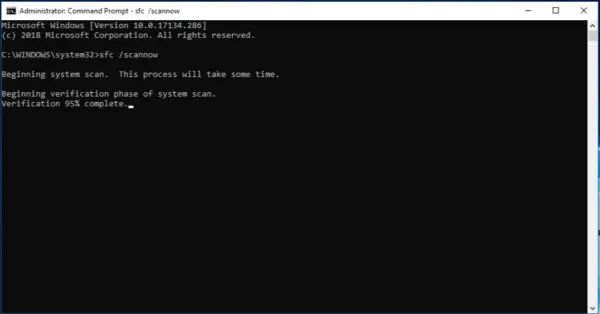
The System File Checker will now run a repair on the corrupt and missing files. Restart your computer once the repair completes, and resume QB operations.
Repair QB Desktop Application from the Control Panel
There is a more effective way to repair a program, and that is from the Control Panel.
- In the Search bar, type Control Panel and hit Enter
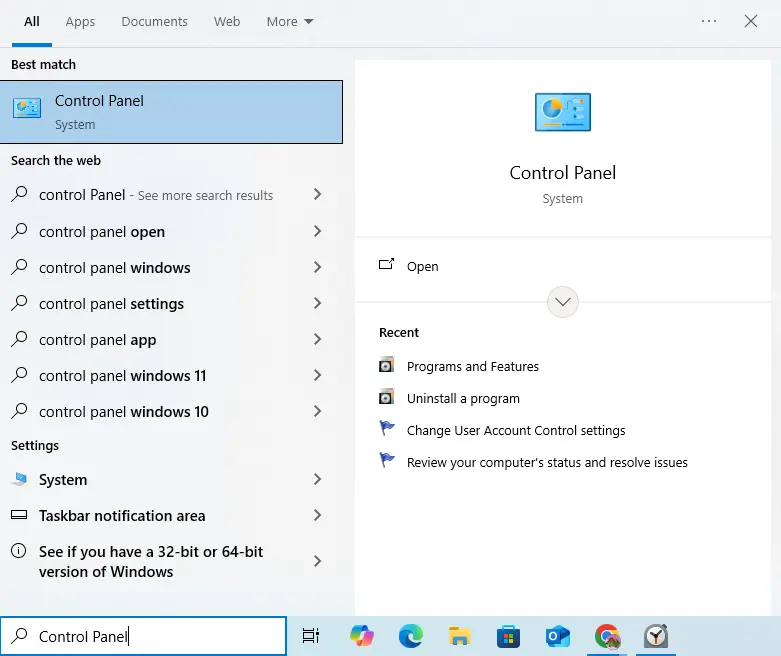
- Navigate to Programs followed by Programs and Features
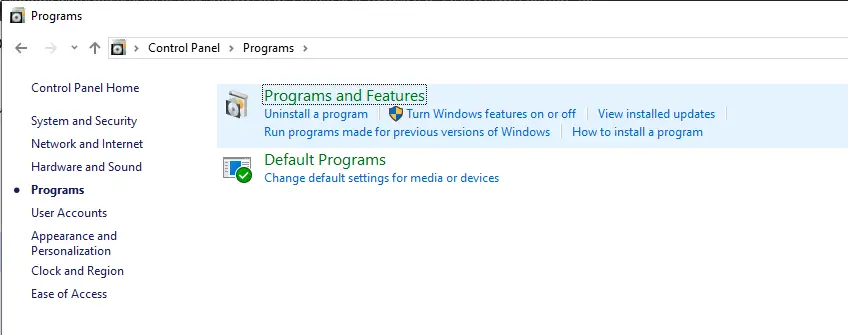
- From the list of programs, right-click on the QuickBooks Desktop version you are facing a problem with (in case there is more than one version of QuickBooks installed on the computer)
- Choose Repair or Change
- Go along with the instructions that you see on screen to repair the QB Desktop program
Finally, restart the computer and retry the payroll update.
Expert Tips to Prevent Payroll Update Errors in QuickBooks Desktop
To prevent payroll update errors in QuickBooks, there are certain healthy practices to follow, such as:
- Keep your operating system (Windows or macOS) updated to the latest release
- Ensure you are in single-user mode when you run payroll updates
- Check the system’s time and date and make sure it is correct
- Launch your QuickBooks application as an administrator
- Ensure the payroll subscription is active
- Regularly update your QuickBooks Desktop application and keep up with the release updates rolled out by developers
- Check your company file for data integrity once in a while and make sure your data is free of corruption
These practices will reduce the likelihood of such errors and pave the way for a seamless accounting experience in QuickBooks.
What is Error 1612 in QuickBooks Desktop?
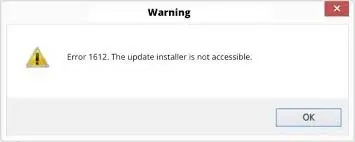
Error code 1612 in QuickBooks Desktop can occur when you try to install the Payroll update, which fails. The error implies that the Windows installer is unable to find the necessary .msi file for the update or installation.
There can be a handful of reasons that can give way to error code 1612.
Possible Reasons That Can Lead to Payroll Update Error 1612
Before troubleshooting an error, it helps to develop an in-depth understanding of the potential factors that cause it. Let us go through all the possible reasons for QuickBooks error 1612.
- There might be an issue with installation, such as an incomplete installation of QuickBooks
- QuickBooks related Windows registry might have been corrupt or modified
- Important files might have been accidentally deleted or moved from their original location
- In rare case scenarios, the error code 1612 can stem from sudden system shutdown or power outages
- There could be a virus or malware infection in your computer and crucial system files, QB programs, or company file
- Your company’s data integrity might have been compromised
Wrapping It Up
A delay in Payroll update can essentially halt your payroll operations and will keep you from sending paychecks to your employees. Thus, it is a must that you resolve it at the earliest. The blog outlines common reasons that lead to the error and guides you through various solutions to try.
This should help you eliminate the error and resume sending paychecks.
Frequently Asked Questions
What is error code 1612 in QuickBooks?
Error 1612. The updated installer cannot be accessed. QuickBooks Error Code 1612. It also happens to occur when one wasn’t open to the company files. One major reason is the failure of the .msi file that resides in the Windows installer cache for it to read from it.
Why do I run into QuickBooks payroll update errors?
Payroll update errors in QuickBooks can be a result of outdated software, inactive payroll subscription, third-party or firewall interference, corrupt data files, missing or corrupt Windows components and registry keys, incorrect time and date, and so on.
How to fix QuickBooks error 1612 payroll update not working?
To address error code 1612 when QuickBooks Payroll doesn’t update, repair the installation and program from the Control Panel and Tool Hub, restart the computer, run the QuickBooks Install Diagnostic Tool, and System File Checker.
How to fix the QuickBooks payroll service server error?
To resolve the payroll service error in QuickBooks Payroll, update the tax table and make sure the system’s time and date settings are right. Also, switch to single-user mode and ensure your internet connection is stable.
If I leave error code 1612 in QuickBooks unresolved, how can it affect me?
Before you resolve the error code 1612, you might not be able to update the QuickBooks tax table. This can result in a delay in sending paychecks, and the application might calculate the payroll taxes incorrectly.
You May Also Read-
Easy & Effective Solutions to Fix QuickBooks Error 15101
QuickBooks Hosting Mode is Off: Know How to Enable It Again
Resolve QuickBooks Error QBWC1085 Caused by the Log File
QuickBooks Error 1402: Could Not Open Key- RESOLVED
QuickBooks The File You Specified Cannot Be Opened- RESOLVED

James Richard is a skilled technical writer with 16 years of experience at QuickBooks Data Migration. His expertise covers data migration, conversion, and desktop errors for QuickBooks. He excels at explaining complex technical topics clearly and simply for readers. Through engaging, informative blog posts, James makes even the most challenging QuickBooks issues feel manageable. With his passion for writing and deep knowledge, he is a trusted resource for anyone seeking clarity on accounting software problems.