
The QuickBooks connection has been lost error is a company file error that can occur when you try to open or use QB Desktop due to difficulties accessing your company file on the server or local PC. This happens usually due to the network connection being unstable, or the folder where the file is saved needs additional permissions. This can hamper your workflow and have a negative impact on your important business processes. We will cover the steps you need to know to troubleshoot this problem in this blog. First, let’s start with the reasons why your connection has been lost error in QuickBooks Desktop.
QuickBooks Connection Has Been Lost – A Quick View Table
In the table below is given a concise summary of this blog on the topic of the connection has been lost error in QuickBooks Desktop:
| Description | The QuickBooks connection has been lost error is a company file error that can occur when you try to open or use QB Desktop, due to difficulties accessing your company file on the server or on the local PC. This usually happens because the network connection is unstable or the folder where the file is saved needs additional permissions. This can hamper your workflow and negatively impact your critical business processes. |
| Its causes | 1. The folder where the file is saved doesn’t have adequate permissions 2. Your Firewall might be blocking the QB Desktop app 3. A damaged or corrupted QuickBooks company file data 4. An unstable internet connection 5. The server or host is having one of the issues mentioned above 6. There may be a problem with the connection of the computers |
| Methods to fix it | Use Quick Fix My Program, update the QB Desktop app, use the QB File Doctor Tool, ensure that the file isn’t set to read-only, verify and rebuild the company file data, make Firewall exceptions for the QB Desktop app, toggle the UAC settings, use the QB Install Diagnostic Tool, restore a backup copy of your QB company file, and check the Windows Folder permissions for QBDT. |
Methods to Fix the QuickBooks Desktop Connection Has Been Lost Error
Given below are the troubleshooting methods you can use to resolve the QB connection has been lost error:
Use Quick Fix My Program
You can use the Quick Fix My Program Tool from the QB Tool Hub to resolve the QB connection has been lost error with the steps given below:
- Download and install the QuickBooks Tool Hub
- Open the QB Tool Hub app
- Navigate to the Program Problems tab
- Click on Quick Fix My Program
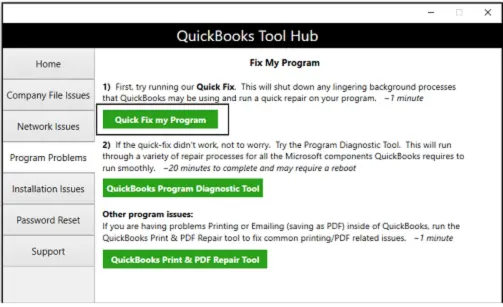
- Let the tool run
This would resolve the issue you were dealing with.
Update the QB Desktop App
An outdated QBDT app can cause the QuickBooks connection has been lost error. You can fix it by updating the QB Desktop app with the steps given below:
- Open the QuickBooks Desktop software
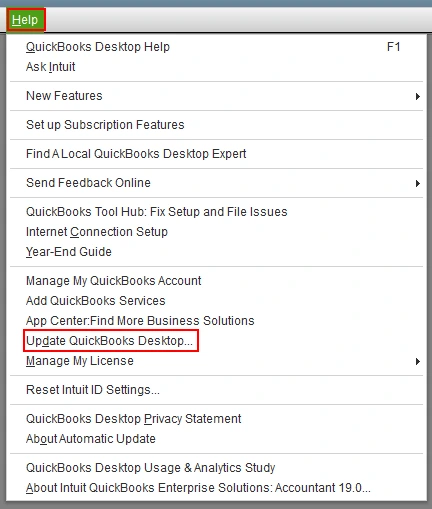
- Navigate to the Help menu
- Click on Update QuickBooks Desktop
- Then, select Update Now
- Click on the Get Updates option
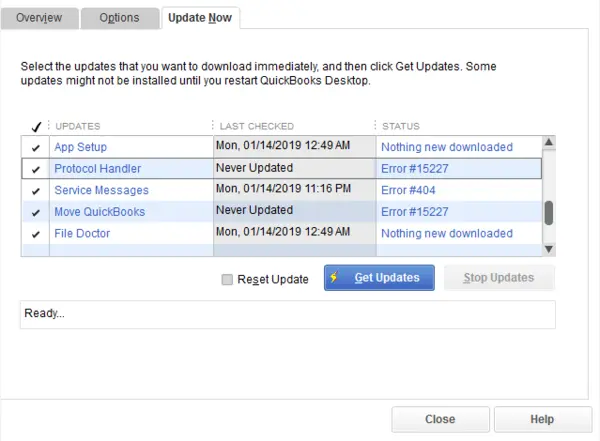
- Close and reopen the QBDT app to install the updates
This should fix the issue you were facing.
Use the QB File Doctor Tool
A damaged company file can be the reason why you’re dealing with the connection has been lost in QuickBooks error. You can fix your company file using the steps given below:
- Open the QB Tool Hub app
- Navigate to the Company File Issues tab
- Click on Run QuickBooks File Doctor
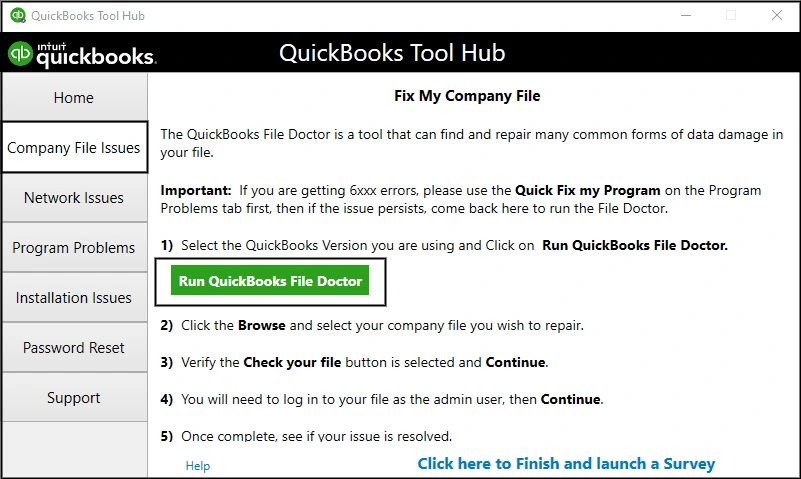
- If it doesn’t open, search for QuickBooks Desktop File Doc and open it manually
- Select your company file from the dropdown menu
- If you can’t see your file, click Browse and search to locate your file
- Click on the Check your file option
- Select Continue
- Enter your QB admin password
- Press Next
Now, the problem should be resolved.
Make Sure that the File Isn’t Read-Only
If your QB company file is set to read-only, you will have trouble opening it through the QB Desktop app, which may cause the connection has been lost issue. Check that your company file isn’t set to read-only with these steps:
- Open the File Explorer
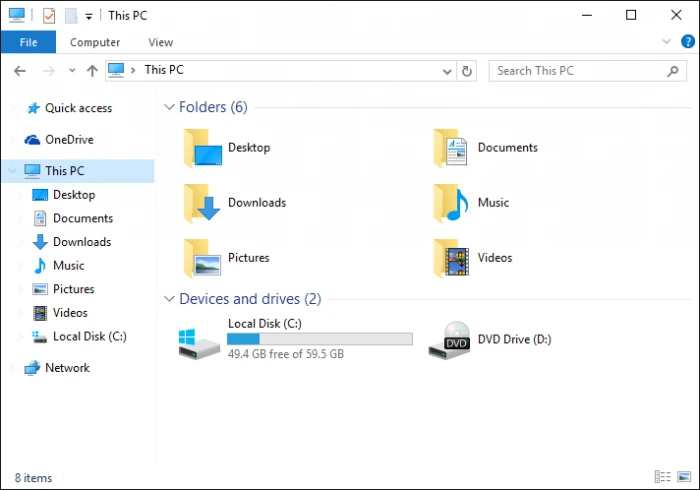
- Navigate to the folder where your company file is located
- Find your company file
- Right-click on your company file (.QBW)
- Select Properties
- Navigate to the General tab
- Unmark Read Only if it is checked
- Press OK
This would troubleshoot your issue.
Verify and Rebuild Your Company Data
A damaged company data file can also be fixed using the verify and rebuild data utility with the steps given below:
- Open the QB Desktop app
- Navigate to the File menu
- Click on Utilities
- Select the Verify Data option
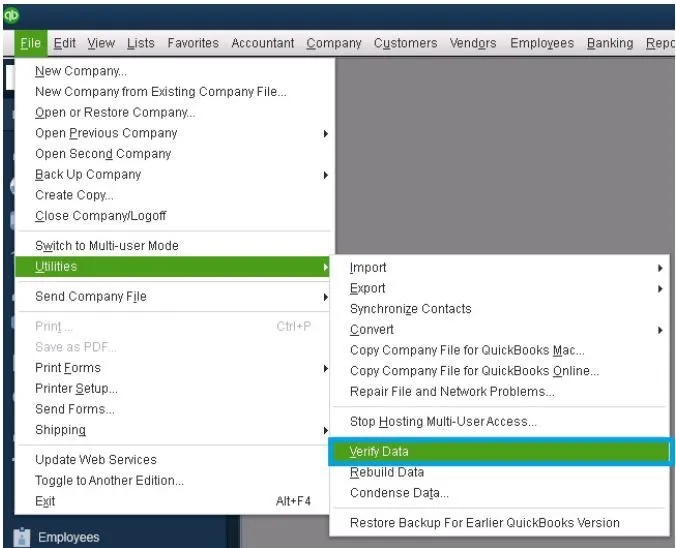
- Then, open the File menu again
- Select Utilities
- Click on the Rebuild Data option
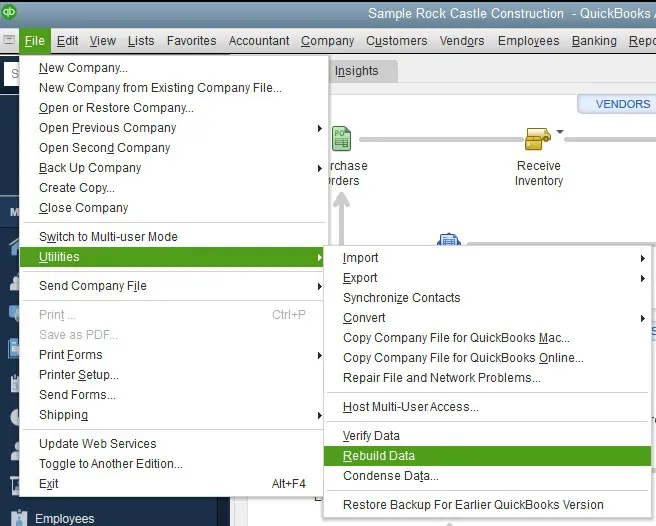
- QB will ask to create a backup file before it rebuilds your data
- Press OK
- A backup is required to rebuild your company file
- Choose where the file would be saved
- Hit OK
- Make sure not to replace an existing backup file
- Enter a unique name in the File name field
- Press Save
- You will get a message stating that Rebuild has completed
- Hit OK
This would eliminate the connection has been lost error.
Make Firewall Exclusion for the QB Desktop App
If your Firewall is blocking the QB Desktop app or the server, you can have problems connecting to it and might see the QuickBooks connection has been lost error. To resolve it, you should proceed to make Windows Firewall port exclusions for the QB Desktop application with the steps given below:
- Open the Start menu
- Search for and open the Windows Firewall
- Click on Advanced Settings
- Right-click on Inbound Rules
- You’ll make Outbound Rules later
- Select the New Rule option
- Click on Port
- Hit Next
- Ensure that TCP is selected
- Go to the Specific Local Ports field
- Type in the port for your QB Desktop app:
- QuickBooks Desktop 2020: 8019, XXXXX
- QuickBooks Desktop 2019: 8019, XXXXX
- QuickBooks Desktop 2018: 8019, 56728, 55378-55382
- QuickBooks Desktop 2017: 8019, 56727, 55373-55377
- Hit Next after entering the port number
- Select Allow the Connection
- Hit Next
- Ensure all profiles are marked if prompted
- Press Next
- Create a rule
- Name it something like QBPorts(year)
- Press Finish
The issue should now be patched.
Toggle the UAC Settings
The User Account Control (UAC) settings can be changed to resolve the QB Desktop connection has been lost error with the following steps:
- Close the QB Desktop app
- Open the Start menu
- Search for and open the User Account Control
- Navigate to Settings
- Click on Change User Account Control Settings
- Move the slider to Always Notify
This should eliminate the problem you were dealing with.
Utilize the QB Install Diagnostic Tool
If your QB Desktop app has installation issues, you can deal with the QuickBooks connection has been lost error. You can use the QB Install Diagnostic Tool to patch it with the steps given below:
- Open the QB Tool Hub app
- Navigate to the Installation Issues tab
- Click on the QuickBooks Install Diagnostic Tool
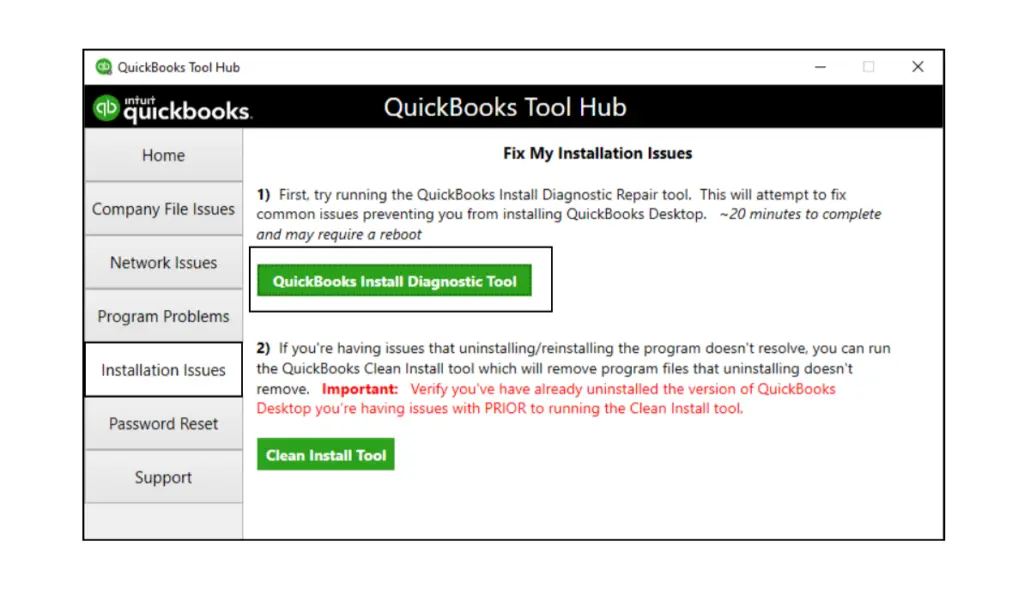
- Let the tool run
- The tool can take up to 20 minutes to finish working
The Install Diagnostic Tool would fix any installation issues with the QB Desktop app.
Restore a Backup Copy of Your QB Company File
You can restore a backup copy of your company file to resolve the QB connection has been lost error with the steps given below:
- Open the QB Desktop app
- Navigate to the File menu
- Click on Open or Restore Company
- Select the Restore a backup copy option
- Press Next
- Select Local Backup
- Hit Next
- Find the backup file on your PC
- The backup file looks like this: [Your company name].qbb
- Choose the folder where your restored file would be saved
- Select Open
- Hit Save
- If you see a warning about overwriting data, choose the option that best suits your needs
- Do not overwrite anything unless you wish to
Performing these steps would mend the connection error in QB.
Check the Windows Folder Permissions
Ensure that the Windows folder permissions are set correctly for the QB Desktop app to fix the connection has been lost error with the steps given to you below:
- Open the File Explorer
- Navigate to the Intuit folder’s location
- Right-click on the Intuit folder
- Select the Properties option
- Navigate to the Security tab
- Click on the Advanced button
- Then, in the Owner field, make sure the Users group is selected
- If you see System or something other than Users, perform these steps:
- Go to Advanced Security Settings
- Click on Change in the Owner field
- Type in USERS
- Hit Enter
- Mark the Replace owner on sub-containers and objects checkbox
- Click on Users (YOUR COMPUTER NAME\Users) and mark Full Control
- Press OK
- Now, click on Edit in the Security tab
- Press Users (YOUR COMPUTER NAME\Users)
- Mark the Full Control box
- Hit OK
After completing these steps, you should have access to your QB company file.
Potential Reasons Why Your Connection Has Been Lost in QuickBooks
Given below are the potential factors that can trigger the connection has been lost problem in QuickBooks Desktop:
- The folder where the file is saved doesn’t have adequate permissions
- Your Firewall might be blocking the QB Desktop app
- A damaged or corrupted QuickBooks company file data
- An unstable internet connection
- The server or host is having one of the issues mentioned above
- There may be a problem with the connection of the computers
These are the causes of the QB connection has been lost error.
Conclusion
The QuickBooks connection has been lost error is a company file error that can occur when you try to open or use QB Desktop, due to difficulties accessing your company file on the server or on the local PC. This usually happens because the network connection is unstable or the folder where the file is saved needs additional permissions. This can hamper your workflow and negatively impact your critical business processes. We have covered the potential factors that can trigger this problem to appear on your screen, along with the methods you need to troubleshoot it, in this blog.
Frequently Asked Questions
Why am I seeing the QuickBooks connection has been lost error?
You can see the QB connection has been lost error due to the following reasons:
1. The folder where the file is saved doesn’t have adequate permissions
2. Your Firewall might be blocking the QB Desktop app
3. A damaged or corrupted QuickBooks company file data
4. An unstable internet connection
5. The server or host is having one of the issues mentioned above
6. There may be a problem with the connection of the computers
How do I fix the connection has been lost in QuickBooks issue?
If your connection has been lost in QuickBooks, you can use the following methods to fix it:
1. Use Quick Fix My Program
2. Update the QB Desktop app
3. Use the QB File Doctor Tool
4. Ensure that the file isn’t set to read-only
5. Verify and rebuild the company file data
6. Make Firewall exceptions for the QB Desktop app
7. Toggle the UAC settings
8. Use the QB Install Diagnostic Tool
9. Restore a backup copy of your QB company file
10. Check the Windows Folder permissions for QBDT
What is the QB connection has been lost error?
The QB Desktop connection has been lost error is a company file error that can occur when you try to open or use QBDT, mainly because of difficulties accessing your company file on the server or on the local PC. This usually happens because the network connection is unstable or the folder where the file is saved needs additional permissions. This can hamper your workflow and negatively impact your critical business processes.
You May Read Also-
How to Fix QuickBooks Error C=43 (Unable to Display Report)
How to Convert Sage 50 to QuickBooks Desktop?
Convert Quicken to QuickBooks Easily – Complete Tutorial
QuickBooks Online to Desktop Migration: Complete Data Transfer Guide
How Do I Move QuickBooks to a New Computer? Complete Tutorial

James Richard is a skilled technical writer with 16 years of experience at QuickBooks Data Migration. His expertise covers data migration, conversion, and desktop errors for QuickBooks. He excels at explaining complex technical topics clearly and simply for readers. Through engaging, informative blog posts, James makes even the most challenging QuickBooks issues feel manageable. With his passion for writing and deep knowledge, he is a trusted resource for anyone seeking clarity on accounting software problems.