
Users usually encounter the “QuickBooks won’t open” issue, where the application fails to open or doesn’t start. The QuickBooks Desktop doesn’t open due to a damaged installation, a corrupt QBWUSER.INI file, background process conflicts, outdated software, or low system resources. This error stops access to financial data and impacts business operations.
You can fix this issue by updating Windows, launching the QuickBooks install Diagnostic Tool, or performing a clean install. It is crucial to ensure that you have a system backup, admin rights, and that your system meets QuickBooks requirements to avoid complications in the future.
A Quick View Table – QuickBooks Won’t Open Issue
Let’s quickly view the crucial point we discussed in this blog:
| Error Description | The QuickBooks won’t open issue occurs when QB fails to launch or respond due to causes such as installation errors, corrupted files, or system compatibility issues. |
| Causes | The QBDT won’t open issue is caused by a too-long company name, a damaged or missing QBWUSER.INI file, a corrupted hard drive, damaged program files, or a damaged QBDT installation, and a damaged Windows operating system. |
| Ways to Fix This Error | You can resolve this error by running the repair tools from the QB Tool Hub, checking if the issue is with the company file or the program, renaming the QBWUSER.ini file, running QB as administrator, repairing QB, checking the FISP settings for Windows 10 Pro or higher, updating Windows, repairing the Microsoft .NET Framework, and running the System File Checker. |
Troubleshooting Methods for QuickBooks Won’t Open Issue
After thoroughly discussing with the experts, we have meticulously researched to identify the root causes preventing QuickBooks from opening and to find the best solutions with minimal effort. Here are the solutions outlined below. Consider going through them one by one at a time.
Solution 1. Run the Repair Tools from the QuickBooks Tool Hub
If you are unable to open the QuickBooks application, running repair tools such as Quick Fix My Program, Install Diagnostic, and File Doctor may help. Let’s follow the steps below and run the repair tools effortlessly.
Step 1. Download and Install the QuickBooks Tool Hub
The QuickBooks Tool Hub offers a wide array of tools to resolve common QuickBooks issues. Let’s follow the steps below to download and install this essential utility.
- First, close QBDT, then download the latest version of QuickBooks Tool Hub.
- Save the downloaded file (QuickBooksToolHub.exe) to a conveniently accessible location on your computer, as you’ll need to access it later. As for the location, you can save the file on the desktop or in the downloads folder.
- Further, open the file you have just downloaded (QuickBooksToolHub.exe), follow the on-screen steps to install it, and agree to the terms and conditions.
- Finally, when the installation finishes, double-click the program icon on your Windows desktop to open it.
Step 2. Run the Quick Fix My Program Tool
This tool helps fix common program issues in QuickBooks. Therefore, running this repair tool may help resolve issues when QuickBooks won’t open. Here are the detailed steps outlined below for the same.
- Open the QuickBooks Tool Hub and click Program Problems from the left pane.
- Further, select Quick Fix My Program and let the tool repair QuickBooks.
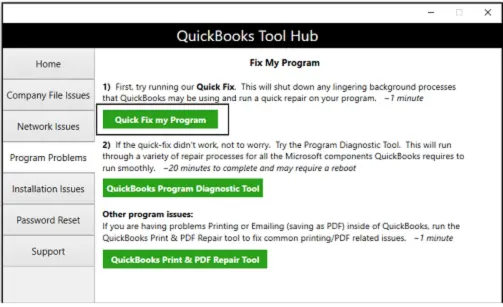
- After the tool finishes, open QuickBooks Desktop and then open the company file.
Now, check whether you are still unable to open QuickBooks Desktop on your system. If QuickBooks won’t open even after the quick repair, move to the next step.
Step 3. Run the QuickBooks Install Diagnostic Tool
If QuickBooks is still not opening after running the Quick Fix My Program tool, running the Install Diagnostic tool may help significantly. Let’s follow the steps outlined below.
- Double-click to open QuickBooks Tool Hub and select Installation Issues from the left pane.
- Select the QuickBooks Install Diagnostic Tool button and let the tool repair QuickBooks. It must be remembered that the tool may take up to 20 minutes to finish the repair process.
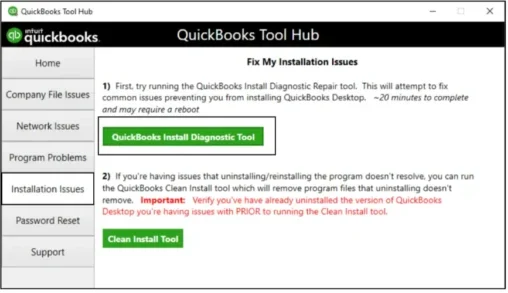
- Finally, when the tool finishes, restart the system.
- Lastly, open QuickBooks Desktop and then open the company file.
If you still can’t open QuickBooks Desktop after running the QuickBooks Install Diagnostic tool, move to the step below.
Step 4. Run the QuickFix My File Tool
If QuickBooks won’t open after an update, run the QuickFix My File tool to fix common data file issues. The detailed steps are outlined below.
- Open Tool Hub, select Company File Issues, and then select QuickFix My File.
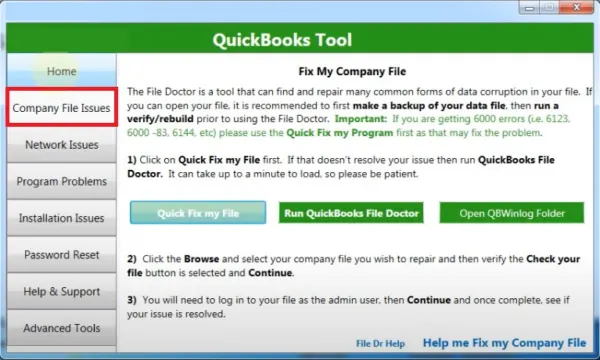
- Then, hit OK when the tool completes, and launch QuickBooks.
If you still can’t open the QuickBooks Desktop after running the QuickFix My File tool, move to the next step.
Step 5. Run the QuickBooks File Doctor Tool
If QuickBooks won’t load with a blank screen, the File Doctor tool may help fix this issue from the root. Follow the steps outlined below for the same.
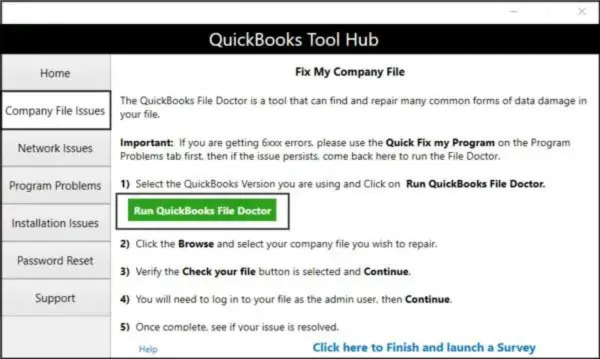
- From the QuickBooks Tool Hub, select Company File Issues from the left pane.
- Select Run QuickBooks File Doctor and let the tool open.
- Once the File Doctor tool opens, select the company file from the drop-down menu. If you don’t see your company file in the drop-down menu, select Browse and search to find your file.
- Select Check your file and network(recommended) and then hit Continue.
- Finally, enter your QuickBooks admin password and then hit Next to conclude.
If QuickBooks Desktop still won’t launch on your computer after running the File Doctor tool, move to the next solution.
Solution 2. Check If the Issue is with the Company File or the Program
If the QuickBooks desktop doesn’t start, it’s not necessarily important that there are issues with QuickBooks. Your company file may be damaged, which is why you can’t open QuickBooks. Let’s check and detect where the issues actually lie by following the detailed steps outlined below.
Step 1: Open the Company File with All Windows Closed
- Open QuickBooks Desktop and select your company file in the No Company Open window.
- Press and hold the ALT key on the keyboard, then select Open; Remember don’t let go of the ALT key until the company file opens.
- When you’re asked to sign in, release the ALT key, enter your password, then press and hold the ALT key again and hit OK.
If QuickBooks still doesn’t start, move to step 2 in this solution.
Step 2. Suppress the QuickBooks Desktop Application
- Press and hold the Ctrl key on the keyboard, and then double-click the QuickBooks Desktop icon.
Important: It must be remembered that you mustn’t release the Ctrl key until you see the No Company Open window, QuickBooks freezes, or gives you an error. - Select a company file and choose Open.
If QuickBooks is still closing, you should perform the next solution.
Solution 3. Clean Install QuickBooks Desktop
If you still cannot open QuickBooks Desktop after trying all the common solutions, you can try reinstalling it on the system to refresh the program files. Here are the steps through which you can uninstall and then install QuickBooks again with ease.
Step 1. Uninstall QuickBooks from the System
- Open the Control Panel by clicking the Windows Start menu and typing ‘Control Panel’ into the search bar.
- Select Programs and Features or Uninstall a Program to continue.
- A list of programs appears on the screen; select the version of QuickBooks Desktop you want to remove from the system.
- Choose Uninstall/Change, then Remove, and then hit Next.
Note: If you are not signed in to Windows as an admin, you may not be able to see this option. In that case, sign out and back into Windows as an administrator.
Step 2. Rename the Installation Folders
- Open File Explorer by pressing the Windows + R keys simultaneously on the keyboard.
- Find and open the QuickBooks folder that holds the company files. These folders are usually found in one of these locations:
- C:\ProgramData\Intuit\QuickBooks (year)
- C:\Users\(current user)\AppData\Local\Intuit\QuickBooks (year)
- C:\Program Files\Intuit\QuickBooks (year)
- 64-bit version C:\Program Files (x86)\Intuit\QuickBooks (year)
- Once you find the folder, right-click it and select the Rename option.
- Further, include “old” at the end of the folder name to prevent QuickBooks from opening it when you reinstall.
Step 3. Install QuickBooks Again
- Firstly, consider downloading the installer for your version of QuickBooks Desktop from the Customer Account Management Portal (CAMPs) or the download site.
- Then, save this installer anywhere on the system so you can easily access it later. You can choose to save it on the desktop or in the downloads folder.
- Secondly, keep the license number ready as you’ll need to use it later. See the original package if you have purchased QuickBooks offline. However, in the case of online purchases, you need to check the purchase confirmation email.
- Launch the (QuickBooks.exe.) setup file and Select Express install.
- Then, select Next > Install, and when it finishes, select Open QuickBooks.
If the QB is still not opening, move to the next troubleshooting method.
Solution 4. Rename the QBWUSER.ini File
QuickBooks won’t open in Windows 10 and 11 if the QBWUSER.ini file is damaged or missing. In order to resolve this issue, consider renaming the QBWUSER.ini file by following the detailed steps outlined below.
- Firstly, open the folder that contains the QBWUSER.ini file: Users[Your user name]AppDataLocalIntuitQuickBooks [year]
Note: Enable hidden files and folders if you can’t see the folder that contains the QBWUSER.ini file. - Once you find the QBWUSER.ini file, right-click it and select Rename.
- Add .old at the end of the file name to rename it as QBWUSER.ini.old.
- Rename the EntitlementDataStore.ecml file and then reopen QuickBooks Desktop.
If the program opens after renaming either QBWUSER.ini or EntitlementDataStore.e cml file, try to open a sample company file by following the detailed steps below:
Open a Sample Company File
Try opening a sample file to determine whether the company file or QuickBooks is the root cause of the issue.
- First, open QuickBooks while pressing the CTR+L key on the keyboard, and remember to hold the CTR+L key until QuickBooks opens.
- Lastly, select Open a Sample file to open the sample company file.
If you can’t open the sample company file or QuickBooks won’t start, it simply means the QuickBooks installation is damaged. On the other hand, if you can open a sample company file but not the company file, move the company file to a different folder and then check whether you can open it from there. Here are the steps to move the company file to a different folder.
Move the Company File to a Different Folder
If you can’t open the company file, the folder containing it may be damaged. Otherwise, inappropriate folder permissions may lead to issues with company files. Nonetheless, in this solution, we’ll guide you on how to move the company file to the desktop and then check whether you can open it from there.
- Open File Explorer by pressing the Windows + E keys simultaneously.
- Find the QuickBooks folder with the company file; it looks like this: [Your company name].qbw.
- Once you find the company file, right-click it and select Copy.
- Move to the Desktop, right-click anywhere, and select Paste.
- Then, open QuickBooks, move to the File menu at the top, and select Open or Restore company.
- Lastly, select the company file you copied to the desktop, then select Open to check whether you can access it from a new location.
If you still can’t open the company file after changing its location, it simply means the file is damaged and needs to be repaired.
Solution 5. Run QuickBooks as Administrator
Let’s follow the steps below to run QuickBooks as an administrator.
- First, right-click the QuickBooks Desktop icon on the Desktop.
- Then, select Run as Administrator.
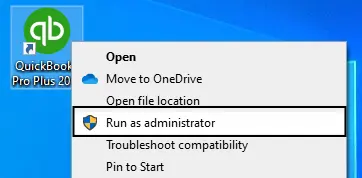
If you are still encountering the QuickBooks won’t open issue, you must move on to the next solution.
Solution 6. Repair QuickBooks Through the Control Panel
Consider repairing QuickBooks through the Control Panel to update the installation permissions so you can open the software. Follow the detailed steps outlined below to repair QuickBooks
- Move to the Windows Start menu and select Control Panel.
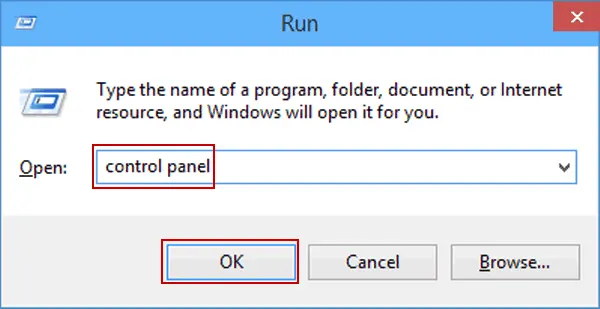
- Further, select Uninstall a Program under Programs and Features.
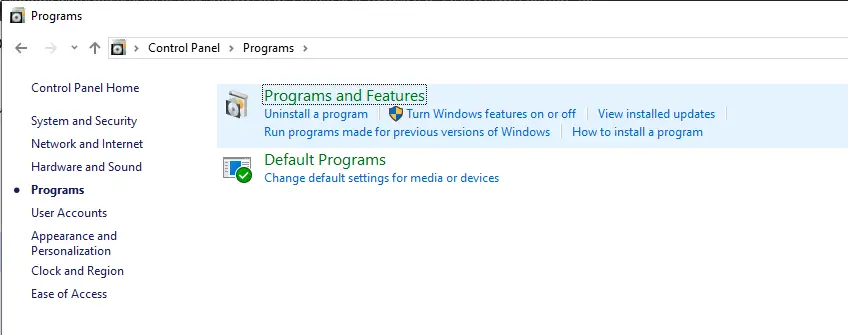
- Then, click QuickBooks from the list of applications, and select Uninstall/Change.
- Lastly, select Repair, then click Finish to complete.
If you are still experiencing the “QB won’t open” error, you should try the next solution.
Solution 7. Check the FISP Settings for Windows 10 Pro or Higher
Let’s follow the steps below and check the FISP settings for Windows 10 Pro or later:
- Firstly, press the Windows + R keys simultaneously to open the Run command dialog box.
- Then, type in GPEDIT.MSC and hit the Enter key.
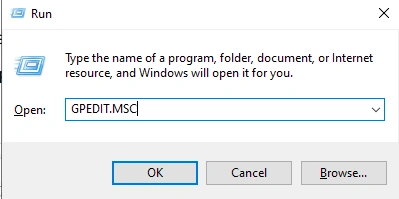
- Select Computer Configuration and then select Windows Settings in the Local Computer Policy window.
- Select Security Settings, then select Local Policies, and then Security Options.
- Select System Cryptography FIPS and ensure it’s disabled. In case it’s enabled, disable it and then reboot the system.
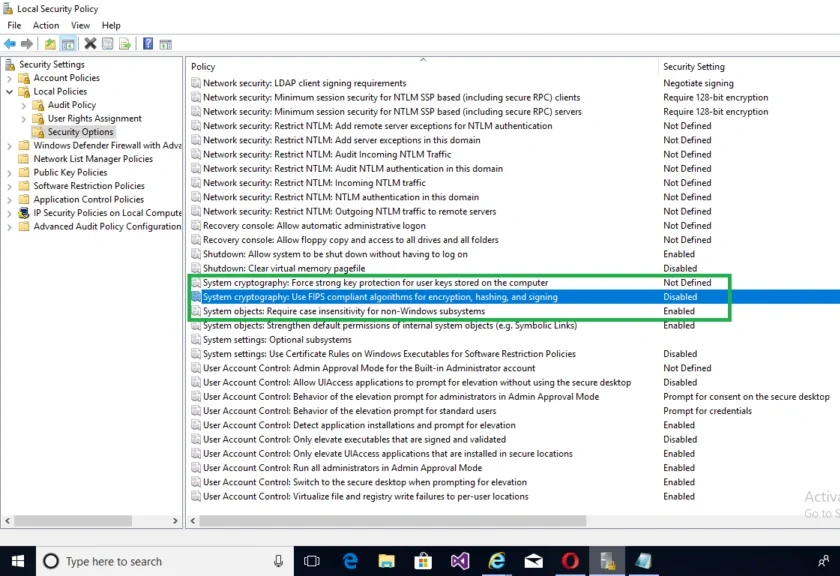
- Lastly, try to open QuickBooks to check whether the QuickBooks won’t open issue has been resolved.
If this solution doesn’t resolve the issue, move on to the next solution.
Solution 8. Update Windows
QuickBooks won’t open if you are using an outdated version of Windows OS. Precisely, an outdated Windows version may trigger compatibility issues with QuickBooks. Let’s follow the steps below and update Windows to the latest release.
In Windows 11
- Press the Windows Start button and click the gear icon.
- Further, select Windows Update. If updates are available, click to download and install them.
In Windows 10
- Press the Windows Start button and move to Settings.
- Select Update & Security > Windows Update. Then, check whether the updates are available. If the updates are available, click to install them.
If QuickBooks still won’t open after updating Windows, move to the next solution.
Solution 9. Repair the Microsoft .NET Framework
The Microsoft .NET Framework repair tool fixes common issues with the setup of Microsoft .NET Framework or with updates to the Microsoft .NET Framework setup.
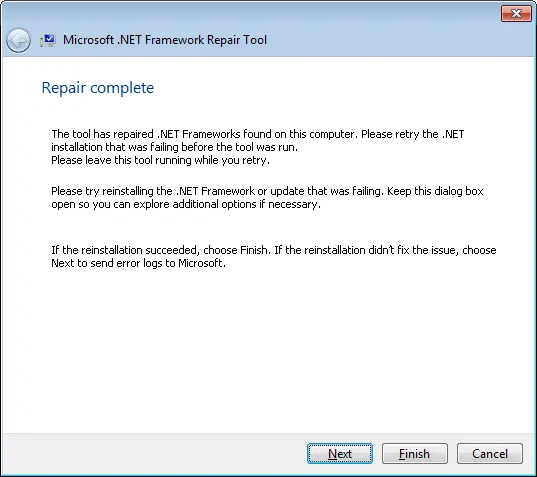
- When you update the OS, it automatically looks for and installs missing updates for the .NET Framework.
- Further, download and run the Microsoft .NET Framework Repair Tool.
If the QB won’t open error is still occurring, you should perform the next method.
Solution 10. Run the System File Checker from within Windows as an Administrator
The Windows System File Checker (SFC) is a tool designed to repair corrupt system files in Windows. Let’s run this repair tool in Windows as an Administrator by following the steps outlined below:
- First, move to the desktop and press the Windows + X shortcut key combination.
- Select Command Prompt (Admin) from the menu.
- Further, click Yes on the User Account Control (UAC) prompt.
- In the command prompt window, type SFC /scannow and hit Enter to continue.
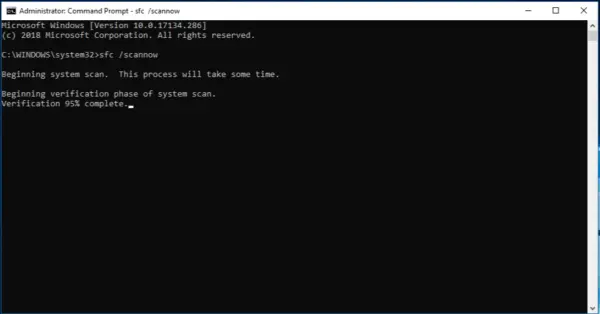
- The SFC /scannow utility checks the integrity of the Windows system files and repairs them if needed.
- Once the repair procedure finishes, reboot the system.
By following these steps, you can resolve the QBDT won’t open error more easily.
Simple & Healthy Practices to Avoid the QuickBooks Won’t Open Issue
We have already mentioned the solutions to resolve the QuickBooks won’t open issue. There are some simple tips that you can follow to prevent this error. You need to perform the steps mentioned below:
- You should frequently back up the company file to avoid data loss and potential loading issues.
- Ensure the QB is completely closed before shutting down the desktop.
- It is recommended to update QBDT regularly.
- You must configure exceptions in your antivirus and firewall software to ensure they do not block important QuickBooks files.
- It is crucial to ensure the Operating System is up to date.
Go through these healthy practices to avoid the risk of QuickBooks won’t open issue.
What are the Leading Reasons Why QuickBooks Desktop Won’t Open?
Why won’t QuickBooks open? Well, many factors can trigger the QuickBooks won’t open error. We have outlined all the reasons in detail in this section.
- QuickBooks won’t open when the company name is too long
- A damaged or missing QBWUSER.INI file may cause this issue
- The hard drive is corrupted
- In case the program files or QBDT installation are damaged
- A damaged Windows operating system can also be a reason why QuickBooks won’t open
Tip 1. Sometimes, QuickBooks doesn’t open right away when you click it several times. It’s best to give it enough time to open.
Tip 2. Consider using a supported version of Windows so that your computer meets QuickBooks’ system requirements and you can work in QuickBooks seamlessly.
You should know the causes of the QuickBooks Desktop won’t open issue, as this can help you to resolve the error more quickly.
Conclusion
In this blog, we have discussed the causes of the QuickBooks won’t open issue. We have also covered the resolutions for this error and recommended some simple healthy practices to avoid the risk of this issue.
Frequently Asked Questions
What should I do first when QuickBooks won’t open?
You should restart your computer and try to open QuickBooks again. If the issue persists, open it in Safe Mode or use the QuickBooks Tool Hub.
In what circumstances will my QuickBooks won’t open?
Many users have experienced this issue right after upgrading their Windows to the latest version. Besides that, many failed to open QuickBooks right after updating it. However, there could be many more circumstances wherein QuickBooks won’t open.
Why QuickBooks won’t open in Chrome?
It happens due to multiple reasons, including a damaged QuickBooks installation, a damaged or missing QBWUSER.INI file, a damaged Windows operating system, a corrupted hard drive, etc.
Why do we run the repair tools when QuickBooks won’t open?
In case the program files or QBDT installation are damaged, you may experience QuickBooks won’t open error. Therefore, in order to repair the damaged program or installation files, we run the repair tools.
Can a company file cause the QuickBooks won’t open issue?
Yes, a corrupted or damaged company file can stop QuickBooks from opening properly. So, it is required to repair the file or restore from a backup.
You May Read Also-
Troubleshooting methods for QuickBooks Error 6010 100
Resolution Steps if You Encounter QuickBooks Error 355
What is QuickBooks Error 3180, and how can it be fixed?
Ultimate Guide for Troubleshooting QuickBooks Error 181016
Easy Ways to Troubleshoot QuickBooks Error 1618

James Richard is a skilled technical writer with 16 years of experience at QuickBooks Data Migration. His expertise covers data migration, conversion, and desktop errors for QuickBooks. He excels at explaining complex technical topics clearly and simply for readers. Through engaging, informative blog posts, James makes even the most challenging QuickBooks issues feel manageable. With his passion for writing and deep knowledge, he is a trusted resource for anyone seeking clarity on accounting software problems.