You can be trying to open your company file in single-user mode or multi-user mode and run into a 6000 series error. These errors often have three or four digits separated by a comma, a space, or both. In this article, we are going to take a detailed look at QuickBooks error 6000 832.
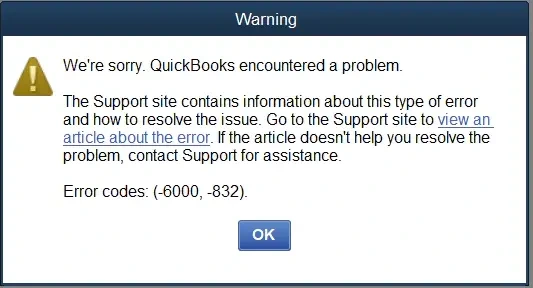
This is the message you can see on your screen:
“We’re sorry. QuickBooks encountered a problem.
Error codes: (6000, -832).”
While a corrupt .nd or .tlg file can often be the reason for the error, there are other factors that can lead to it. You can try renaming these files to troubleshoot error code 6000 832. For detailed troubleshooting and step-by-step guidance, continue reading this blog.
If you are struggling with other 6000 series error codes in QuickBooks, we have compiled a separate guide with a list of all the common error codes in this series and their resolutions.
A Quick View – QuickBooks Error 6000 832
Let us go through a quick overview of what this blog covers on error code 6000 832.
| Description | QuickBooks error 6000 832 shows up when the user tries to open the company file. |
| Why it occurs | Corrupt .nd and .tlg files, incorrect hosting configuration, damaged program or components, missing or corrupt installation files, and often lead to the error. |
| How to fix it | Check your hosting configuration, run Quick Fix my Program and QuickBooks File Doctor, rename the .nd and .tlg files, and update the application. |
Tried and Tested Ways to Troubleshoot QuickBooks Error 6000 832
There are many components and, in general, factors that come into play when you open a company file in QuickBooks and work on it. This includes configuration files, programs, and Windows components, the data in the company file, and so on. As a result, there is a lot that can go wrong and lead to a company file error like QuickBooks error 6000 832. We will troubleshoot all these aspects in a systematic and stepwise manner. Let us begin with a software update.
However, it is recommended that you first update your operating system, i.e., Windows or macOS, and restart the computer. Moreover, close all QuickBooks processes running in the foreground and background, and open programs that you do not need right now.
Update QuickBooks Desktop Application
An outdated program can cause incompatibility and miscellaneous issues. You should update your QuickBooks Desktop to the latest release.
If you run a QuickBooks that was released years ago, you can consider switching to QuickBooks Desktop Enterprise.
Run Quick Fix my Program
Let us run a quick repair on your QuickBooks program using the Tool Hub. You first need to have QuickBooks Tool Hub installed on your computer.
- Once QuickBooks Tool Hub is installed, or if it is already on your computer, launch it.
- Go to the Program Problems tab and click on Quick Fix my Program.
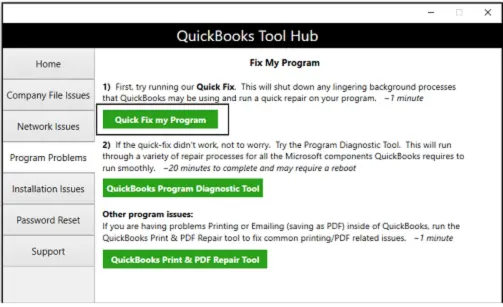
Restart the QuickBooks application and check if you can access your company file. If you see QuickBooks error 6000 832, run QB File Doctor.
Utilize the File Doctor Tool in QuickBooks Tool Hub
QuickBooks File Doctor is a great utility to easily repair the company file and network issues. It is found in the Company File issues tab in QuickBooks Tool Hub.
Assuming you already have the Tool Hub installed from the last step, here is what you need to do:
- Launch QuickBooks Tool Hub and go to the Company File Issues tab.
- Click on the Run QuickBooks File Doctor option.
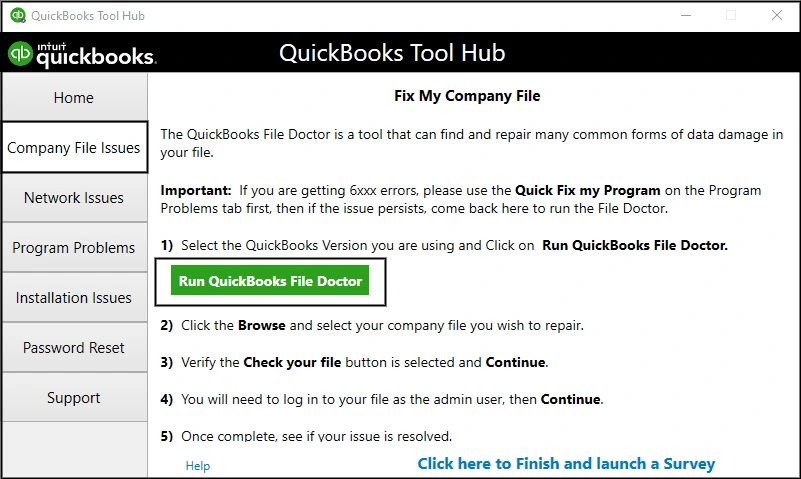
- The File Doctor will appear on your screen in a bit. In case it doesn’t even after waiting for 3 to 5 minutes, search for QuickBooks File Doctor in the Search box beside the Start menu and open it from there.
- Now, click on the Browse option, navigate to where your company file is, and select it.
- From the three options in the Window that appear, you need to choose the Check your file option.
- Next, click on Continue and type in your admin password for QB
- Finally, select Next.
Allow the tool to repair the company file. Once done, launch QB and open the company file. If you run into error code 6000 832 yet again, move to the next step.
Rename the .ND and .TLG Files
.ND and .TLG files are configuration files that help you access the company file over the network. Damage in these files can lead to an error when you try to open the company file.
- First, head to the folder that keeps your company file
- You will see files with the same name as your company file but with extensions .nd and .tlg. For example, if your company file is mycompany.qbw, you need to look for the following files:
- mycompany.qbw.nd
- Mycompany.qbw.tlg
- Right-click on one of them and choose the Rename option. At the end of the file name, after the extension, type .old. Save it.
- Do the same for the other file.
- Now, relaunch QuickBooks and try signing into the company file.
QuickBooks will now create fresh copies of the above files. However, if this doesn’t resolve the company file error, move to the next step.
Open Sample Company
There could be data damage to the company file that can no longer be fixed by the File Doctor. You can use a sample company to know if the problem lies with your company file or outside.
If you are working in multi-user mode, open the sample company on a workstation.
- Firstly, close any open QuickBooks windows and end all the running QB processes.
- Launch QuickBooks in the No Company Open window by holding the Ctrl key and double-clicking the QBDT icon on the desktop.
- Choose Open a Sample File and select any sample company file from the list you see.
If you can open your sample company file without a problem, go ahead and troubleshoot the company file or the folder where you store it in the upcoming steps. However, if you find the QuickBooks error -6000 -832, you need to repair the QuickBooks installation.
Copy the Company File to Another Location and Open It From There
There can often be a problem with the location where your company file is stored. For instance, the folder or the disk partition where the company file is can be damaged, or the file path is too long. The file path becomes too long when you are too many folders deep, or one or more folders or company files have long names, or both.
Issues limited to the file location can be checked for by copying the company file to the Desktop and trying to open it from there.
- Open the File Manager and navigate to the location where the company file is.
- Right-click the company file (it will have a .qbw extension) and choose Copy.
- Go to the Desktop, right-click anywhere empty, and choose Paste.
- Now, launch QuickBooks in the No Company Window by pressing and holding the Ctrl key when double-clicking the QuickBooks icon.
- Choose the Open or restore an existing company option. Try opening your company file from the new location.
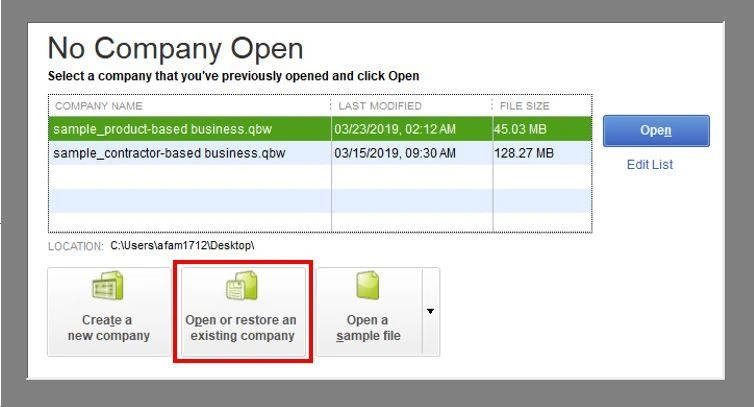
If you can open the company file without a problem, there is an issue with the location where you were storing your company file. Create a folder somewhere else and move the company file there.
However, if you see the QuickBooks error 6000 832, the problem lies somewhere else. Let us continue troubleshooting.
Section A: If You Open the Company File Locally
We will first go through the steps to troubleshoot error code 6000 832 that are specific to a single-user environment. Thus, if you open the company file in a multi-user environment, you can skip these steps and scroll down to find the steps for the scenario of the company file being opened over the network.
Ensure that Hosting Access is Disabled
Make sure that when working in single-user mode, your computer is not set to host the company file.
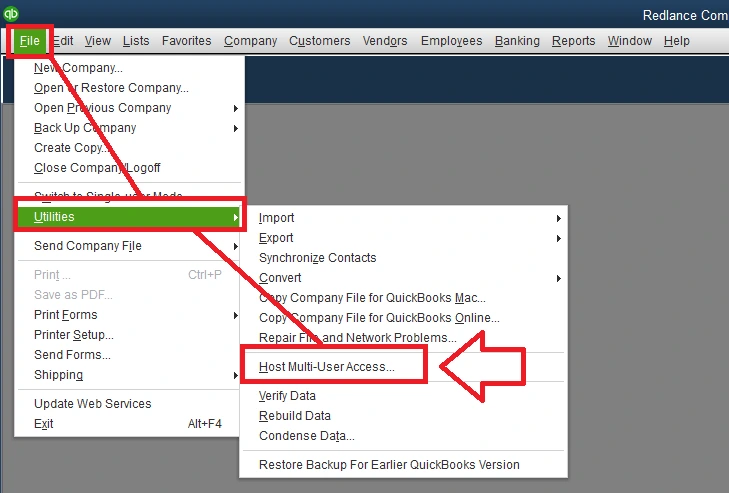
- Open QB and go to the File menu
- Choose Utilities.
- If you see an option stating Stop Hosting Multi-User Access, click on it and choose Yes.
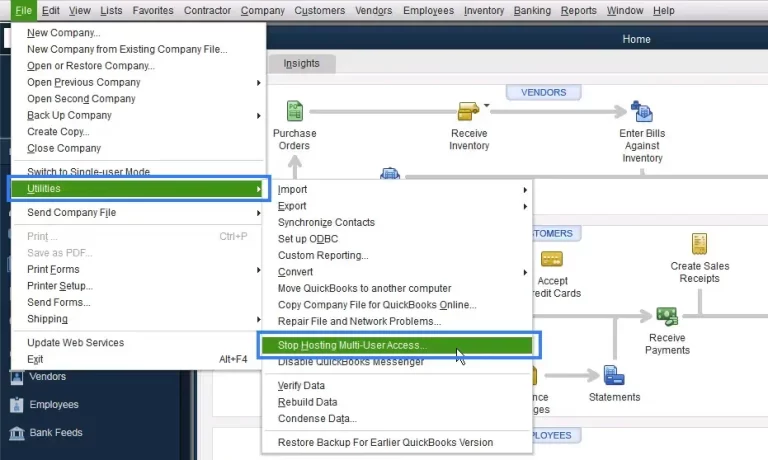
- However, if you see an option to Host Multi-User Access, do not click on it. Your computer isn’t hosting the company file in this case.
Next, we will check the file path.
Check the File Path to the Company File
If the file path is too long for the company file, QuickBooks will not be able to access it. This can happen if the folder names are too long, the company file is three or more folders deep, or the company name is too long.
The path to the company file shouldn’t be longer than 210 characters, to be precise. For instance, the file path below is 125 characters long:
C: Documents and SettingsAll UsersDocumentsIntuitQuickBooksSample Company FilesQuickBooks 2018Sample_company_file.qbw
To check the length of the file path, you can:
- Go to where the company file is.
- Select it with a click without opening it.
- You will see the path in the address bar. Click on the address bar.
- Press Ctrl + C keys, open Notepad, and paste it.
We checked for the issues associated with the folder and location. Now, we need to make sure that the company file name isn’t too long.
Restore a Saved Backup
You might have recently saved a backup of your company file, which you can restore. Thus, check if you can restore the company file.
Utilize the Auto Data Recovery Feature
However, if you can’t, your last bet is to recover lost data with the help of the Auto Data Recovery utility in QB.
Section B: If You Open the Company File Over the Network
Now, we will go through the steps to troubleshoot error code 6000 832 in a multi-user environment, or in other words, when you open the company file over the network.
Check Your Hosting Configuration on Server and Workstations
In a multi-user environment, one computer hosts the company file, and is called the server. The rest of the computers are workstations and do not host the company file.
Check all the computers, including the server and workstations. Make sure that the hosting is enabled on the server and disabled on the workstations.
Follow these steps to check the hosting status on computers.
- Open QB and press F2 to launch the Product Information window.
- Look for the Local Server Information section.
The hosting should appear as disabled on the workstation and enabled on the server.
Launch QuickBooks Database Server Manager from the Tool Hub
QuickBooks Database Server Manager is what hosts the company file and allows one to access it from the workstations. Therefore, launch it manually on the server.
Close QB Desktop on all workstations, and then carry out these steps on the server:
- First, launch the Tool Hub and go to the tab for Network Issues.
- Choose QuickBooks Database Server Manager. In case it is not already there on your computer, install it.
- When the server manager window opens, see if you can find your company file.
- If you do, choose Start Scan.
- If you don’t find your company file, tap on Browse, navigate to the location where the company file is, select it, and then choose Start Scan.
- Finally, open QB on workstations and open the company file.
End QB Processes Running
In the server computer, log in as the Windows administrator user.
- Now, fetch Task Manager by pressing the Ctrl + Shift + Esc keys.
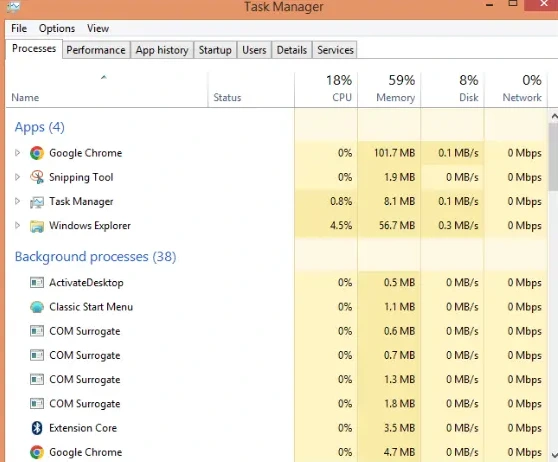
- Tap on Users. You will see processes for all users.
- One by one, click on these QuickBooks processes and then choose End Task:
QBW32.EXE, qbupdate.exe, and QBDBMgr.exe
Now, try accessing a company file in the workstation in multi-user mode.
Verify the Folder Permissions to Share QuickBooks Company File
QuickBooks must have permissions to share the company file over the network or access it in general.
Therefore, set up the required folder permissions for QuickBooks to share the company file. Once done, open the company file in multi-user mode.
Ensure QuickBooks Has Access to Firewall Ports
QuickBooks needs access to certain firewall ports to share the company file over the network. Windows Firewall and Antivirus often block QB’s access to these ports.
Therefore, check and make sure Windows Firewall isn’t blocking QB ports.
Configure the Antivirus or Security Software
Moreover, you need to create the required exceptions for QB programs. This is to ensure that the antivirus or the security software doesn’t block QB programs from running in the background, quarantine them, or block such programs’ access to the Firewall.
Finally, restart your computer and access the company file.
What are the Possible Explanations for the Error Code 6000 832?
We will sum up all the common factors that can lead to error code 6000 832 in QuickBooks so that you know what to look for.
- The hosting isn’t configured right. For instance, there could be hosting enabled on workstations or disabled on the server.
- QuickBooks Database Server Manager isn’t running.
- There are issues in .nd or .tlg files.
- Crucial installation files, Windows components, or registry keys are either missing or damaged.
- Windows Firewall or antivirus is blocking QB programs’ access to the firewall ports.
- Antivirus or security software is interrupting QB programs from running in the background or quarantining them.
- QuickBooks lacks the required permissions to access and share the company file over the network.
- There is data damage to the company file, or the company file has lost its data integrity.
- The QuickBooks program is damaged or incorrectly installed and needs repairing.
Expert Tips to Avoid Company File Issues in QuickBooks Desktop
Although errors like 6000 832 can appear out of the blue, there are various practices that you can put into your everyday routine to avoid company file issues and make the best out of QuickBooks.
- Periodically check your company file for data damage and rebuild if you need to. This is a part of proactive maintenance of the financial data.
- If the company gets longer over time, condense it. This also boosts performance.
- Make sure to set up the hosting properly before you or your team accesses the company file in multi-user mode.
- When closing QuickBooks, always exit it correctly by going to the File menu and choosing Exit.
Abrupt shutdown can mess with data integrity.
Final Words
QuickBooks error -6000 -832 can lock you out of your company file and halt your ongoing operations. Fortunately, it is not very tricky to troubleshoot, although the error can sometimes seem stubborn and hard to resolve. We hope these solutions help you address the issue and get back on track with your day-to-day bookkeeping and accounting.
Frequently Asked Questions
What is error 6000 832 in QuickBooks Desktop?
Error code 6000 832 is commonly termed as a company file error. It can show up when you try to host, access, or restore a company file. The common things that cause it are corrupt network data files, firewall restrictions, or incorrectly configured hosting.
What to blame for the QuickBooks Error code 6000 832?
The immediate causes of getting QuickBooks Error Code 6000 832 are the corrupt or incomplete installation of the QuickBooks Desktop application. Moreover, if the server isn’t given full access permissions, it wouldn’t be able to access certain financial databases you might be working on. Finally, it may be possible that the file you are trying to open is large.
How can the Damaged Coordinator be restructured to fix QuickBooks 6000 Error Codes?
QuickBooks error 6000 series codes are generally related to company file or hosting setup problems. In restructuring the Damaged Coordinator or the company file, there are steps that have been found to diagnose and repair the company file or resolve the configuration problems that cause the problem.
How will it affect me if I leave error code 6000 832 unresolved?
If you leave error code 6000 832, you essentially risk losing your company data. The problem can stem from data damage. If left unresolved, your company file may get corrupted, and you may get locked out of your company file. In the worst-case scenario, you lose your years of accounting data.
Why can I not access the company file in QuickBooks?
There can be a few things that block your access to the company file, which include a problematic network data file, incorrectly configured hosting, firewall blockage, inadequate QB’s permission to access or share the company file, issues with the file path or folder location.
How do I repair a corrupt QuickBooks company file?
QuickBooks Tool Hub can repair the company file issues in no time. However, it might prove ineffective and doesn’t always work. You can verify and rebuild your company file from the Utilities section in the File menu.
You May Also Read-
Payroll Service Issues in QuickBooks Desktop [Resolved]
Fix QuickBooks Payroll Update not Working in Windows or Mac
Expert Fixation QuickBooks Error 1327: Installing Issue
QuickBooks Application with Revoked Certificate Issue [Fixed]
Accurate Methods for FreshBooks Conversion to QuickBooks Online

James Richard is a skilled technical writer with 16 years of experience at QuickBooks Data Migration. His expertise covers data migration, conversion, and desktop errors for QuickBooks. He excels at explaining complex technical topics clearly and simply for readers. Through engaging, informative blog posts, James makes even the most challenging QuickBooks issues feel manageable. With his passion for writing and deep knowledge, he is a trusted resource for anyone seeking clarity on accounting software problems.