QuickBooks error 15311 is a common issue that you may come across when trying to download the latest QB and payroll updates. It belongs to the 15XXX series of error codes in QuickBooks. It can result from an outdated digital signature certificate or incorrect internet settings, among other causes. You can try restarting your computer and then running the update to check if it works. However, if that doesn’t help, you need to run a comprehensive troubleshooting. We will guide you through that in this blog.
QuickBooks Update Error 15311 – An Overview
This section provides a quick overview of what this blog talks about.
| Error description | QuickBooks error 15311 shows up when trying to download software or a tax table update. |
| What causes it | Invalid or missing digital signature, incorrect internet settings, missing or damaged component required for updates, firewall or antivirus blockage, corrupt QuickBooks program, outdated operating system, disabled QuickBooks File Copy Service (FCS) |
| How to fix it | Update the operating system, enable QuickBooks File Copy Service (FCS), run the reboot.bat file, repair the QuickBooks program and installation, reconfigure internet settings, and add Intuit as a trusted site. |
Things to Ensure Before Troubleshooting QuickBooks Error Code 15311
There are certain things that must be ensured before you run QuickBooks updates or troubleshoot related issues.
- Firstly, you need an internet connection that is strong and stable. Try opening your bank or credit card website; this should give you an idea of the internet speed. You can also open online speed test pages.
- Make sure you have the latest Windows release (software updates) installed on your computer.
- Switch to single-user mode before downloading payroll updates. QuickBooks prevents users from running payroll operations in multi-user mode.
This will ensure that there is no compatibility issue between QB and the operating system.
How to Fix QuickBooks Error 15311: Practical Solutions to the Update Problem
Until QuickBooks error 15311 is taken care of, you won’t be able to download and install the latest updates, features, and improvements in the QuickBooks Desktop application. Thus, go through the steps given below and carry them out as instructed.
Solution 1 – Run the Software & Tax Table Updates as an Admin User
You must begin by updating QuickBooks Desktop to the latest release. Moreover, make sure to log in as a Windows admin user before you do so.
- Close the company file and exit QuickBooks Desktop.
- Now, locate the QB Desktop icon on the Desktop and right-click on it
- Choose Run as administrator from the list of options you see
- If asked whether you want to allow the program to make changes to the computer, choose Yes.
Next, proceed with the steps mentioned below for payroll tax table updates –
- Start by launching QBDT, then navigate to the Employees menu and select Get Payroll Updates.
- Further, choose Download Entire Update, click Update, and once the update process is complete, an informational window will appear confirming the success.
However, if you encounter QuickBooks update error 15311, move to the next step.
Solution 2 – Enable QuickBooks Desktop File Copy Service (FCS)
QuickBooks Desktop File Copy Service is crucial for installing updates. Here is how you can enable it in Windows:
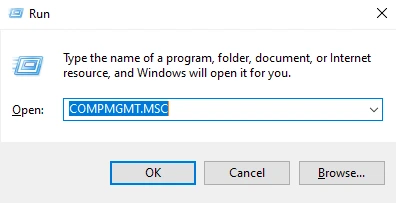
- Bring forth the Run window by pressing the Windows + R keys.
- Type COMPMGMT.MSC and hit Enter.
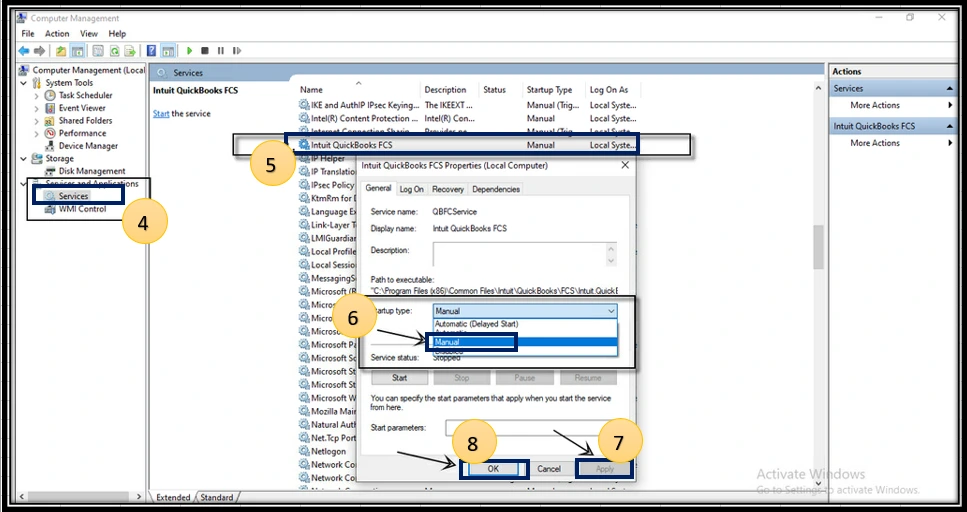
- Choose Services and Applications when you see the Computer Management window.
- Click on Services.
- Scroll down to find the Intuit QuickBooks FCS and double-click on it.
- Choose Startup type as Manual and select Apply.
- Finally, choose OK.
If you encounter QuickBooks update error code 15311 while running the update, move to the next step.
Solution 3 – Review Your Payroll Service Key in QB
Let us review the QB payroll service key in the following manner:
- In QuickBooks Desktop, navigate to the Employees menu from the homepage and choose the My Payroll Service option.
- You need to make sure that the Status shows as Active and the Service Name that appears is correct.
- Next, click Manage Service Keys, select Edit to verify that the currently listed key is correct, and then click Next.
- Finally, tap on the Finish button, and restart your PC.
Re-download the QB and payroll updates.
Solution 4 – Register the QuickBooks File by Running Reboot.bat
Reboot.bat is a crucial file in QuickBooks that helps re-register essential files, such as .DLL and .OCX files. You must register these files again by running reboot.bat as an admin to resolve the update error.
- Close QuickBooks on your PC, right-click the QB Desktop icon, and choose the Properties option.
- Now, select Open File Location, and once the QuickBooks installation folder opens, right-click the Reboot.bat file.
Note: You need to make sure that Windows is set to display hidden files. If that is not the case, you will need to tweak the settings. - Click Run as Admin, then wait for the Reboot.bat file to re-register the QuickBooks files. Once the command prompt window disappears, rerun the app.
Now, try updating QuickBooks and payroll again to check the status of QuickBooks error code 15311. If it persists, follow the next troubleshooting solution to address it.
Solution 5 – Install a Fresh Digital Signature Certificate
If the digital signature certificate you use in QuickBooks is expired or outdated, it can lead to common update error codes. Hence, you must install a fresh digital signature certificate by using these detailed instructions:
- Open the C Drive of your PC, follow this navigation path – Program Files\Intuit\QuickBooks, then locate and right-click the QBW32.exe file.
- From the list menu that appears, choose Properties,
- Next, click on Digital Signature and verify that Intuit is selected in the signature list that appears.
- Choose Details.
- Move to the Digital Signature Details window, and click on the View Certificate option.
- Further, open the Certificate window, click Install Certificate.
- Choose Next until you see Finish, and finally choose Finish.
After installing the certificate, restart your PC.
If QuickBooks error 15311 persists, we will need to repair the desktop application.
Solution 6 – Repair QB Desktop
Issues when updating QuickBooks or payroll are likely to occur if your QBDT program is damaged or improperly installed. To fix the update issues and error codes, you need to repair QuickBooks Desktop. The instructions below will help you do so –
- Start by downloading the latest QuickBooks Tool Hub version on the computer. Now, install it using the onscreen prompts. Double-click on the shortcut icon on the Desktop to launch it.
- Once QB Tool Hub opens, navigate to the Program Problems tab, then select the Quick Fix My Program utility to initiate a program repair.
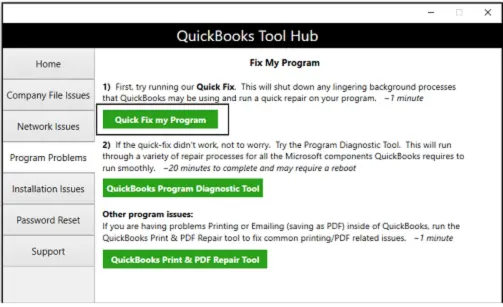
After the tool stops running, rerun the updates to check if you were able to fix QuickBooks error 15311.
- If not, repair the QuickBooks installation by returning to the Installation Issues tab in QuickBooks Tool Hub and running the QuickBooks Install Diagnostic Tool.
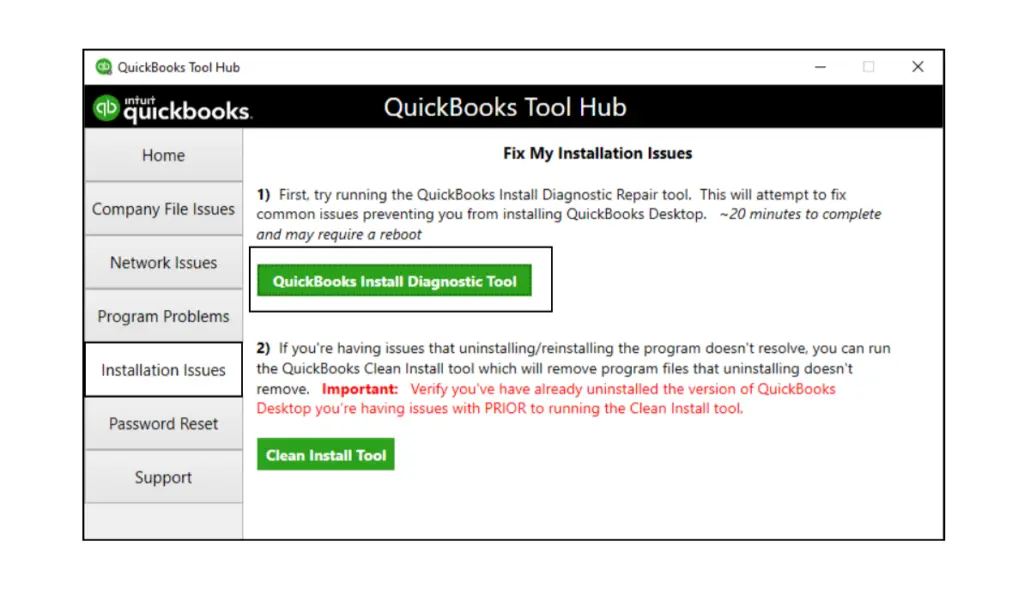
Note: The Install Diagnostic Tool takes a while to appear and start running. The overall repair might take 10 to 15 minutes.
After the tool stops running and QuickBooks is repaired, restart the computer, rerun the QB and payroll updates, and check whether error code 15311 in QuickBooks Desktop has been resolved.
Solution 7 – Add Intuit as a Trusted Site
You can add Intuit as a trusted site to ensure nothing interrupts your connection to the Intuit server while downloading updates.
- Open Internet Options (search for Internet Options in the Start menu to find it)
- Go to the Security tab and click on Trusted Sites.
- Click on Sites and look for the option to Add trusted websites or Add this website.
- Now, enter “https://*.intuit.net” (without inverted commas) and choose Add. Next, enter “https://*.quickbooks.com” and choose Add.
- Finally, choose Close.
Restart your computer and get QuickBooks updates.
Solution 8 – Review the Time & Date, and Advanced Internet Settings
Misconfigured internet settings can prevent you from successfully downloading the latest QB updates. To avoid seeing QuickBooks error 15311 while updating, we must check the internet settings and ensure that everything is right when it comes to the connection.
However, before you can do so, you must check the date and time settings on your PC to ensure they are correctly set. If not, set the correct time and date for your region from the settings, whether you are on macOS or Windows.
- Launch QuickBooks and pull up the Help menu.
- Choose Internet Connection Setup followed by Use my computer’s Internet connection settings.
- Once done, open Intuit on your web browser, press the Alt key to access the menu bar, move to the File menu, and click Properties.
- Now, move to the Connections tab and check the cipher strength to ensure it is equal to or more than 128 bits; otherwise, the connection might be damaged.
- Delete the Temporary Internet Files from the General section, then navigate to the Tools menu and select Internet Options.
- Further, click LAN Settings from the Connections tab, move to the Advanced section, and check the SSL setup.
- Ensure that SSL 2.0 and 3.0 options are checkmarked, then check if the TLS 1.2 option is selected (you must unmark it).
- Unmark the Check for Publisher’s Certificate box, hit Enter to save the changes, and proceed by restarting your PC.
If you are greeted with the QuickBooks error code 15311 message window, you might need to reinstall QuickBooks Desktop.
Solution 9 – Reconfigure Windows Firewall and Antivirus
Misconfigured Windows firewall or antivirus settings might interrupt the update and lead to QuickBooks error 15311. Your system’s firewall might block QuickBooks from accessing the internet when downloading software updates. To address this scenario, you must configure the Windows Firewall and antivirus settings, remove restrictions, or create the required exemptions.
Once done, restart the computer and run the QB and payroll update process.
Solution 10 – Clean Install QB Desktop in Windows Safe Mode
If you aren’t able to remove the update error by repairing QuickBooks from the QB Tool Hub, you must install a fresh version. When reinstalling QB Desktop, ensure your PC is open in either Safe Mode or Selective Startup mode to avoid interruptions from background apps.
Moreover, instead of traditional reinstallation, you should perform a clean installation of QuickBooks Desktop.
Once you clean install QuickBooks, enter your product information, activate the program, and get tax table updates.
Main Reasons That Lead to QuickBooks Payroll Error 15311
To troubleshoot an error, it helps to have a detailed knowledge of various factors that can lead to it. QuickBooks error 15311 can arise while updating QuickBooks due to the following list of leading reasons:
- The lack of proper administrative rights while downloading the QBDT and payroll tax table updates might limit your ability to make changes to the computer.
- Crucial QuickBooks installation files, Windows registry, or Microsoft components are either missing or corrupt.
- The present digital signature for QuickBooks has either expired, is outdated, or is damaged. The application might even be missing a digital security certificate.
- There might be an incorrect payroll service key entered in QuickBooks, or the payroll subscription may have expired or require revalidation.
- Your QuickBooks Desktop program might not be installed properly, or the installation files or associated registry keys might have been modified.
- Windows doesn’t treat QuickBooks and Intuit as trusted sites, or doesn’t allow an uninterrupted connection to the Intuit server.
- QuickBooks might not be able to access the required firewall ports due to being blocked by Windows, an antivirus, or another security program.
- The antivirus or security software blocks QuickBooks programs from running or quarantines them.
Expert Hacks to Avoid Running into Update Errors in QuickBooks
QuickBooks errors may seem inevitable, but there are certain healthy practices that can help avoid them. To run into QuickBooks update error code 15311 (and other related errors) less often:
- Keep your operating system (such as Windows or macOS) updated to the latest release
- If you utilize a Windows or QuickBooks version that was released many years ago, consider upgrading to a recent version. The latest versions are more compatible with all kinds of programs and security standards, and will provide overall better performance and a smoother experience.
- Revalidate your service key when you renew your payroll subscription and make sure your subscription is active.
- Run payroll updates in single-user mode. If you frequently work in multi-user mode, double-check to ensure you have switched to single-user mode before running payroll updates.
These will contribute to a smoother accounting experience in QB Desktop.
Final Words
QuickBooks updates are crucial for your day-to-day accounting operations, and the error code 15311 can keep you from getting these updates. 15311 is one of the many 15XXX errors that are associated with software and payroll updates.
In this blog, we saw why you run into QuickBooks error 15311 and how you can troubleshoot it. This should help you install the updates without a problem.
Frequently Asked Questions
What does QuickBooks error code 15311 affect/impact?
QB error 15311 is a common 15XXX series error that can occur while updating QB Desktop or the payroll function in the app. This particular error code impacts the update process, can abruptly stop the system, and hamper the daily operations of QB users. Moreover, this error affects the payroll functions, like paycheck processing being stuck.
Can removing the corrupted cache files help eliminate QB error code 15311?
Yes, you can remove the damaged cache by running the DNS command in the following manner to address the 15311 error in QuickBooks –
1. Click on the Start menu, enter CMD in the search bar, press Enter, and open the Command Prompt.
2. Type ipconfig /flushdns, hit Enter, complete the DNS flushing, and wait for amessage depicting the process success.
Can downloading the updates in multi-user mode lead to the update error codes and issues?
Many common update error codes, like the 15XXX series errors can occur if the user tries to download the recent updates while running QuickBooks as a multi-user app. This is because QuickBooks can’t be updates while it is being used on the server and workstations simulteneuosly; thus, users must update it in a single-user environment.
What is QuickBooks error 15311?
Users sometimes see a window featuring the QuickBooks error message 15311 when updating the software or tax table. It can result from a poor network connection, corrupt program or installation files, or misconfigured internet settings, to name a few reasons.
How can it affect me if I leave QuickBooks error 15311 unresolved?
Before you address error code 15311 in QuickBooks Desktop, you might find yourself unable to install the software or tax table updates. Thus, it can delay day-to-day accounting tasks and keep you from sending paychecks.
Can deleting the corrupted cache files help eliminate QB error code 15311?
Deleting cache files from the browser is not directly related to the QuickBooks update. You can delete the cache files, though, and check if it works for you.
Can downloading the updates in multi-user mode lead to the update error codes and issues?
It is recommended that you download the updates in single-user mode. Downloading the updates in multi-user mode can cause file conflicts, inadequate permissions, etc. Moreover, in the context of payroll updates, QuickBooks allows payroll operations for one user at a time. Therefore, it might prevent you from running payroll operations in multi-user mode, including tax table updates.
You May Also Read-
An Easy Guide on Making QuickBooks Antivirus Exclusions
How to Fix QuickBooks Error 40003 – Payroll Error
Are you facing issues with QuickBooks error 1722? Fix it now
Fix QuickBooks Error C=184 with Step-by-Step Troubleshoot
Troubleshoot guide to fix QuickBooks Error 6176

James Richard is a skilled technical writer with 16 years of experience at QuickBooks Data Migration. His expertise covers data migration, conversion, and desktop errors for QuickBooks. He excels at explaining complex technical topics clearly and simply for readers. Through engaging, informative blog posts, James makes even the most challenging QuickBooks issues feel manageable. With his passion for writing and deep knowledge, he is a trusted resource for anyone seeking clarity on accounting software problems.