
QuickBooks is accounting software that stores a business’s financial information, including employees, customers, and vendors. There are cases when you may have an issue with the company file; QuickBooks error C43 is one such issue. The error may happen when the company file is damaged or corrupted. In this blog, we will discuss the method you need to follow to settle this issue.
QuickBooks Error C43 – A Quick View Table
The table below provides a quick summary of this blog, including key points about QB error C43.
| Description | QB error code C43 usually occurs when the software is unable to access the data. This may occur due to corrupt or damaged company files, firewall/antivirus limitations, the OCR-A font, or a slow internet connection. This can disturb running reports, printing forms, or reopening company files |
| Its Causes | The error C43 is caused by damaged or corrupted QB files, OCR-A font issues, an unstable internet connection, firewall or antivirus software blocking access, printing from W2 or 1099, or corrupted Windows registry files. |
| Solutions to Fix it | The error C43 can be resolved by using a digital signature certificate, running the Verify and Rebuild Data tool, utilizing QuickBooks Tool Hub, eliminating the OCR-A font, changing firewall settings, executing a clean install, or temporarily disabling antivirus protection. |
Discussing the Effective Methods to Resolve QuickBooks Error C43
If you are facing QuickBooks error C43 in your company file, it is advisable to follow the steps to fix the error and remove corruption from the QB files.
Solution 1: Use a Digital Signature Certificate to Fix QB Error C43
The QBDT security certificate is necessary to safeguard data and establish a secure network connection. Follow the steps mentioned below to fix the error C43.
- Firstly, choose the .exe file in the file location window.
- Next, right-click on it and select Properties.
- Select the option of Digital Signature.
- In the Signature list field, tap on the entries.
- Select the Details option, then tap View Certificate.
- After that, choose the Install Certificate option in the General tab.
- Ensure the store location is set to the current user in the Certificate Import Wizard.
- Next, click on the Next button.
- Finally, tap OK to finish installing the certificate shown on the screen.
Once the installation is complete, start QB to check whether the error persists.
Solution 2: Run the Verify and Rebuild Data Utility
It is recommended to troubleshoot the company file by using the rebuild tool to scan and fix errors. To resolve QuickBooks error code c43, follow the steps below.
Step 1: Check and Verify Company Data
- Begin by opening the Window menu and selecting the Select All option.
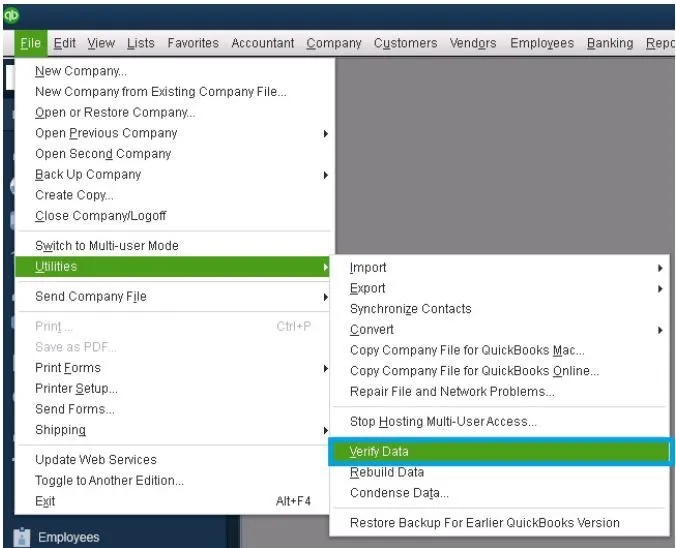
- In the File menu, click on the Utilities option.
- Then, tap the Verify Data option. You may see the following results:
- An error message: On our QuickBooks Desktop help page, look for the exact issue notice and follow the instructions to resolve it.
- “QuickBooks detected no problems with your data”: This means that your data is clean and you don’t need to do anything else.
- “Your data has lost integrity.”: Your file has data damage. You need to proceed to rebuild the company file to fix the issue.
Step 2: Repair and Rebuild Company Data
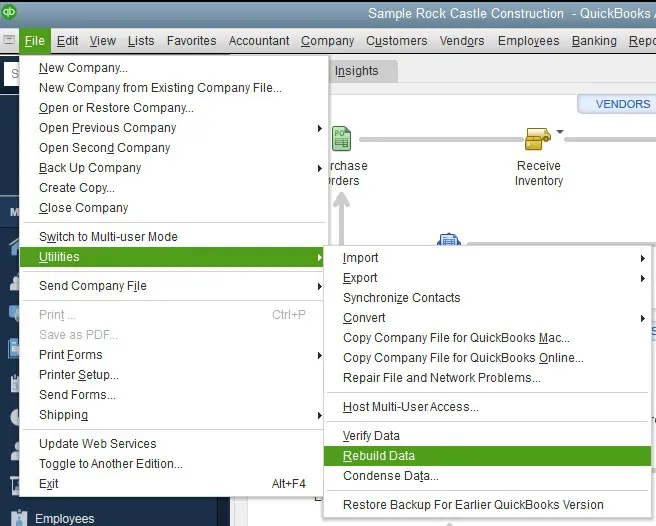
- Go to the File menu, choose Utilities, and tap Rebuild Data.
- Next, click OK to create a backup and select a location to save it.
- After that, enter the name of the new backup file and click Save.
- Once the rebuild process completes, click OK on the confirmation message.
If the error persists, try the next method to resolve it.
Solution 3: Launch QuickBooks Tool Hub to Repair Issues
The QBDT application helps you rectify errors like this, but first, you need to install QuickBooks Tool Hub on your system. Follow the steps mentioned below to fix error C43:
Step 1: Fix Issues in Your Company File
- Start by launching the QuickBooks Tool Hub.
- Then, navigate to the Company File Issues tab and click on the QuickBooks File Doctor option.
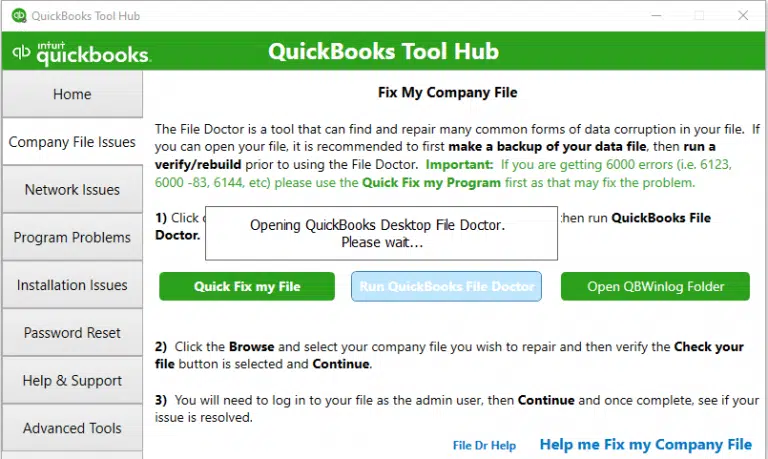
- Browse the company file that was causing the error.
- Allow the tool to run and resolve the issue.
Step 2: Fix Program-Related Issues
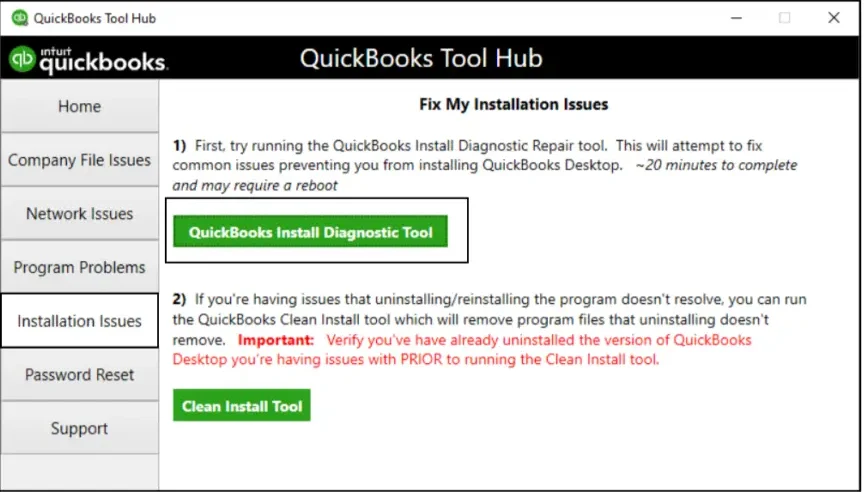
- Open QuickBooks Tool Hub and go to the Program Problems tab.
- Click the QuickBooks Install Diagnostic Tool option.
These built-in features will help you overcome system errors.
Solution 4: Fix Error C43 by Removing the OCR-A Font
It is recommended to delete the entire font to rectify the QuickBooks error c=43. You must follow the steps written below:
- First, open the Windows Start menu and select Control Panel.
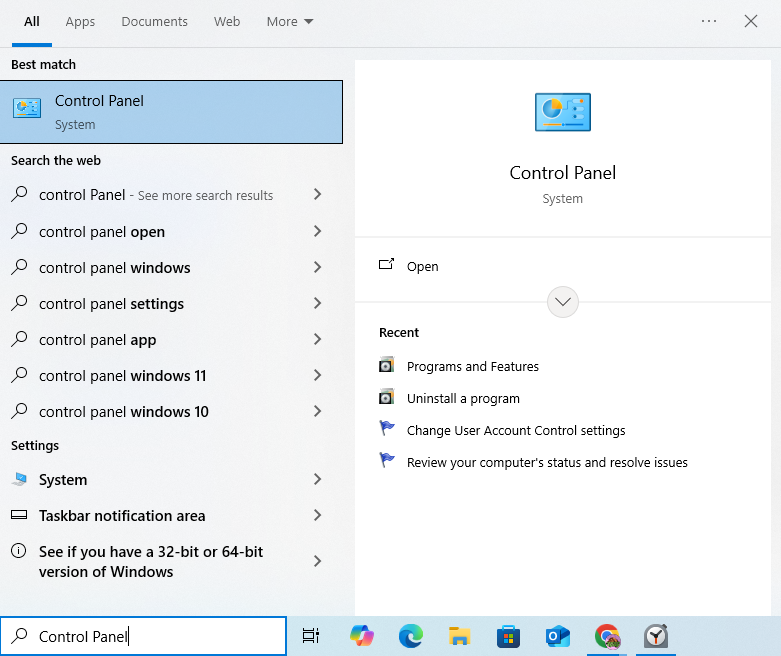
- Then, navigate to the Font option to access the list of fonts.
- Select each OCR-A font one at a time.
- Next, remove all the chosen items.
- Lastly, refresh and apply the changes by pressing F5.
If deleting the OCR-A font doesn’t resolve the issue, you should proceed to the next solution.
Solution 5: Adjust Firewall Settings for QuickBooks
Antivirus and firewall applications block the operations, such as accessing company files. You need to follow the steps below to address these issues:
- In the Start menu, type “Windows Firewall” in the search bar.
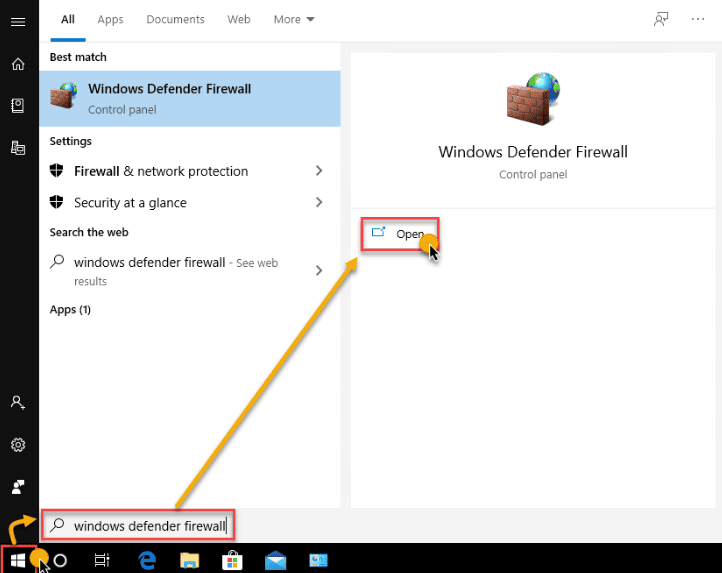
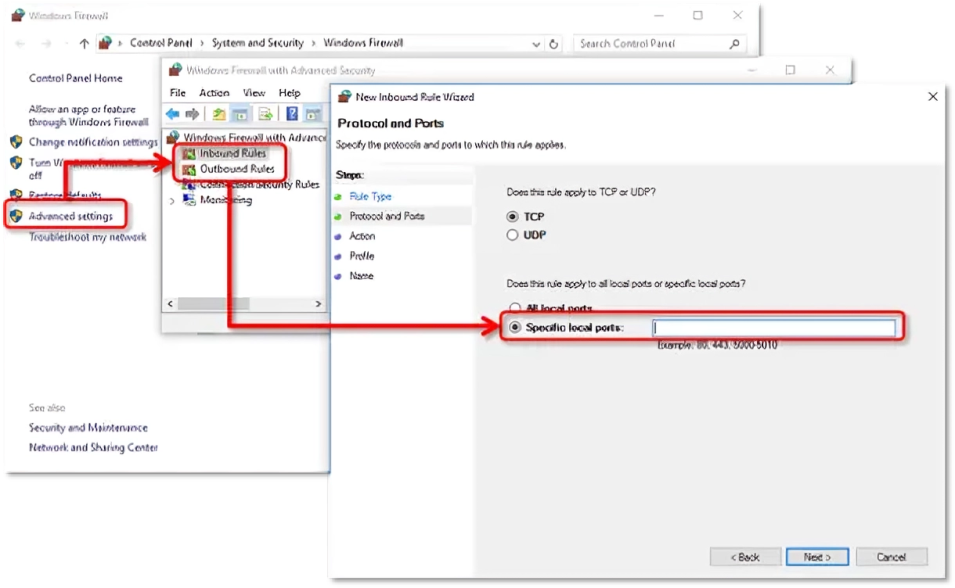
- Then go to Advanced Settings and right-click Inbound Rules.
- Next, click on the New Rule option.
- Select the Port and then Next.
- Make sure that you have clicked on the TCP option.
- Enter the ports as per the QuickBooks version in the specific local port areas:
- QuickBooks Desktop 2020 and later: 8019, XXXXX.
- QuickBooks Desktop 2019: 8019, XXXXX.
- QuickBooks Desktop 2018: 8019, 56728, 55378-55382.
- QuickBooks Desktop 2017: 8019, 56727, 55373-55377.
- After entering the port number, click Next.
- Then, choose the Allow the Connection option.
- When prompted, select all profiles, then tap Next again.
- Make a new rule, assign a name like QBPort (Year), and click Finish to save the changes.
Now repeat the same step for outbound rules, then save the changes to resolve the issue.
Solution 6: Use Clean Install to Fix QB Error C=43
You should perform a clean installation if QuickBooks error C43 prevents you from accessing the company file. Follow the steps mentioned below to fix the issue:
- Begin the procedure by preparing to install QBDT if error C43 blocks access to the company file.
- Next, remove the damaged program files by performing a clean install.
- Then, reinstall QuickBooks Desktop on the system.
- Finally, open QuickBooks and confirm that the company file opens without error c43.
Complete these steps to ensure that the QB error c43 is fixed.
Solution 7: Turn Off Antivirus Protection
It is recommended to temporarily disable real-time protection to resolve error C43. You need to perform the following steps mentioned below:
- Begin by opening the Start menu, then go to Settings.
- After going to the Settings, choose Update & Security.
- Then, tap on the Window Security option.
- Next, click Virus and Threat Protection, then open Manage Settings.
- Turn off the Real-time protection.
- Firstly, run the QB application to see if the error is resolved.
After following all steps, make sure that the QB issue is resolved. Do not forget to activate the Real-time Protection to ensure that your system is secure.
Possible Reasons Behind QuickBooks Error C43
There are various reasons why error C43 shows in your application. Now, we will discuss the reasons why QB error C43 occurs:
- The QuickBooks error C=43 can occur when the QB software tries to navigate a report.
- When the QB data file/files are corrupted or damaged.
- A poor internet connection may also cause the error C43.
- This error usually occurs when the Form 1099 & W2 are printed.
- The QB error C43 can also occur when the Windows registry files are damaged.
- If the firewall restricts the internet connection or blocks access to QB files.
You should understand these causes, as this will help you to discover the source of QuickBooks error code C43. Then, you can apply the correct troubleshooting steps to resolve it.
Conclusion
QuickBooks error C43 occurs when QuickBooks cannot process the data. This happens due to font issues, file corruption, or security restrictions. It is crucial to understand the causes to implement the correct solutions. This blog explains the reasons behind QB error C=43 and the practical steps to resolve it.
Frequently Asked Questions
What does QuickBooks error C43 mean?
QuickBooks error C43 implies that the program cannot read and/or process information properly. This issue arises because of corrupted company files, system conflicts, or security settings restrictions.
Why am I getting error C43 due to the OCR-A font?
The OCR-A feature doesn’t work properly on receipts, no matter how you choose to import them, whether it is a receipt or an email. This can ultimately cause trouble in accessing the file.
Does antivirus or firewall software cause QuickBooks error c=43?
Yes, antivirus or firewall software can block QB from using the internet or the needed files, which can lead to QuickBooks error C 43. You can resolve the issue by allowing QB through your security settings.
You May Read Also-
What is QuickBooks Error Code 101 and How to Fix it
What is error 179 in QuickBooks?
Why Payroll Check Transactions Are Not Matching in QuickBooks
How to convert a file from Mac to Windows?
How to manually import transactions into QuickBooks?

James Richard is a skilled technical writer with 16 years of experience at QuickBooks Data Migration. His expertise covers data migration, conversion, and desktop errors for QuickBooks. He excels at explaining complex technical topics clearly and simply for readers. Through engaging, informative blog posts, James makes even the most challenging QuickBooks issues feel manageable. With his passion for writing and deep knowledge, he is a trusted resource for anyone seeking clarity on accounting software problems.