It’s very frustrating when your QuickBooks Desktop won’t open properly or when you have display problems in the browser while viewing QuickBooks. This is due to missing text, distorted fields, and the inability to view the entire page in QuickBooks Desktop. Therefore, you need an urgent resolution of such visual glitches to prevent delays in your financial reporting and bookkeeping tasks.
In this step-by-step guide, we will tackle some of the most common QuickBooks display issues users encounter. From QuickBooks display issues in Windows 10 to issues a QuickBooks for Mac user might encounter, we go deep to find solutions that help restore your system to normal working order.
Quick View Table – QuickBooks Display Issues
Let’s quickly see the crucial point we discussed in this blog:
| Error Description | QuickBooks display issues occur when the software interface appears distorted, incomplete, or unresponsive, making it difficult to view or interact with financial data properly. |
| Causes | This issue is typically caused by outdated software or graphics drivers, incorrect screen resolution or DPI settings, browser problems (for online users), or corrupted installation files. |
| Ways to Fix it | You can fix QuickBooks display issues by updating the software and graphics drivers, adjusting screen resolution and DPI settings, clearing browser cache or switching browsers (for Online), and repairing or reinstalling the application if needed. |
What are the QuickBooks Desktop Display Problems?
Perhaps the most widely used variant of the application is QuickBooks Desktop. Although it is one of the most widely applied applications, it creates most of the problems that resemble display issues. The user may see uneven text on the screen, monitor flickers, or, in other cases, some parts of the interface cannot be viewed at all. Such problems are fairly common, and their solutions:
Misaligned or Missing Text
Poorly aligned text or missing fields are the most common QuickBooks display issues. These issues mostly cause problems with reading reports or entering incorrect information.
Solution:
- Update your computer’s graphics driver. If not updated, they may persist in many rendering issues in QuickBooks. You might find out whether there are updates available for your graphics card in Windows Device Manager by checking what’s available to update.
- The screen resolution may not be the one that QuickBooks has adopted. So, the text might look all funky. The simplest method is to right-click on your desktop, go to Display Settings, and select a resolution that QuickBooks likes, typically 1920 x 1080.
Blank or Black Screens
A white or black screen is one of the most common QuickBooks display issues that users face. Perform the solution mentioned below to resolve this issue.
Solution:
- Initially, you will need to change the QuickBooks DPI settings by right-clicking the QuickBooks icon and selecting Properties. Then select Disable display scaling on high DPI settings on the Compatibility tab. Next, choose Apply > OK. Finally, open QB to see if windows are available.
- The next step is to change the Desktop View Preference. Start by opening your company file. Then, click Edit at the top menu bar. After that, go to Preferences and select Desktop View > My Preferences. Last, switch the view from Multiple Windows to One Window.
Error messages and freeze glitches
At times, error messages appear, freezing programs or even causing application failures, due to corruption in a QuickBooks file or to conflicting software.
Solution:
- Run the QuickBooks install diagnostic tool. This resolves most installation issues related to it. It can be installed from the website. The most common use is to search and automatically determine how to resolve your QuickBooks installation problems.
- Install the QuickBooks repair tool. If that does not work, you will need to use a troubleshooting tool to manually repair QuickBooks. Control Panel > Programs and Features > QuickBooks. Select the repair function. It will correct all corrupted files.
Window size and resolution problems
Sometimes, the wrong resolution or simply the wrong window size can make QuickBooks look off. In this case, there are elements of the interface you don’t see at all, whereas other parts are very hard to navigate.
Solution:
- You will have to resize the QuickBooks window from scratch by dragging its corners. To restore it to its original size, just select the Restore option in the top-right corner.
- This also includes screen resolution. Make sure your computer screen is set to a resolution that QuickBooks supports. Typically, this will be 1920 by 1080.
QuickBooks Online Display Issues
Most of the display issues QuickBooks Online users encounter are due to browser-related problems. At its simplest end, it could be a layout malfunction; in its worst case, very slow-loading pages. Now, let’s see how some of the most common QuickBooks Online display issues can be fixed.
Incompatibility with Browsers
QuickBooks Online does not support all browsers, and the experience is less than optimal for all.
Solution:
- To work well, you need to keep up-to-date versions of Google Chrome, Mozilla Firefox, or Microsoft Edge, though you might best avoid Internet Explorer, given that it is likely older than the browser you’re using in the first place.
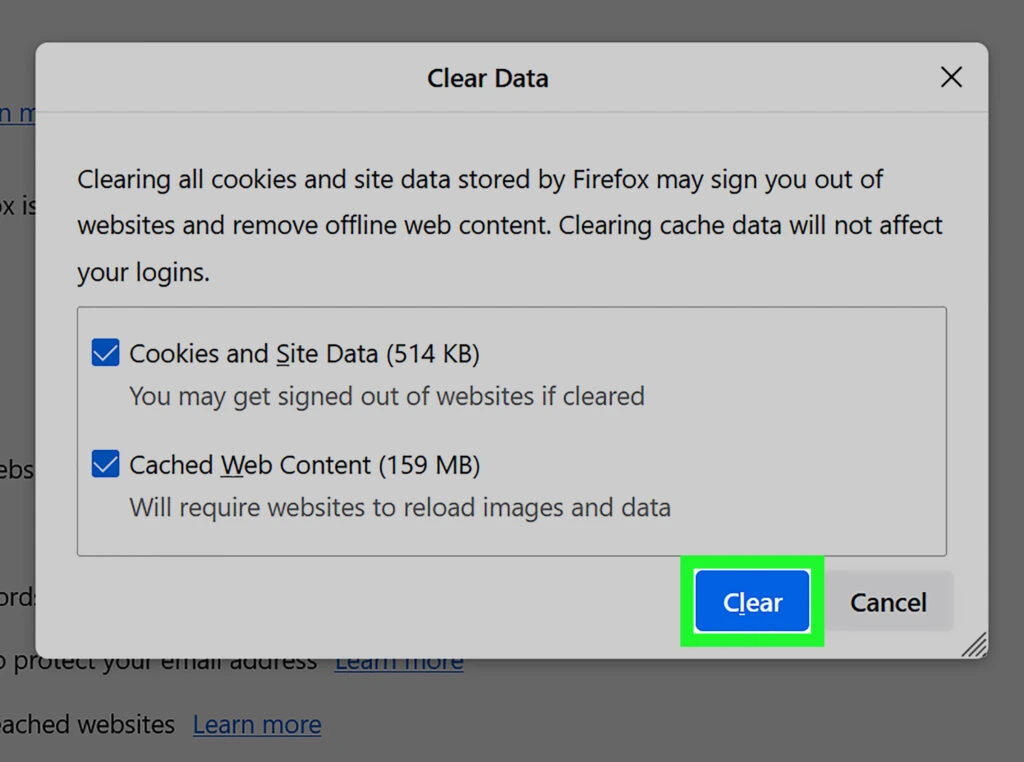
- Cache data may sometimes disrupt the operation of QuickBooks Online, sending it into fits and spasms. Make the order again by clearing your browser’s cache and cookies.
Page Not Loading or Rendering Issues
Sometimes, pages in QuickBooks Online fail to open or only open partially. The most common reason for QuickBooks display issues is a slow internet connection and outdated browser settings.
Solution:
- Make sure the internet is fast, as inconsistent speeds can also cause problems with page rendering.
- Some browser extensions, especially ad blockers, can interfere with the rendering of QuickBooks Online. Try disabling the browser extensions.
- Change the computer’s display settings. Adjust Screen resolution set to 1024×768 or higher and Dots-per-inch (DPI) set to “Normal” or “100%.”
Layout and Text Issues.
When you use QuickBooks Online, your other texts may overlap, or sometimes a page element will distort. Follow the instructions below to fix this issue.
Solution:
- Sometimes, an outdated browser can cause problems when rendering QuickBooks Online properly. So, make sure you’re using the most updated version of your browser.
- Zoom your browser to 100%. Layout in QuickBooks Online isn’t supported with zoom settings above or below 100%.
How to Troubleshoot QuickBooks on Windows 10
Most of the QuickBooks users have reported issues with Windows 10. Mostly, QuickBooks display issues happen due to proper system settings, outdated drivers, or compatibility issues. Now, let’s get ourselves out of this mess.
Screen Resolution and DPI Scaling Settings
At times, even an abnormal look or inappropriate scaling in QuickBooks can occur due to an improper or mismatched monitor resolution or DPI scaling settings.
Solution:
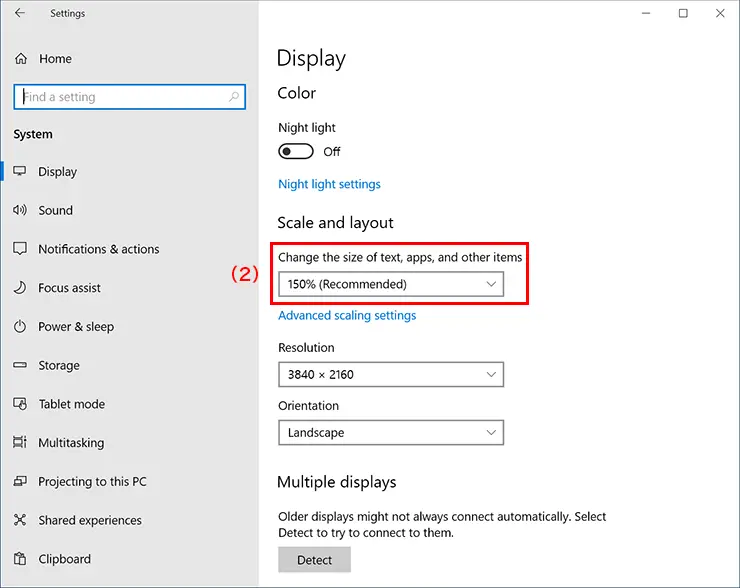
- Right-click on your desktop. Click on “Display settings.” Change it to the recommended setting for your display. The most common display problems that occur with QuickBooks arise when users are on Windows 10, resulting from issues in system setup, outdated drivers, or incompatibility. The resolutions are mainly 1920 x 1080.
- This will remove the scaling risk. Go to Display Settings > Scale and Layout, and change the scaling to either 100%, 125%, or 150%. This will make the view come out just right, hopefully for QuickBooks on your screen.
Running QuickBooks in Compatibility Mode
Sometimes, the incompatibility with newer versions of Windows 10 makes QuickBooks cranky.
Solution:
If you access the shortcut deployed from the /QuickBooks/ directory on the server, you can right-click the QuickBooks icon on the desktop or in Windows File Explorer, click Properties, then the Compatibility tab, and check the box to run QuickBooks in compatibility mode for Windows 7 or 8.
Update Graphic Drivers
Outdated graphics drivers can sometimes cause graphical anomalies or erratic rendering in QuickBooks.
Solution:
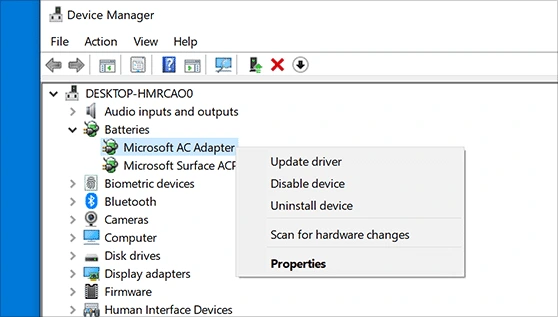
Update graphics drivers via Device Manager. Find your graphics card and right-click on it. Check for the update driver button, then download an update from their site to bring the driver to its latest version. Also, download the necessary updates, including nVidia, ATI, and Intel
How Do I Fix QuickBooks Display Issues on a Mac?
QuickBooks for Mac users will most likely encounter problems with display settings, macOS settings, screen resolution, or graphics. Here are some simple and easy solutions for you.
macOS Compatibility and QuickBooks
Check that your macOS version is compatible with the QuickBooks edition you are using, to ensure proper, smooth operation and display.
Solution:
- Please ensure that you have the latest macOS installed, as the current version is supported by QuickBooks.
- If the issue persists, try uninstalling QuickBooks for Mac and reinstalling it. Make sure you install the latest version of the application.
QuickBooks on Mac Display Settings
If your macOS display settings are incorrect, QuickBooks will appear distorted.
Solution:
Adjust Display Settings – Go to System Preferences > Displays and set some decent resolution and display settings so that QuickBooks operates better on the computer.
Advanced Troubleshooting Methods for QuickBooks Display Settings
Sometimes, you might set incorrect preferences that may cause QuickBooks to malfunction in its display. Here, we will mention the advanced solutions to resolve QuickBooks display issues:
Resetting QuickBooks Preferences
Sometimes, your preferences may be set incorrectly, which might cause QuickBooks to malfunction with its display.
Solution:
Reset QuickBooks Preferences: Navigate to Edit > Preferences > Display and click on “Reset to Default.”
Multiple Monitor Display Configuration
If you have a multiple-monitor set-up, QuickBooks should now appear on all monitors as you desire.
Solution:
QuickBooks must be configured to use multiple monitors, which is possible by enabling the multiple-monitor setting on your machine in the display control panel.
Graphics Drivers and Software Updates
Graphics drivers and QuickBooks updates are a big deal in how the graphics are rendered in QuickBooks.
Solution:
Generally, update your graphics driver and QuickBooks software to get the latest patches and features.
What Leads to the QuickBooks Display Issues?
As we move toward the fixes, it would be helpful to know what actually causes these errors to appear in QuickBooks Desktop, QuickBooks Online, or QuickBooks for Mac. A few things can cause the display error in QuickBooks, depending on the version you have installed. Some of the causes of QuickBooks display issues are mentioned below:
- Other issues that might cause display problems include outdated versions of QuickBooks, your operating system, and graphics drivers. Software is always tinkered with in QuickBooks updates to make it work more efficiently. Hence, generally, you should update the software.
- The QuickBooks interface can become skewed if the setup isn’t based on the proper screen resolution or DPI settings, causing text and graphics to quickly fall out of alignment or become unreadable. This is an especially common issue for users of both QuickBooks Desktop and QuickBooks Online, who use laptops or desktops with high-definition screens.
- Compatibility is the major factor raising questions for QuickBooks. Maybe some users have updated their operating systems without checking whether their QuickBooks version is compatible with the new OS. Then, there may also be cases where, even with Windows 10, due to its interface, QuickBooks sometimes displays incorrectly.
- For QuickBooks Online users, the application interface will be displayed in the browser. Most problems encountered on these types of issues seem to be more related to browser-problematic issues in which the content does not load, layouts are inconsistent, or partially rendered because of some odd reason, like the user has an older version of the browser installed, or perhaps their browser cache is malfunctioning, or even because of conflicting extensions on their browser.
- The corrupted installation files may cause a problem with QuickBooks since they might trigger incorrect calculations when displaying or using any display feature. Another cause of inconsistency in the software interface’s operation is an installation problem.
Go through the causes of QuickBooks display issues to prevent them from occurring.
What are the Healthy Practices for Preventing QuickBooks Desktop Display Issues?
Prevention is always the best cure, and preventing QuickBooks Display Issues is no exception.
- As always, QuickBooks can be updated automatically via the official website simply by clicking the Download or Update button.
- Your system should meet the minimum hardware and software requirements set by QuickBooks.
- This is mainly for the benefit of QuickBooks users who use online, because flushing the browser cache and cookies can sometimes resolve display issues.
Conclusion
In this blog, we discussed troubleshooting methods to fix QuickBooks display issues. We also covered the causes and recommended the healthy practices to avoid this error.
Frequently Asked Questions
Why can’t I see my whole Screen in QuickBooks?
If you’re facing an issue in seeing the entire screen in QuickBooks, check your browser’s zoom settings and your computer’s display settings. Then, maximize your browser window to adjust your screen resolution to 1024×768 or higher, and set the DPI to “Normal” or “100%.” Also, disable display scaling for high-DPI settings.
How do I change the display on QuickBooks?
In the QuickBooks menu, select Settings >Toolbar/Tabs. Now, select the changes you want to make, like selecting Display Toolbar if you want to see the toolbar while using QuickBooks. Then select how you want it to appear – Vertical or Horizontal.
How do I change my QBO back to the classic view?
To change your QBO back to the classic view, go to the report you want to switch to and click the switch to classic view button in the top-right corner.
How do I switch to a modern view in QBO?
To switch to a modern view in QBO, navigate to the reports center, then look for the magic wand icon in the report title and select the preferred heading based on your subscription.
How to make QuickBooks Online look like a desktop?
Modifying the display settings in QuickBooks Online allows users to change the appearance and design elements to familiarize themselves with the desktop interface, and go to the ‘settings’ menu to select ‘Account and Settings,’ to access the ‘Advanced’ section for the ‘Display’ option.
How do you get QuickBooks out of dark mode?
To get QuickBooks out of dark mode, go to Settings, select Themes, switch to the Dark Mode tab, and turn it off.
How do I change the background color in QuickBooks?
To change the background color in QuickBooks, select Edit > Preferences > Desktop View > My Preferences tab, choose a new color scheme, then click OK to save.
You May Also Read-
Step-by-Step Guide To Resolve The Error QuickBooks Save As PDF is Not Working
A Quick & Simple Guide To Troubleshoot QuickBooks Error 15243
How to Resolve QuickBooks Error 181021 in Simple and Quick Steps
Quick and Simple Methods to Resolve QuickBooks Error 176109
Fixing QuickBooks Error 6073 and 99001 with Symptoms & Causes of the Issue

James Richard is a skilled technical writer with 16 years of experience at QuickBooks Data Migration. His expertise covers data migration, conversion, and desktop errors for QuickBooks. He excels at explaining complex technical topics clearly and simply for readers. Through engaging, informative blog posts, James makes even the most challenging QuickBooks issues feel manageable. With his passion for writing and deep knowledge, he is a trusted resource for anyone seeking clarity on accounting software problems.