
The QuickBooks backup error 2277 is a runtime error signaling that the application cannot access or save the company file. It usually occurs when a corrupted or damaged file is present in the QB company data. This issue is also known as the Intuit Data Protect backup failed error. It prevents you from backing up company data. It is crucial to back up important company data regularly, as this error can permanently delete data.
You can back up the data by using Intuit Data Protect. This approach ensures that the backed-up data remains untouched by errors such as QB error 2277. There might be an error message that says, “Intuit Data Protect Backup Failed: Firewall or connection issue.” In this blog, we will discuss the solutions to resolve error 2277.
QuickBooks Backup Error 2277 — A Quick View Table
| Descriptions | The QuickBooks error 2277 generally happens when a defective or corrupted file is present in the QB company data. This can occur due to an outdated version of QB, the main QB program files are unavailable or deleted, the presence of cache files or temporary files, or the Intuit domain is not added to the reliable site list. |
| Its Causes | QB error code 2277 typically happens due to incorrectly configured backup methods, corrupted company files, insufficient system storage, or interference from third-party security software. |
| Solutions to Fix it | You can fix QB backup error 2277 by ensuring firewall access to IDP files, updating QB and IDP, running diagnostic tools, clearing space, and verifying file integrity via File Doctor. These solutions ensure undisturbed connectivity and proper permission for file backup. |
What are Some Tested Solutions to Fix QuickBooks Backup Error 2277?
If you want to resolve QuickBooks backup error 2277, you should follow these quick, simple solutions. It is crucial to follow the solution steps in the same order. These steps help resolve connectivity, configuration, and file precision errors in QB Desktop. Use the following methods to avoid undesired changes to file data or data corruption.
Method 1: Ensure that the Windows Firewall isn’t Blocking Intuit Data Protect
When it comes to fixing the QuickBooks backup error 2277, you should know that Intuit Data Protect needs access to your firewall. Check the firewall to ensure crucial files are allowed.
- Begin the procedure by pressing the Windows key, then type Firewall in the search field.
- Choose Allow an app through Windows Firewall, then select Allow another app option.
- Click on the Browse option and go to Program Files(x86)\Common Files\Intuit\Data Protect.
- After that, select QBIDPservice.exe, then click Open.
- Next, select Network types and choose the Private checkbox. Choose Add.
- It is highly recommended to follow steps 4 and 5 again for the files IBUenghose.exe and IntuitDataProtect.exe. If you see a message saying that the files already exist, then you are all set.
Note: the third-party antivirus on your PC can also stop these critical files. This is one of the reasons why you need to ensure that these files are allowed.
This solution effectively rectifies the error 2277. If you are still encountering this issue, move on to the next method.
Method 2: Check the Update Versions of the QB Desktop and Intuit Data Protect
It is recommended to regularly update your QuickBooks Desktop and Intuit Data Protect (IDP) versions to ensure important authentication, functionality, and general reliability. You must ensure you run QB Desktop updates, as they also update the IDP feature to maintain full operational capability. Now we will discuss the reasons why you must have the latest version:
- Important functionality and authentication
- Microsoft Internet Explorer (IE) End-Of-Life (EOL) mandate: Older versions of IDP depend on the now-deprecated IE browser engine for showing web-based and sign-in screens.
- Transition to Chromium Embedded Framework (CEF) browser: The latest IDP version (1.70.21.5009) is needed to use the new CEF.
- Access, install, and setup failure: Consumers who use older versions of IDP will not be able to authenticate, install, or set up the services. This prevents IDP from working as designed and leaves their data unprotected.
- General fixing and maintenance
- Troubleshooting Backup Errors: An older version is one of the most common causes of errors, such as “Backup Incomplete” or “IDP has stopped working”.
- Compatibility: Ensure the IDP version is compatible with the specific QB Desktop release.
- Stability and Security: Newer versions have stability improvements and important security patches to ensure automatic, reliable daily backups.
You must check the versions of QB Desktop and IDP to settle the QuickBooks backup error 2277.
Method 3: Ensure IBUEngHost.exe isn’t operating as a Windows user
It is required to run the file IBUEngHost.exe so that the Intuit Data Protect works properly for the System user. Follow the steps mentioned below to fix the QB desktop back issue:
Check to view if the file is running as System
- First, right-click the Windows taskbar and choose Start Task Manager.
- Next, tap the Details tab to find IBUEngHost.exe. Ensure that it shows the User name as ‘System’ next to it, with the Status set to ‘active’.
Follow the steps written below if IBuEngHost.exe isn’t running as System
- Download a new installer for your QB version. It is advised to save the file in a location you can conveniently find.
- Then, navigate to the location where the installer is saved.
- Next, right-click the installer, then choose Run as Administrator for the reinstallation.
- After the installation stage, open Task Manager again and find IBuEngHost.exe.
- Lastly, try to back up with Intuit Data Protect.
Perform these steps to fix the QuickBooks backup error 2277. If you are still facing trouble, proceed to the next method.
Method 4: Utilize the Intuit Data Protect Diagnostic Tool
The IDP diagnostic tool can help you resolve this error. It verifies your disk space, computer memory, Windows components such as the .NET Framework, and the IDP version. It also checks that you can connect to the backup servers.
- Initially, right-click Intuit Data Protect and choose About Intuit Data Protect; you will then see a green padlock-like icon.
- Press the Ctrl + F2 keys to run the Intuit Data Protect Diagnostic tool.
Note: Try Fn + Ctrl + F2 if Ctrl + F2 doesn’t work. Or else, use the On-Screen Keyboard. - Choose the Run Diagnostic option.
- An error will display if the tool detects an issue. Verify the comprehensive information on how to resolve it. Use the chart below for the following steps.
Intuit Data Protect Diagnostic Tool results.
| Solutions |
| Clear Local Disk Space Details: To back up your files with IDP, it is required to have at least two times the size of your biggest File Set and an additional 60MB of free space in C;\Documents and Settings\Administrator\Local Settings\Application Data\Intuit\Intuit Data Protect. Solution: You can resolve the QuickBooks backup error 2277 by clearing space on the drive. This may also help to move the file/file set you are backing up to a drive with more space. |
| Clear Physical Memory Details: In free physical memory, IDP needs a minimum of 150 MB. Here, the error message indicates that your system doesn’t have enough space available to operate IDP. Solution: You can resolve this error by either clearing your system’s memory or by buying and installing additional memory. |
| .Net Framework Details: IDP needs version 3.5 of .NET Framework or higher. If you are facing errors related to .NET, move on to the solution written below. Solution: It is recommended to repair or reinstall the Microsoft .NET Framework to settle the error 2277. |
| QBIDPService Details: IDP needs QBIDPService. Solution: You have to check QBIDPService to resolve this error: 1. Click on the Windows Start button, enter “services.msc” in the Search. 2. When the Services window opens, select QBIDPservice to display it. 3. Choose the Restart the service option on the left side of the window. 4. Verify if the issue is resolved by running the IDP Diagnostic Tool again. |
| Backup System Details: Here, an error indicated that there’s either an issue with the IDP servers or with your connection to those servers. Solution: If you’ve recently used IDP without any problems, wait a while and try again later. If the Intuit Data Protect isn’t used successfully, you must verify your Security and Anti-Virus applications to ensure that they are not blocking IDP processes and services. |
| IDP Version Details: The error can also occur if you are using an outdated version of IDP. Solution: Verify that you have the latest version of Intuit Data Protect. |
| Authentication System Details: The error indicates either an issue with the Authentication servers or a connection issue to them. Solution: If you have used IDP without any problem, wait for a while and try again later. If you haven’t used IDP, you must check your Security and Anti-Virus applications to make sure that they are not stopping Intuit Data Protect processes and services. |
| Authentication and Entitlement If you see an error here, please contact us to resolve the problem. |
| Test Sample Backup Details: The system typically backs up a small test file to verify that the backup is functioning correctly. This file doesn’t affect your backup quota. Solution: If you are experiencing an error here, reach out to us for quick solutions. |
| Analyze Logs Details: The system analyzes your log files to identify any errors. Solutions: Contact our experts if you are facing an error here. |
Method 5: Clear Space in Intuit Data Protect
Another effective way to fix QB error 2277 is by clearing the space in IDP. Follow the steps below to resolve the QB issue:
Step 1: Check your IDP version
It is crucial to ensure that your Intuit Data Protect is up to date before clearing the space.
Step 2: Clear backup folders
Note: You cannot recover the backup files once you erase them, so download the backup files first to avoid this problem. IDP doesn’t change data or your computer.
- Right-click the Data Protect icon on the bottom right of your Desktop screen. Then, click on the Open Intuit Data Protect option.
- Next, press Ctrl + R to open a screen where you can remove backed-up files.
- Data Protect computes each folder’s size. Once it is completed, select the Delete option.
- After that, select OK to finish.
Step 3: Decrease the size of the backup file
You can delete the backup files you no longer need to prevent exceeding Data Protect’s storage limit.
- At the bottom right of the Desktop screen, right-click the Data Protect icon, then choose the option of Open Intuit Data Protect.
- Choose the Change Backup Settings option.
- Uncheck any folders and files that you don’t need to back up.
- Lastly, try backing up again.
Removing space in IDP can resolve the QB backup error 2277. If you are still facing this issue, proceed to the next method.
Method 6: Use QB File Doctor
You can fix the QuickBooks backup error 2277 by using QB File Doctor. Perform the steps mentioned below to fix the problem:
You can fix the QuickBooks backup error 2277 by using QB File Doctor. Perform the steps mentioned below to fix the problem:
- Start by opening QuickBooks Toob Hub, then choose the Company File Issues option.
- Click on the Run QuickBooks File Doctor option.
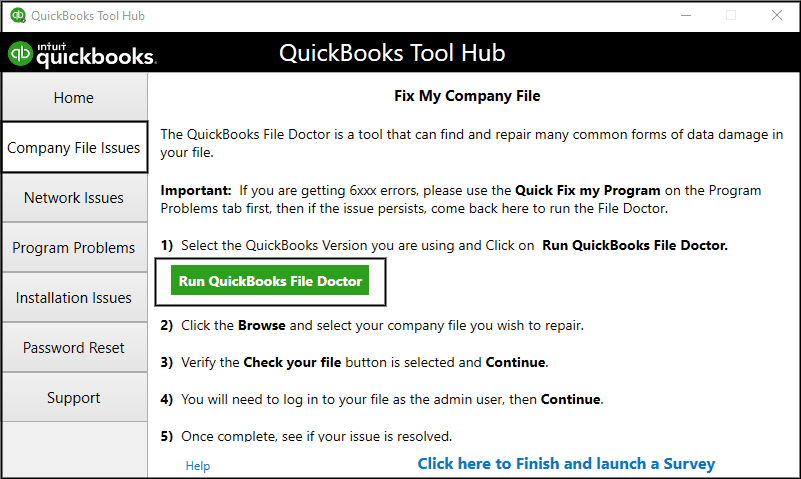
Note: This may take a few minutes to open. Search for QuickBooks Desktop Doctor and open it manually if it doesn’t open. - Then, read the prompt and select the OK option.
- Tap on your company file from the dropdown. Select Browse if you don’t see it.
- Choose the Check your network (third option), then tap on Continue.
Notes: Note: Sign in to Windows as an admin if you see this option in gray. Moreover, connect with your computer support expert if you don’t have admin rights. - Follow the download process in the correct order.
- Choose whether you are using a server or a workstation.
QB File Doctor mentions the issues that it fixes. It also shows any items that are still blocking QuickBooks from connecting to Intuit servers.
What are Some Tips to Prevent the QuickBooks Error 2277?
Here, we will mention the tips that you can follow to avoid the QB error 2277 in the future:
- Use the latest version of QuickBooks Desktop.
- Make sure you have enough free space and that you meet QuickBooks’ needs.
- Verify if the location is accessible.
- Check access to the company file.
- Decrease the file size if it is too large.
- Ensure a stable connection for cloud backups.
What are the Main Reasons Behind the Occurrence of QuickBooks Error Code 2277?
QuickBooks backup error 2277 usually happens when the QB Desktop or Intuit Data Protect cannot complete the backup. Now we will discuss the list of reasons that trigger the QB backup error:
- The QuickBooks Desktop version is old and lacks updates or patches
- The backup process stops or fails prior to completion.
- Windows Firewall blocks QB services during backup execution.
- The company file is corrupted or defective.
- The cache files or temporary files interrupt the IDP link.
- The main QB program files are unavailable or deleted.
- The Intuit domain is not added to the reliable site list. This results in restricted access.
Conclusion
The users generally experience QuickBooks backup error 2277 during the backup of the data files. This issue occurs due to corrupted backup paths, insufficient system storage, or interference from third-party security software. In this blog, we have discussed the reasons behind the QB backup error 2277.
Frequently Asked Questions
Does QuickBooks error 2277 permanently damage the company files?
QuickBooks error 2277 doesn’t delete the company files instantly. But inconsistent or unsuccessful backups can permanently erase data when there is no official copy. Daily IDP backups safeguard financial information and ensure safe recovery during system failures.
How can I back up data by using Intuit Data Protect?
Open the System icon tray, then right-click IDP to back up your data with Intuit Data Protect. Select Back up now > Browse, then choose the folders and files you want to back up. After that, click Backup Now > OK to prompt IDP to back up all the selected files and folders.
What should I do if I get an error saying the file name is incorrect while backing up my company file?
You can fix this error by renaming the company file. Follow the steps mentioned below to settle this issue:
1. First, right-click on the file.
2. Then, choose the rename option.
3. Next, write the new file name and ensure it does not contain any special characters.
4. Finally, press the Enter button to rename it.
How can I prevent QuickBooks error 2277 from recurring?
You can prevent QuickBooks error 2277 in the future by frequently updating QuickBooks Desktop. It is also essential to ensure a strong internet connection and to include Intuit domains in the list of trusted sites. In addition to these measures, you must permit Intuit services via the firewall to avoid the occurrence of error 2277 in the future.
You May Read Also-
How to Resolve QuickBooks Error 1321 (Permission Denied Error)
What is the QuickBooks install diagnostic tool?
What Is QuickBooks Error 80029c4a & How to Resolve It Quickly
How to fix error 1406 in QuickBooks?
Fix QuickBooks Error 1321 Quickly | Installation & Update Error

James Richard is a skilled technical writer with 16 years of experience at QDM. His expertise covers data migration, conversion, and desktop errors for QuickBooks. He excels at explaining complex technical topics clearly and simply for readers. Through engaging, informative blog posts, James makes even the most challenging QuickBooks issues feel manageable. With his passion for writing and deep knowledge, he is a trusted resource for anyone seeking clarity on accounting software problems.