Regularly maintaining QuickBooks is important, as it helps the software stay in sync with the latest technologies and remain up to date. However, updates can sometimes create problems in your work. One such example is QuickBooks error 12057, which can appear in Payroll when you try to install the latest version. It’s actually irritating and hinders your productivity. You can resolve this issue by launching the “Quick Fix my Program” feature from the QuickBooks Tool Hub. Make sure your payroll subscription is active and that your PC date and time are correct.
Quick View Table for Error Code 12057 In QuickBooks
Let’s quickly review the important points we discussed in the blog above.
| Error Description | The QuickBooks Desktop (QBD) error 12057 is linked to payroll. It occurs when the program is unable to download or apply the latest payroll tax updates. |
| Causes | QuickBooks error 12057 is caused by a failure in the payroll update procedure. It also occurs due to network connectivity issues or a firewall blocking the connection to Intuit servers. |
| Solutions to Fix this Error | You can fix the error in multiple ways, such as tapping the Windows repair feature, changing the SSL settings, and refreshing QuickBooks Desktop. If you still encounter errors, verify your internet security settings and update your payroll tax table to the latest version. |
Simple Methods to Fix QuickBooks Error 12057
You should know how to remove error 12057 from the computer to safeguard your company’s files from further harm. Follow the step-by-step methods to fix this issue:
Solution 1 – Change SSL Settings as Required
The user can modify their SSL settings to enable downloading the QuickBooks payroll update. Please ensure that the changes made in your system settings will affect all other applications. Perform the instructions given below:
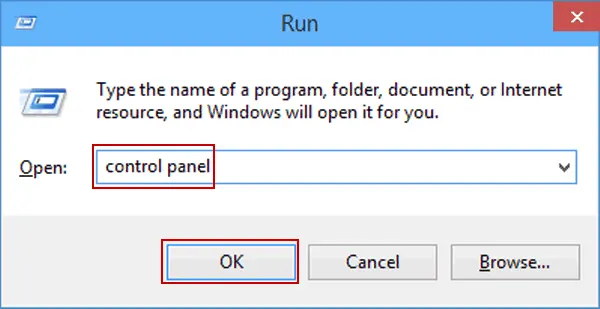
- Click Windows + R, and the Run window will appear.
- Type Control Panel and press Enter.
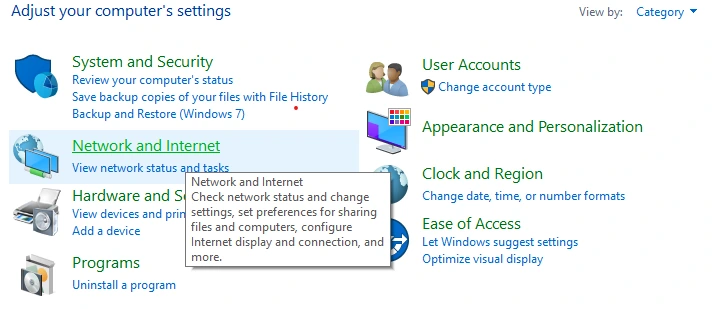
- Choose Network and Internet Options, then tap Internet Options.
- Navigate to the Advanced menu and scroll downward.
- Use SSL 2.0 and SSL 3.0 boxes.
- Now, click on Apply
- Press the OK button
This solution will resolve the payroll error code 12057. If you’re still facing issues, proceed to the next method.
Solution 2 – Use the Windows Repair Feature
You can resolve the QuickBooks error 12057 by using the Windows repair feature. Perform the steps mentioned below:
- Click the Start button and then the Settings icon.
- Select Apps, then choose Apps & features.
- From the program list, choose QuickBooks Desktop and select Advanced settings.
- A new window will appear, so please tap the Repair button.
- Click on Reset (If the Repair option is not available)
This will take at least 5-10 minutes. If you’re still encountering QuickBooks update error 12057, move to the next solution.
Solution 3 – Create Antivirus Exceptions for QB Programs.
You can encounter a payroll error if antivirus or other security software interrupts QB processes.
You may encounter a payroll error if antivirus or security software interrupts QB processes. QuickBooks needs certain ports to connect to the Intuit server and download payroll updates. In case the antivirus firewall blocks QuickBooks’ connection to the server, you can run into QuickBooks error 12057, and you can also create required exceptions for QB programs to give QuickBooks the access it needs.
Please make sure to add QuickBooks to your antivirus exclusions to prevent unnecessary interruptions.
Solution 4 – Run Reboot.bat File as an Administrator
You can resolve QuickBooks error 12057 and other payroll update issues by re-registering the .DLL file. To perform this method, launch the reboot.bat file.
- First, close all QBD windows and any programs you don’t need.
- Then, right-click QBD and select Open File Location.
- Next, find the reboot.bat file and right-click on it.
- Finally, choose the Run as Administrator option.
The utility will now repair and re-register the given components. Once it is done, continue the operation.
Solution 5 – Use Fix My Program and Program Diagnostic Tool
The payroll error doesn’t directly relate to a corrupted or damaged program; often, a program issue causes QB errors. You can resolve it by using the QB Tool Hub. Follow the steps mentioned below to fix the QuickBooks error 12057:
- Start the program by opening the QuickBooks Tool Hub, then select the Program Problems tab.
- Then, tap on the Quick Fix my Program button.
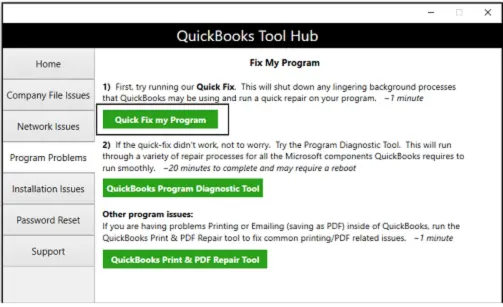
- Lastly, select the QuickBooks Program Diagnostic Tool from the Program Problems tab.
If this method does not resolve QuickBooks error 12057, you should move to the next step.
Solution 6 – Refresh QuickBooks Desktop
You should refresh QBDT to resolve QuickBooks error code 12057. Follow the steps mentioned below:
- Launch QuickBooks Desktop.
- Navigate to Help → Update QuickBooks Desktop.
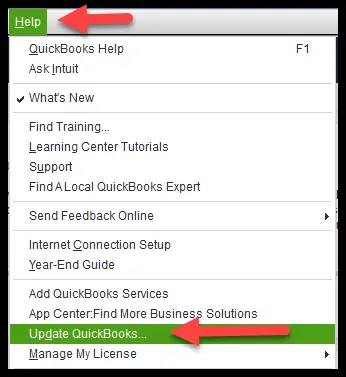
- Click Update Now, select every available revision
- Close and restart QuickBooks after the updates have been applied.
If the QB error 12057 is still occurring, proceed to the troubleshooting methods.
Expert Tips to Avoid QuickBooks Error 12057 in the Future
It is important to prevent QuickBooks error 12057 to avoid interrupted payroll processing and potential compliance issues. You can avoid this issue by performing the tips mentioned below:
- Ensure you regularly install the latest updates for your QuickBooks Desktop.
- You need to make sure that you have a stable internet connection.
- It is important to monitor the payroll updates daily.
- You should use the latest tax table updates provided by Intuit.
- It is recommended to schedule and regulate payroll maintenance and tax updates.
- You must keep your payroll subscription active and verify your service key regularly.
You must follow the healthy practices mentioned above to prevent this issue.
What Causes QuickBooks Desktop Error 12057?
Here, we have discussed the common reasons payroll processing gets stuck with QuickBooks Error 12057:
- A fragile, unsteady, or disconnected network can disrupt communication with QuickBooks servers.
- Unfavorable network or SSL settings cause this error.
- Wi-Fi or wired networks with poor signal strength can slow data transfer.
- Errors During Installation: Antivirus programs and other background tools may cause disruptions.
Go through the causes of QB error code 12057 to resolve it quickly.
Conclusion
In this blog, we discussed the causes of QuickBooks Error 12057. We have also outlined simple steps to resolve the issue and recommended healthy practices to prevent it.
Frequently Asked Questions
What do you mean by Error 12057 in QuickBooks?
Error 12057 in QuickBooks is a connectivity error that occurs when QuickBooks cannot connect to the internet, which hinders updates, such as payroll.
When does QuickBooks error 12057 appear?
QuickBooks error 12057 typically occurs when updating QuickBooks Desktop or downloading payroll updates.
Can antivirus software cause QB Error 12057?
Yes, an antivirus or network protection tool might stop QuickBooks from connecting to the internet. This causes QB error 12057.
Is QB error 12057 only related to payroll updates?
No. QB error 12057 often appears during payroll updates. It can also occur when updating QuickBooks Desktop or using other online features.

James Richard is a skilled technical writer with 16 years of experience at QuickBooks Data Migration. His expertise covers data migration, conversion, and desktop errors for QuickBooks. He excels at explaining complex technical topics clearly and simply for readers. Through engaging, informative blog posts, James makes even the most challenging QuickBooks issues feel manageable. With his passion for writing and deep knowledge, he is a trusted resource for anyone seeking clarity on accounting software problems.