In QuickBooks, you have the option to directly email pay stubs from the app to your employees. QB emails each pay stub as a password-protected PDF to your employee’s email address. This helps you save time, send digital copies instead of paper documents, and keep your payroll records digital. This can boost your workflow and have a positive impact on your business processes. You can email pay stubs in QuickBooks Online and QuickBooks Desktop. We’ll cover the steps you need to know to send pay stubs via email in QuickBooks in this blog
Email Pay Stubs in QuickBooks – A Quick View Table
In the table below is given a concise summary of this blog on the topic of emailing pay stubs in QuickBooks Desktop and Online:
| Description | In QuickBooks, you have the option to directly email pay stubs from the app to your employees. QB emails each pay stub as a password-protected PDF to your employee’s email address. This helps you save time, send digital copies instead of paper documents, and keep your payroll records digital. This can boost your workflow and have a positive impact on your business processes. |
| Email pay stubs in QB Desktop | 1. Open the QB Desktop application 2. Go to the File menu 3. Click on Print Forms 4. Then, proceed to select Pay Stubs 5. Choose the Bank Account you use for payroll 6. Now, set a date range for the pay stubs you want to email 7. Choose the employees you want to email 8. Click on Preview to review the pay stubs 9. Select Email 10. Note down the passwords so you can give them to your employees 11. Click on OK twice to confirm 12. Feed in every employee’s email address one at a time 13. Review the emails in the Send Forms window 14. You can proceed to edit the To and From fields, subject line, and the email body if you wish to 15. You can also select one of your email templates 16. Press Send Now when you’re ready |
| Email pay stubs in QB Online | 1. Choose an employee 2. Navigate to the Paycheque list tab 3. Find the pay cheque you’d like to email 4. Open it by choosing the Net Pay amount 5. Click on Print 6. This should open a PDF version of the pay stub 7. Proceed to save the file to your desktop 8. Attach your saved pay stub file to an email 9. Email it to the appropriate employee |
The Format for a Pay Stub in QuickBooks Online & Desktop
The format for a Pay stub in the QuickBooks Desktop app and the QB Online website is given below:
- The QB Desktop application will automatically generate a password for each protected PDF pay stub. It can’t be changed or customized.
- The passwords consist of the first 4 letters of your employee’s last name in lowercase, and then the last 4 digits of their Social Security number.
- Remove non-letter characters, like dashes or spaces, from the last name.
- Remove any parentheses or brackets from employees’ last names.
- Otherwise, they won’t be able to open the email
Email Your Pay Stubs in the QuickBooks Desktop Application
Given below is a guide you can use to email your pay stubs in the QuickBooks Desktop application:
Step 1: Update QuickBooks & Check Your Email Settings
- Open the QB Desktop app
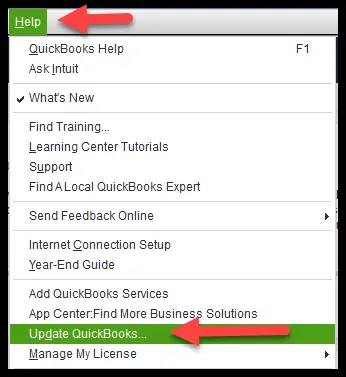
- Navigate to the Help menu
- Click on Update QuickBooks Desktop
- Select Update Now
- Press the Get Updates option
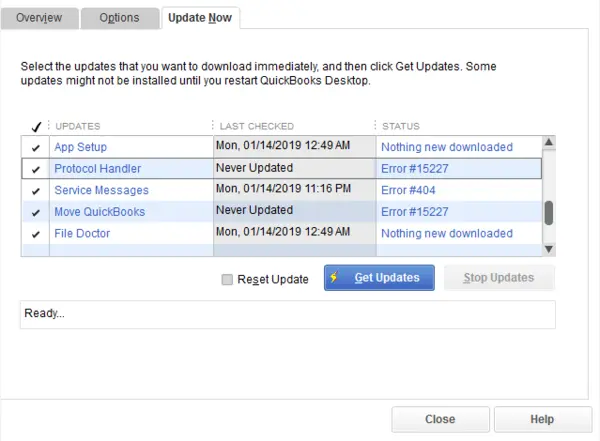
- Close and reopen the QB Desktop app to install the updates
- Ensure you have the latest version of Adobe Acrobat Reader
- Open the QB Desktop application
- Navigate to the Edit menu
- Select Preferences:
- Click on the Send Forms menu
- Go to the My Preferences tab
- Select your email service in the Send email using section:
- Web Mail: Choose this if you use Gmail, Yahoo, or a similar service
- Outlook: Choose this if you use Microsoft Outlook
- QuickBooks Email: Choose this to use the QuickBooks email service. However, you may need to set up your email service.
- Hit OK
Step 2: Email Your Pay Stubs
Ensure that you are in single-user mode. Navigate to the File menu and click on the Switch to Single-user mode option. Then follow these steps:
- Open the QB Desktop application
- Go to the File menu
- Click on Print Forms
- Then, proceed to select Pay Stubs
- Choose the Bank Account you use for payroll
- Now, set a date range for the pay stubs you want to email
- Choose the employees you want to email
- Click on Preview to review the pay stubs
- Select Email
- Note down the passwords so you can give them to your employees
- Click on OK twice to confirm
- Feed in every employee’s email address one at a time
- Review the emails in the Send Forms window
- You can proceed to edit the To and From fields, subject line, and the email body if you wish to
- You can also select one of your email templates
- Press Send Now when you’re ready
These were the steps to email pay stubs in QuickBooks Desktop.
Send Pay Stubs Via Email in QuickBooks Online | Guided Steps
Given below is a guide you can use to email your pay stubs on the QuickBooks Online website:
- Choose an employee
- Navigate to the Paycheque list tab
- Find the pay cheque you’d like to email
- Open it by choosing the Net Pay amount
- Click on Print
- This should open a PDF version of the pay stub
- Proceed to save the file to your desktop
- Attach your saved pay stub file to an email
- Email it to the appropriate employee
This should send pay stubs via email in QuickBooks Online.
Conclusion
QuickBooks gives you the option to directly email pay stubs from the app to your employees. QB emails each pay stub as a password-protected PDF to your employee’s email address. This helps you save time, send digital copies instead of paper documents, and keep your payroll records digital. This can boost your workflow and have a positive impact on your business processes. We have covered the steps you need to know to email pay stubs in QuickBooks Online and Desktop.
Frequently Asked Questions
How do I email pay stubs in QuickBooks Desktop?
You can email pay stubs in QB Desktop using the steps given below:
1. Open the QB Desktop application
2. Go to the File menu
3. Click on Print Forms
4. Then, proceed to select Pay Stubs
5. Choose the Bank Account you use for payroll
6. Now, set a date range for the pay stubs you want to email
7. Choose the employees you want to email
8. Click on Preview to review the pay stubs
9. Select Email
10. Note down the passwords so you can give them to your employees
11. Click on OK twice to confirm
12. Feed in every employee’s email address one at a time
13. Review the emails in the Send Forms window
14. You can proceed to edit the To and From fields, subject line, and the email body if you wish to
15. You can also select one of your email templates
16. Press Send Now when you’re ready
How do I email pay stubs in QuickBooks Online?
You can email pay stubs in QB Online using the steps given below:
1. Choose an employee
2. Navigate to the Paycheque list tab
3. Find the pay cheque you’d like to email
4. Open it by choosing the Net Pay amount
5. Click on Print
6. This should open a PDF version of the pay stub
7. Proceed to save the file to your desktop
8. Attach your saved pay stub file to an email
9. Email it to the appropriate employee
You May Read Also-
QuickBooks Condense Data Utility – Complete Guide
QuickBooks Error PS034: Payroll Update Issue Fix
How to Copy and Paste Multiple Lines in QuickBooks Desktop?
QuickBooks Scheduled Report Not Working – Fix
QuickBooks Error H303: Network & Hosting Issue Fix

James Richard is a skilled technical writer with 16 years of experience at QuickBooks Data Migration. His expertise covers data migration, conversion, and desktop errors for QuickBooks. He excels at explaining complex technical topics clearly and simply for readers. Through engaging, informative blog posts, James makes even the most challenging QuickBooks issues feel manageable. With his passion for writing and deep knowledge, he is a trusted resource for anyone seeking clarity on accounting software problems.